Welcome to iJailbreak’s How To Jailbreak section. Here you will learn how to jailbreak your iPhone, iPod Touch, iPad, Apple TV and Apple Watch running a variety of firmware versions. Simply scroll through our how to jailbreak section for the firmware version you are trying to jailbreak, and follow one of our how to guides.
An Introduction To Jailbreaking
Jaibreaking. You have probably heard the word thrown around in a conversation, or read about it on the internet. Just what is Jailbreaking and how do you Jailbreak? These are the questions I hope to answer in this analysis, as well as some other commonly asked questions.
A common misconception about Jailbreaking is that it something people do to pirate apps from the App Store. There is no denying that a lot of people Jailbreak for this purpose, but why Jailbreaking exists is certainly not for piracy. Jailbreaking is really about innovation and having the freedom to make your iPhone, iPod Touch, iPad or Apple TV your own.
When you Jailbreak your iOS device you are opening yourself up to a whole new world of possibilities. No longer are you shackled by Apple’s restrictions on what type of applications are allowed to be installed. When you Jailbreak your iPhone, iPod Touch, iPad or Apple TV you get to decide how your device functions and what types of modifications you want to do to it. In a way you could compare Jailbreaking your iOS device to modifying vehicles. If people want to modify their vehicle they can buy a new stereo system, swap our their rims or even go as far as installing a bodykit or painting the car a completely different color. The same goes for Jailbreaking. When you Jailbreak your iOS device you can change the way it functions and completely modify how it looks.
Why Should You Jailbreak
There are many reasons why someone would want to Jailbreak their iPhone, iPod Touch, iPad or Apple TV. We have already briefly discussed why you should Jailbreak your iOS device, you open yourself up to a whole new world of possibilities, but what does this mean exactly?
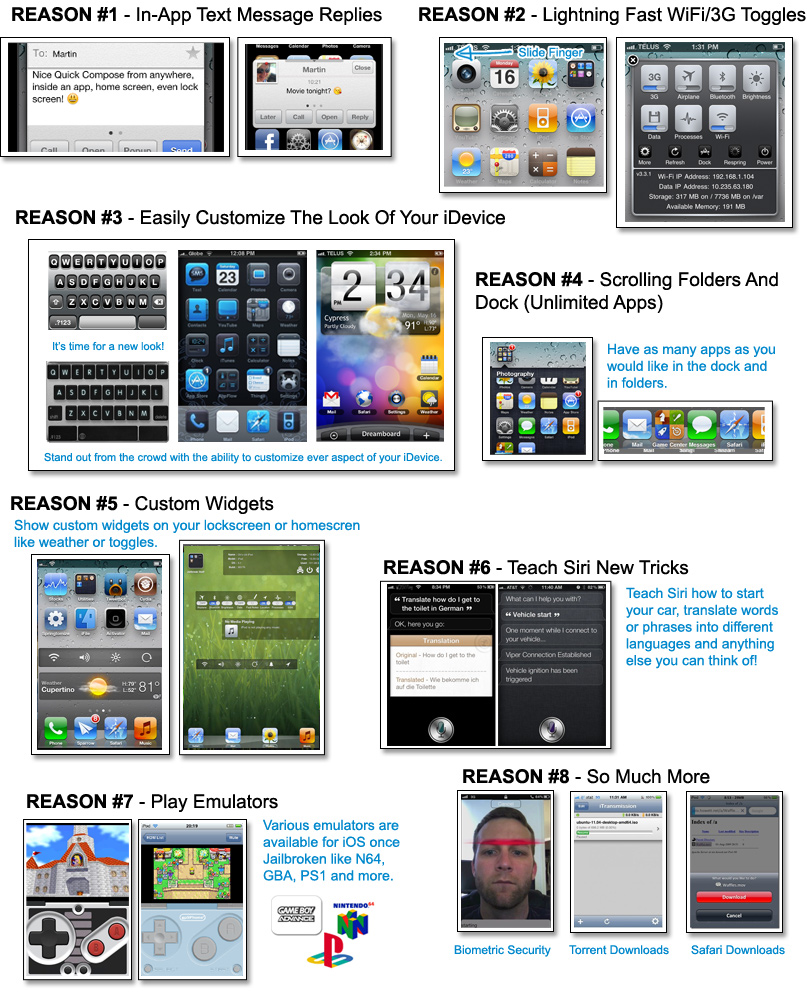
As you can see from the infographic above, there is many things you can do to your Jailbroken iPhone, iPod Touch or iPad. These range from being able to send text messages from inside applications to playing Nintendo 64 games on an emulator.
- A Whole New Texting Experience: There are a lot of tweaks available for modifying the stock messaging experience on the iPhone. With tweaks such as BiteSMS you can reply and compose messages without having to leave the app you are currently in, add signatures to your messages, delay sending, display contact pictures and much more.
- Easier To Access Toggles: When you want to quickly switch your iOS device to Airplane mode, disable Wi-Fi or turn on Bluetooth, you are forced to launch the Settings app. Although this isn’t necessarily that much of a chore for toggles that are displayed on the front page, when a specific toggle is in different sections it can become cumbersome to always enable/disable it. Tweaks like SBSettings make it so with a single swipe on the status bar a pop-up window can appear with all your most frequently used toggles.
- Customize The User Interface: Jailbreaking your iPhone, iPod Touch or iPad allows it to be themed using utilities like WinterBoard or DreamBoard. There are literally thousands of themes available for your device that resemble other user interfaces from Android or Windows Phone, and there are some themes that are just plain extraordinary. If you do not want to change the entire interface of your iOS device, but rather change something as simple as the slide-to-unlock text or status bar color, this is indeed possible. Tweaks like Springtomize 2 give you complete control over how different UI elements look.
- Unlimited Apps: Apple imposes restrictions on how many apps you can place inside folders, on the dock or on a specific page. With tweaks like infinifolders and infinidock you place as many apps as you want inside folders, on the dock or on a page because of the added scrolling functionality. You can even make it so there is more rows or columns on your homescreen.
- Custom Widgets: Just like how Android smartphones and tablets can benefit from widgets, so can your iPhone, iPod Touch or iPad once it is Jailbroken. Tweaks like Dashboard X allow you to place a variety of widgets on your homscreen to display the weather, toggles or music controls.
- Teach Siri New Tricks: Siri is smarter than you think and can actually be taught new tricks. There is a ton of Cydia tweaks for Siri that allow you to get Siri to translate different words or phrases for you, activate Siri hands-free and even start your car if it has a remote starter.
- Emulators: One of the biggest reasons people Jailbreak their iPhone, iPod Touch or iPad is to take advantage of the variety of emulators that are available. These range from Game Boy Advance emulators to Nintendo 64 emulators and most of the time work flawlessly on your iOS device.
- Hardly Scratching The Surface: This hardly scratches the surface of what you can do to your iPhone, iPod Touch or iPad once it is Jailbroken. Other possibilities include facial unlocking, torrent downloads, Safari downloads, FaceTime over 3G, iPhone tethering and screen recording.
Hopefully you can see there are a ton of things you can do to your iOS device once it is Jailbroken, and that it is indeed worth doing. As for Jailbreaking the Apple TV, I could do another infographic and explain to you all the benefits like I did for the iPhone, iPod Touch and iPad, but you are better off checking out the official aTV Flash website. aTV Flash (black), developed by FireCore, is the best modification for the Jailbroken Apple TV and it allows you to go beyond iTunes, surf the web, access your media anywhere and so much more.
Common Questions Asked Regarding Jailbreaking
Jailbreaking is an extremely misunderstood concept, and as a result there are many myths about Jailbreaking that end up being believed. In this next section we hope to clear up some of the most commonly asked questions regarding Jailbreaking.
Is Jailbreaking legal?
According to the DMCA Jailbreaking smartphones is legal in the United States. Unfortunately there is no word on the legality of Jailbreaking in countries other than the United States, but who’s stopping you? You purchased your device and you’re allowed to do what you want. If Apple was to take legal action against Jailbreaking, it wouldn’t be against you, but rather the developers of the Jailbreaks.
Will Jailbreaking Void My Warranty?
When you Jailbreak your iOS device it does void your warranty. However, if you ever need to actually use your warranty then you can simply restore your device through iTunes and it will be back to its original factory settings. Once your device is restored Apple cannot tell if it has been Jailbroken or not.
Can Jailbreaking Damage My Device?
Unlike a lot of modifications for other electronics that require you to internally modify your device. Jailbreaking is strictly modifying the iOS operating system that your device is running. This means if you ever experience errors with your device, simply restore it through iTunes and it will return to normal.
Is There A Downside To Jailbreaking?
The only downside to Jailbreaking is that when Apple releases a new firmware version you are not able to update your device to it if you wish to maintain your Jailbreak. When you update your firmware to the latest iOS version, it results in your Jailbreak being lost. It often times takes developers weeks, if not months to bring a Jailbreak to compatibility with the latest firmware version, and as such you may not always get to experience the latest Apple iOS improvements until a later date. Considering Jailbreaking can extend your device’s functionality by a ten-fold, any update that Apple introduces should not match what is possible when you Jailbreak your iPhone, iPod Touch or iPad. It is important to keep in mind though, that once a new Jailbreak is released you can indeed proceed to updating to the latest firmware version. It just means any of the tweaks/modifications you have done will need to be manually re-installed, unless you back them up using a utility like Aptbackup.
What’s The Difference Between A Tethered And Untethered Jailbreak?
There are two types of Jailbreaks available when you go to Jailbreak your iPhone, iPod Touch or iPad – a Tethered Jailbreak or an Untethered Jailbreak. An Untethered Jailbreak means that your device will function as normal once Jailbroken. A Tethered Jailbreak on the other hand is different. It means that when you Jailbreak you cannot power your device off. When you do this while your Jailbreak is Tethered it means in order for your device to turn back on you will need to plug it into the computer and re-run RedSn0w over again. Once you do this your device functions as normal… no data is lost. Hence the term tethered, because you are Tethered to your computer.
Now why would a Jailbreak be Tethered? Well the only reason a Jailbreak would be Tethered is if the developers behind the Jailbreak for a specific firmware version are having a hard time Jailbreaking it. If this is the case often times they will release a Tethered Jailbreak and then an Untethered Jailbreak later on once they find a suitable exploit.
Can I Install Apps From The Apple App Store Still?
Yes! When you Jailbreak your iPhone, iPod Touch or iPad you can continue using it how you would before it was Jailbroken. This involves being able to download applications from the App Store.
How Can I Install Tweaks/3rd Party Apps Once Jailbroken?
After Jailbreaking your iOS device a new application will appear on your home screen called Cydia. What this application is, is essentially the App Store for tweaks/3rd party apps that are only available on Jailbroken devices. Cydia actually looks fairly similar to the official Apple App Store, but is a little less polished. If you can use the App Store, then you will have no troubles using Cydia.
Jailbreak Device And iOS Compatibility
Jailbreaking is supported with almost all models of the iPhone, iPod Touch, iPad and Apple TV. Unfortunately however, newer models and new iOS firmware versions can often times take months before they are supported. As such, if your current device is not supported ensure you follow iJailbreak to know exactly when a Jailbreak will come out for it.
Jailbreak The iPhone
iPhone 6s Plus: iOS 9
iPhone 6s: iOS 9
iPhone 6 Plus: iOS 8
iPhone 6: iOS 8
iPhone 5s: iOS 6
iPhone 5c: iOS 6
iPhone 5: iOS 6 (iOS 6.0, iOS 6.0.1, iOS 6.0.2, iOS 6.1)
iPhone 4S: iOS 5 (iOS 5.1.1, iOS 5.0.1, iOS 5.0)
iPhone 4: iOS 6 (iOS 6.0,6.0.1) + iOS 5 (iOS 5.1.1, iOS 5.1, iOS 5.0.1, iOS 5.0) + iOS 4 (4.3.5, 4.3.4, 4.3.3, 4.3.2, 4.3.1, 4.3, 4.2.10, 4.2.9, 4.2.8, 4.2.7, 4.2.6, 4.2.1, 4.1, 4.0.2, 4.0.1, 4.0)
iPhone 3GS: iOS 6 (iOS 6.0, 6.0.1) + iOS 5 (iOS 5.1.1, iOS 5.1, iOS 5.0.1, iOS 5.0) + iOS 4 (4.3.5, 4.3.4, 4.3.3, 4.3.2, 4.3.1, 4.3, 4.2.1, 4.1, 4.0.2, 4.0.1, 4.0) + iOS 3 (3.1.3)
iPhone 3G: iOS 4 (4.2.1, 4.1, 4.0.2, 4.0.1, 4.0) + iOS 3 (3.1.3, 3.1.2, 3.1, 3.0.1, 3.0) + iOS 2 (iOS 2.2.1, 2.2, 2.1, 2.0.2, 2.0.1, 2.0)
iPhone 2G: iOS 3 (3.1.3, 3.1.2, 3.1, 3.0.1, 3.0) + iOS 2 (iOS 2.2.1, 2.2, 2.1, 2.0.2, 2.0.1, 2.0) + iOS 1 (iOS 1.1.4, 1.1.3, 1.1.2, 1.1.1, 1.02, 1.0.1, 1.0.0)
Jailbreak The iPod Touch
iPod Touch 6G: iOS 9
iPod Touch 5G: iOS 6 (iOS 6.0, iOS 6.0.1, iOS 6.1)
iPod Touch 4G: iOS 6 (iOS 6.0, 6.0.1) + iOS 5 (iOS 5.1.1, iOS 5.1, iOS 5.0.1, iOS 5.0) + iOS 4 (iOS 4.3.5, 4.3.4, 4.3.3, 4.3.2, 4.3.1, 4.3, 4.2.1, 4.1)
iPod Touch 3G: iOS 5 (iOS 5.1.1, iOS 5.1, iOS 5.0.1, iOS 5.0) + iOS 4 (iOS 4.3.5, 4.3.4, 4.3.3, 4.3.2, 4.3.1, 4.3, 4.2.1, 4.1, 4.0.2, 4.0.1, 4.0) + iOS 3 (3.1.3, 3.1.2, 3.1.1)
iPod Touch 2G: iOS 4 (iOS 4.2.1, 4.1, 4.0.2, 4.0) + iOS 3 (iOS 3.1.3, 3.1.2, 3.1.1, 3.0) + iOS 2 (iOS 2.1.1)
iPod Touch 1G: iOS 3 (iOS 3.1.3, 3.1.2, 3.1, 3.0) + iOS 2 (iOS 2.1.1, 2.2, 2.1, 2.0.2, 2.0.1, 2.0) + iOS 1 (iOS 1.1.5, 1.1.4, 1.1.3, 1.1.2, 1.1.1)
Jailbreak The iPad
iPad Pro:
iPad Air 2:
iPad Air:
iPad Mini 4:
iPad Mini 3:
iPad Mini 2:
iPad Mini: iOS 6 (iOS 6.0, iOS 6.0.1, iOS 6.0.2, iOS 6.1)
iPad 4: iOS 6 (iOS 6.0, iOS 6.0.1, iOS 6.1)
iPad 3: iOS 5 (iOS 5.1.1)
iPad 2: iOS 5 (iOS 5.1.1, 5.0.1) + iOS 4 (iOS 4.3.3)
iPad 1: iOS 5 (iOS 5.1.1, iOS 5.1, iOS 5.0.1, iOS 5.0) + iOS 4 (iOS 4.3.5, 4.3.4, 4.3.3, 4.3.2, 4.3.1, 4.3, 4.2.1) + iOS 3 (iOS 3.2.2, 3.2.1, 3.2)
Jailbreak The Apple TV
Apple TV 3G: Not Supported
Apple TV 3G: Not Supported
Apple TV 2G: iOS 5 (iOS 5.1, 5.0.2, 5.0.1, 5.0) + iOS 4 (iOS 4.4.4, 4.4.3, 4.4.2, 4.4.1, 4.4, 4.3, 4.3/4.2.2, 4.3/4.2.1, 4.3/4.2, 4.2.1/4.1.1, 4.2/4.1, 4.1/4.0)
- Download Nito Installer To Install NitoTV, XBMC, XBMC Addons On Jailbroken Apple TV
- Nito Installer Now Installs XBMC To Apple TV 2 From iPhone, iPad, iPod Touch; Or Installs XBMC Locally
- XBMC Hub Wizard For iPhone, iPad, iPod Touch Configures Popular XBMC Plugins–Also Configures Apple TV
- Nito Installer Now Available For Windows; Installs XBMC To Jailbroken Apple TV 2
Jailbreak The Apple Watch
Apple Watch: Not Supported
How To Jailbreak
Now that you have suddenly become a Jailbreak expert, and have checked to ensure the device you are trying to Jailbreak is compatible, you are probably wondering just how one goes about Jailbreaking their iPhone, iPod Touch or iPad. In the past Jailbreaking your iOS device used to involved typing commands into terminal, and was fairly complicated. Nowadays Jailbreaking tools have become extremely easy to use and often times require only clicking a single button.
There are actually many Jailbreaking tools that you may have heard of that can Jailbreak your iPhone, iPod Touch, iPad or Apple TV. The most popular Jailbreaking tools include PPJailbreak, Pangu, TaiG, Evasi0n, RedSn0w, Sn0wBreeze, JailbreakMe.com, and Absinthe. Luckily for you however, you don’t need to worry about which tool you are going to use to Jailbreak your iOS device. We have written numerous guides on Jailbreaking on a variety of firmware versions, and as such simply scroll through the list below and find a guide that is specific to you.
Some pointers to keep in mind before Jailbreaking your iPhone, iPod Touch, iPad or Apple TV include backing up your device to avoid losing any data and re-reading the instructions for Jailbreaking your particular device a couple times over. During the Jailbreaking process make sure iTunes stays closed, and that you do not touch your device or your computer. Furthermore, don’t forget the cardinal rule of Jailbreak: DO NOT update to a new firmware version until you know there is an Untethered Jailbreak available.
Note: We have written hundreds of guides for Jailbreaking your iOS Device, and this means for some firmware versions there will be both Tethered and Untethered guides. If you indeed see both a Tethered and Untethered Jailbreak guide you will obviously want to follow the Untethered guide because who wants a Tethered Jailbreak!
Unjailbreak iPhone / iPod Touch / iPad Without Restoring
iOS 9.1, 9.2 Beta iPhone / iPod Touch / iPad
iOS 9, 9.0.1, 9.0.2 On iPhone / iPod Touch / iPad
iOS 8.4 On iPhone / iPod Touch / iPad
- PP Jailbreak Tool (Mac OS X)
- TaiG (Windows)
iOS 8.3 On iPhone / iPod Touch / iPad
- TaiG (Windows)
iOS 8.2 Beta 1 / Beta 2 On iPhone / iPod Touch / iPad
- TaiG (Windows)
iOS 8.1.2 On iPhone / iPad / iPod Touch
- PP Jailbreak Tool (Mac OS X)
- TaiG (Windows)
iOS 8.1.1 On iPhone / iPad / iPod Touch
- TaiG (Windows)
iOS 8 – iOS 8.1 On iPhone / iPod Touch / iPad
- Pangu (Windows)
iOS 7.1.2 On iPhone / iPad / iPod Touch
- Pangu (Windows)
iOS 7.1.1 On iPhone / iPod Touch / iPad
- Pangu (Windows)
iOS 7 – iOS 7.0.4 On iPhone / iPad / iPod Touch
- Evasi0n7 (Mac OS X/Windows)
iOS 6.1.5, 6.1.4, 6.1.3 On iPhone / iPad / iPod Touch
- P0sixpwn (Mac OS X/Windows)
iOS 6.1.3 On iPhone / iPod Touch
RedSn0w (Mac OS X/Windows)
iOS 6.1.2 On iPhone / iPod Touch / iPad
Evasi0n (Mac OS X/Windows)
iOS 6.1.1 On iPhone
Evasi0n (Mac OS X/Windows)
iOS 6.1 On iPhone / iPod Touch / iPad
Evasi0n (Mac OS X/Windows)
iOS 6.0.2 On iPhone / iPad
iOS 6.0.1 On iPhone / iPod Touch / iPad
Evasi0n (Mac OS X/Windows)
RedSn0w (Mac OS X/Windows)
SnowBreeze (Windows)
iOS 6.0 On iPhone / iPod Touch / iPad
Evasi0n (Mac OS X/Windows)
RedSn0w (Mac OS X/Windows)
Sn0wBreeze (Widows)
iOS 5.1.1 On iPhone / iPod Touch / iPad
Absinthe (Mac OS X/Windows)
RedSn0w (Mac OS X/Windows)
iOS 5.1 On iPhone / iPod Touch / iPad
RedSn0w (Mac OS X/Windows)
- How To Jailbreak iPhone 4/3GS On iOS 5.1 Using RedSn0w 0.9.10b8b
- How To Jailbreak iPhone 4/3GS Tethered On iOS 5.1 Using RedSn0w 0.9.10b6
- How To Jailbreak iPod Touch 4G/3G On iOS 5.1 Using RedSn0w 0.9.10b8b
- How To Jailbreak iPod Touch 4G/3G Tethered On iOS 5.1 Using RedSn0w 0.9.10b6
- How To Jailbreak iPad 2G/1G On iOS 5.1 Using RedSn0w 0.9.10b8b
- How To Jailbreak First-Gen iPad Tethered On iOS 5.1 Using RedSn0w 0.9.10b6
RedSn0w (Windows)
- How To Jailbreak iPhone 4/3GS On iOS 5.1 Using RedSn0w 0.9.10b8b
- How To Jailbreak iOS 5.1 Tethered On iPhone 4/3GS With RedSn0w 0.9.10b6
iOS 5.0.1 On iPhone / iPod Touch / iPad
Absinthe (Mac OS X / Windows / Linux)
- Jailbreak iPhone 4S Untethered On iOS 5.0.1 Using Absinthe [Mac]
- Jailbreak iPhone 4S Untethered On iOS 5.0.1 Using Absinthe [Windows]
- Jailbreak iPhone 4S Untethered On iOS 5.0.1 Using Absinthe [Linux]
- Jailbreak iPad 2 Untethered On iOS 5.0.1 Using Absinthe [Mac]
- Jailbreak iPad 2 Untethered On iOS 5.0.1 Using Absinthe [Windows]
- Jailbreak iPad 2 Untethered On iOS 5.0.1 Using Absinthe [Linux]
PwnageTool (Mac OS X)
- How To Jailbreak iPhone 4, iPhone 3GS Running iOS 5.0.1 Untethered With PwnageTool 5.0.1
- How To Preserve iPhone 4, iPhone 3GS Baseband On iOS 5.0.1 With PwnageTool 5.0.1
RedSn0w (Windows)
- How To Jailbreak iPhone 4, 3GS Untethered On iOS 5.0.1 Using RedSn0w 0.9.10b1
- How To Jailbreak iPhone 4, iPhone 3GS On iOS 5.0.1 Using RedSn0w 0.9.9b8
- How To Jailbreak iPod Touch 4G, 3G Untethered On iOS 5.0.1 Using RedSn0w 0.9.10b1
- How To Jailbreak iPod Touch 4G, 3G On iOS 5.0.1 Using RedSn0w 0.9.9b8
- How To Jailbreak iPad First-Generation Untethered On iOS 5.0.1 Using RedSn0w 0.9.10b1
- How To Jailbreak iPad (First Generation) On iOS 5.0.1 Using RedSn0w 0.9.9b8
RedSn0w (Mac OS X)
- How To Jailbreak iPhone 4S/4/3GS On iOS 5.0.1 Using RedSn0w 0.9.10b8b
- How To Jailbreak iPhone 4/3GS Untethered On iOS 5.0.1 Using RedSn0w 0.9.10b1
- How To Jailbreak iPhone 4/3GS On iOS 5.0.1 Using RedSn0w 0.9.9b8
- How To Jailbreak iPod Touch 4G/3G On iOS 5.0.1 Using RedSn0w 0.9.10b8b
- How To Jailbreak iPod Touch 4G/3G Untethered On iOS 5.0.1 Using RedSn0w 0.9.10b1
- How To Jailbreak iPod Touch 4G/3G On iOS 5.0.1 Using RedSn0w 0.9.9b8
- How To Jailbreak iPad 2G/1G On iOS 5.0.1 Using RedSn0w 0.9.10b8b
- How To Jailbreak First Gen iPad Untethered On iOS 5.0.1 Using RedSn0w 0.9.10b1
- How To Jailbreak iPad (First-Gen) On iOS 5.0.1 Using RedSn0w 0.9.9b8
iOS 5 On iPhone / iPod Touch / iPad
RedSn0w (Windows)
- How To Jailbreak iPhone 4/3GS On iOS 5.0 Using RedSn0w 0.9.10b8b
- How To Jailbreak iOS 5 On iPhone 4/iPhone 3GS With RedSn0w 0.9.9b6
- How To Jailbreak iOS 5 Semitethered On iPhone 4/iPhone 3GS
- How To Jailbreak iOS 5 On iPod Touch 4G/iPod Touch 3G With RedSn0w 0.9.9b6
- How To Jailbreak iOS 5 Semitethered On iPod Touch
- How To Jailbreak iOS 5 On iPad (First-Generation) With RedSn0w 0.9.9b6
- How To Jailbreak iOS 5 Semitethered On iPad 1G
RedSn0w (Mac OS X)
- How To Jailbreak iPhone 4/3GS On iOS 5.0 Using RedSn0w 0.9.10b8b
- How To Jailbreak iOS 5 With RedSn0w 0.9.9b5 On iPhone 4/iPhone 3GS
- How To Jailbreak iOS 5 Semitethered On iPhone 4/iPhone 3GS
- How To Jailbreak iPod Touch 4G/3G On iOS 5.0 Using RedSn0w 0.9.10b8b
- How To Jailbreak iOS 5 With RedSn0w 0.9.9b5 On iPod Touch 4G/iPod Touch 3G
- How To Jailbreak iOS 5 Semitethered On iPod Touch
- How To Jailbreak iPad 2G/1G On iOS 5.0 Using RedSn0w 0.9.10b8b
- How To Jailbreak iOS 5 With RedSn0w 0.9.9b5 On iPad (First-Generation)
- How To Jailbreak iOS 5 Semitethered iPad 1G
Sn0wBreeze (Windows)
- How To Jailbreak iOS 5 Beta 7 With Sn0wBreeze v2.8b7 On iPhone
- How To Jailbreak iOS 5 Beta 6 With Sn0wBreeze v2.8b6 On iPhone
- How To Jailbreak iOS 5 Beta 7 With Sn0wBreeze v2.8b7 On iPod Touch
- How To Jailbreak iOS 5 Beta 6 With Sn0wBreeze v2.8b6 On iPod Touch
- How To Jailbreak iOS 5 Beta 7 With Sn0wBreeze v2.8b7 On iPad
- How To Jailbreak iOS 5 Beta 6 With Sn0wBreeze v2.8b6 On iPad
Jailbreak iOS 4.4.2 On Apple TV
iOS 4.3.5 On iPhone / iPod Touch / iPad
RedSn0w (Windows)
- How To Jailbreak iOS 4.3.5 With RedSn0w 0.9.8b7 On iPhone 4/3GS
- How To Jailbreak iOS 4.3.5 With RedSn0w 0.9.8b4 On iPhone 4/3GS
- How To Jailbreak iOS 4.3.5 With RedSn0w 0.9.8b7 On iPod Touch 4G/3G
- How To Jailbreak iOS 4.3.5 With RedSn0w 0.9.8b4 On iPod Touch 4G/3G
- How To Jailbreak iOS 4.3.5 With RedSn0w 0.9.8b7 On iPad (First-Generation)
- How To Jailbreak iOS 4.3.5 With RedSn0w 0.9.8b4 On iPad (First-Generation)
RedSn0w (Mac OS X)
- How To Jailbreak iOS 4.3.5 With RedSn0w 0.9.8b7 On iPhone 4/3GS
- How To Jailbreak iOS 4.3.5 With RedSn0w 0.9.8b4 On iPhone 4/3GS
- How To Jailbreak iOS 4.3.5 With RedSn0w 0.9.8b7 On iPod Touch 4G/3G
- How To Jailbreak iOS 4.3.5 With RedSn0w 0.9.8b4 On iPod Touch 4G/3G
- How To Jailbreak iOS 4.3.5 With RedSn0w 0.9.8b7 On iPad (First-Generatio)
- How To Jailbreak iOS 4.3.5 With RedSn0w 0.9.8b4 On iPad (First-Generation)
iOS 4.3.4 On iPhone / iPod Touch / iPad
RedSn0w (Windows)
RedSn0w (Mac OS X)
iOS 4.3.3 On iPhone / iPod Touch / iPad / Apple TV
JailbreakMe (Windows / Mac OS X)
PwnageTool (Mac OS X)
RedSn0w (Windows)
RedSn0w (Mac OS X)
iOS 4.3.2 On iPhone / iPod Touch / iPad
JailbreakMe (Windows / Mac OS X)
RedSn0w (Windows)
RedSn0w (Mac OS X)
iOS 4.3.1 On iPhone / iPod Touch / iPad / Apple TV
JailbreakMe (Windows / Mac OS X)
PwnageTool (Mac OS X)
Sn0wBreeze (Windows)
iOS 4.3 On iPhone / iPod Touch / iPad / Apple TV
JailbreakMe (Windows / Mac OS X)
Seas0nPass (Windows)
- How To Jailbreak Apple TV Untethered 4.4.4 (9A406a) Firmware With Seas0nPass
- How To Jailbreak Apple TV 4.4.4 (9A406a) Firmware With Seas0nPass
- How To Jailbreak Apple TV 4.4.3 (9A4051) Firmware With Seas0nPass
- How To Jailbreak Apple TV 4.4.2 (9A336a) Firmware With Seas0nPass
- How To Jailbreak Apple TV 2G Untethered On iOS 4.3 Build 8F455 Using Seas0nPass
Seas0nPass (Mac OS X/Windows)
iOS 4.2.1 On iPhone/iPod Touch/iPad/Apple TV
RedSn0w (Windows)
- How To Jailbreak and Update Your iPhone To Unlock iOS 4.2.1 With Redsn0w 0.9.6b5
- How To Jailbreak iOS 4.2.1 On iPhone 3G/3GS/4 Using Redsn0w 0.9.6b4
RedSn0w (Mac OS X)
- How To Jailbreak and Update Your iPhone To Unlock iOS 4.2.1 With Redsn0w 0.9.6b5
- How To Jailbreak iOS 4.2.1 On iPhone 3G/3GS/4 Using Redsn0w 0.9.6b4
PwnageTool (Mac OS X)
GreenPois0n (Windows)
GreenPois0n (Mac OS X)
Seas0nPass (Mac OS X/Windows)
iOS 4.1 On iPhone / iPod Touch
RedSn0w (Mac OS X/Windows)
- How To Jailbreak iPhone 3G/3GS/4 on iOS 4.1 using Redsn0w 0.9.6 beta2
- How To Jailbreak iPhone 3G iOS 4.1 using RedSn0w
- How To Jailbreak iPhone 3G on iOS 4.1 w/ RedSn0w
PwnageTool (Mac OS X)
- How To Jailbreak iPhone/iPod Touch On iOS 4.1 Using PwnageTool
- How To Create a Custom iOS 4.1 IPSW, with PwnageTool 4.1
GreenPois0n (Mac OS X/Windows)
- How To Jailbreak iPod Touch 2G (MC & MB Model) On iOS 4.1 With Greenpois0n
- How To Jailbreak iPod Touch 3G/4G On iOS 4.1 Using Greenpois0n
- How To Jailbreak iPhone 4/3GS On iOS 4.1 With Greenpois0n
- How To Jailbreak iPod Touch 2G (MC & MB Model) On iOS 4.1 With GreenPois0n
- How To Jailbreak iPod Touch 3G/4G On iOS 4.1 Using GreenPois0n
Sn0wBreeze (Windows)
- How To Jailbreak iPhone 3GS, iOS4, New Bootrom, with Detailed Instructions from iH8Sn0w
- How To Jailbreak iPhone 3G/3GS/4 on iOS 4.1 with Sn0wbreeze v2.1
- How To Jailbreak iOS 4.1 With Sn0wbreeze v1.8
LimeRa1n (Mac OS X/Windows)
- How To Jailbreak iPhone 4 on iOS 4.1, with Limera1n on Windows [Video]
- How To Jailbreak iPod Touch 4G/3G On iOS 4.1 Using LimeRa1n
- How To Jailbreak iPhone 4, on iOS 4.1, with Limera1n on Mac OS X
Jailbreak iOS 4.0.2 On iPhone / iPod Touch
- RedSn0w (Mac OS X/Windows)
- PwnageTool (Mac OS X)
Jailbreak iOS 4, 4.0.1 On iPhone / iPod Touch
- RedSn0w (Mac OS X/Windows)
- JailbreakMe (Mac OS X/Windows)
- PwnageTool (Mac OS X)
Jailbreak iOS 3.2.2 On iPad
- LimeRa1n (Windows)
- GreenPois0n (Mac OS X/Windows)
- Sn0wBreeze (Windows)
Jailbreak iOS 3.1.3, 3.2, 3.2.1 On iPhone / iPod Touch / iPad
- Spirit (Mac OS X/Windows)
- JailbreakMe (Mac OS X/Windows)
Jailbreak iOS 4.2.6, 4.2.7, 4.2.8, 4.2.10 (Verizon iPhone 4 CDMA)
amh…can i ask if..can i jailbreak again my idevice, for second time……. i have a jailbroken ipod touch. firmware 5.0.1..and i want to update it,,, if i update it to the latest firmware can i jailbreak it again….???????? please help………
it dosent matter as long as u install the app it should be fine.
i doing the jailbreak but went finish the rebooting get out a message saying i missing .plist keys what i can do
does it matter if you click iphone 5.1.1 if your iphone doesnt have service
Is there is anyway to Jailbreak a iPhone 5??? I have only seen compability for iPhone 4S
i want to know how install jailbreak on my pc
does it make a difference if i have a 4s with ios 9.1? is it still possible to jailbreak it?
Can i install a iOS 8.x version on iPhone 4 A1332 model?
Official latest iOS for my device is 7.1.2 a I am wondering that can I install a newer iOS jailbreaken version?
Pls answer
I am very new to the apple device thing and have a couple of questions about the jail breaking thing I own an unlocked iPhone 4s and it has been updated to the newest 9.3.2 version of the apple ios is there a jailbreak for my phone with this version or is there a way to go back to an older version of the ios to be able to do this I would really like to try this out on this device I have a home based business fixing and repairing computers phones and tablets and have had numerous requests from customers if I can do this and would really like to learn how on my device first
thank you for any help you could provide it is very much appreciated
Can I use zjailbreak and pangu jailbreak together?