The iPhone Dev Team have released PwnageTool 4.1. It is a multi device jailbreak tool, for Mac OS X, that allows you to build a custom ipsw to install on the iDevice of your choosing. PwnageTool 4.1 supports iPhone 3G, 3GS, and iPhone 4. iPod Touch 3G, and 4G, iPad, and Apple TV 2G. PwnageTool is great for unlockers, as you can preserve your baseband, and still use ultrasn0w, after you update.
As always, we like to bring you a tutorial to go with these new tools, and this time is now different. Here is our tutorial on building a custom IOS 4.1 ipsw. We are doing it for iPhone 4, but the process is pretty much the same for all iDevices.
What you need:
- PwnageTool 4.1
- The iOS 4.1 firmware, for your device.
You can download those from our Downloads section.
Open PwnageTool 4.1. You’ll get the usual copyright warning. Just click “OK”.

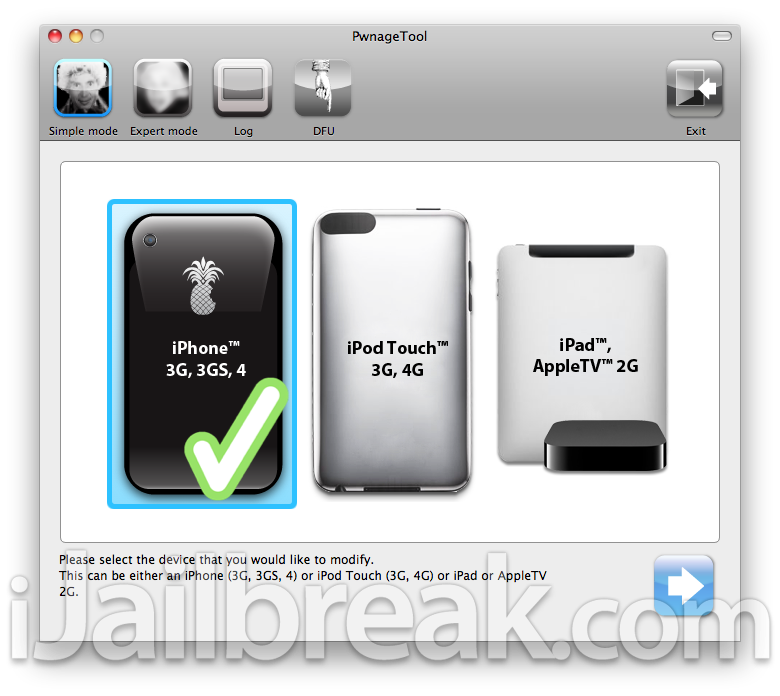
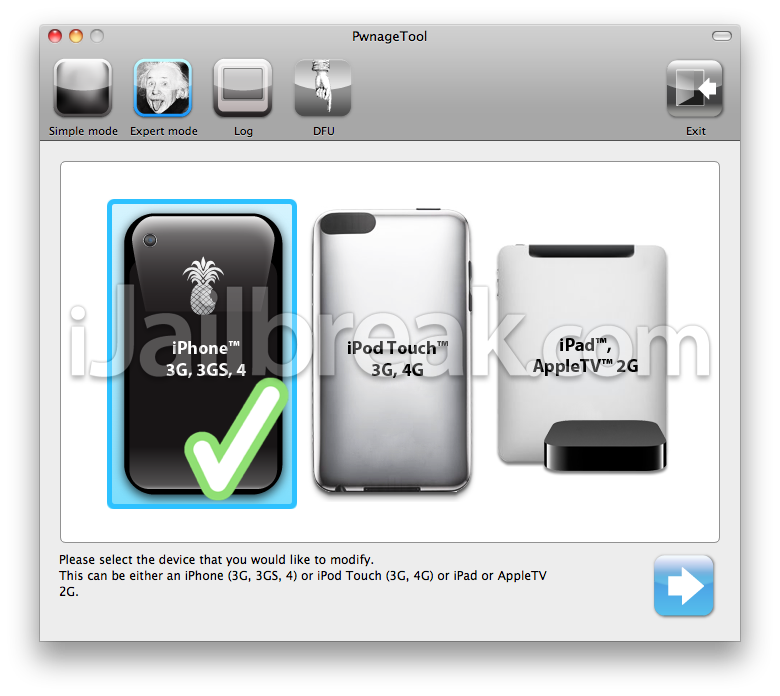
Next select which device you want to build a custom firmware for. We have chosen iPhone. Once you have chosen, click the blue arrow to continue.
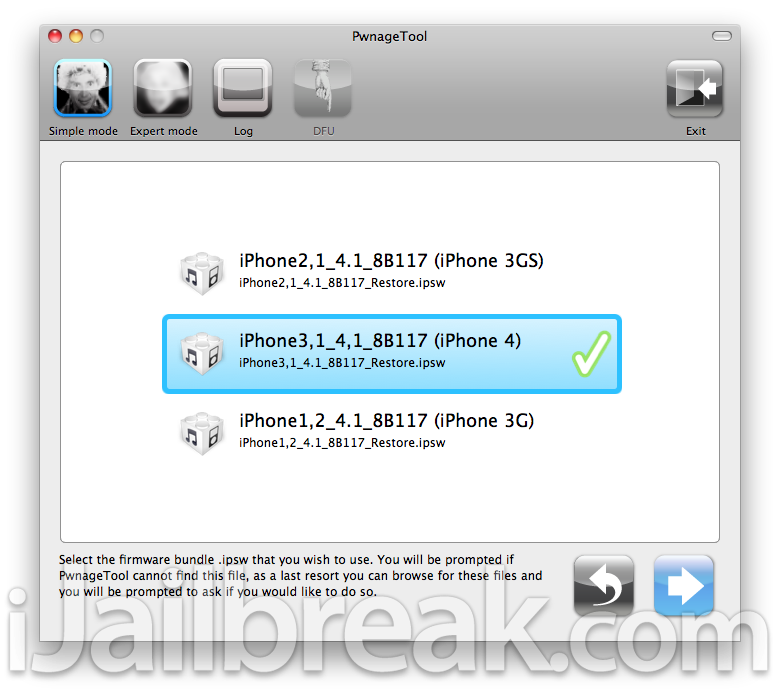
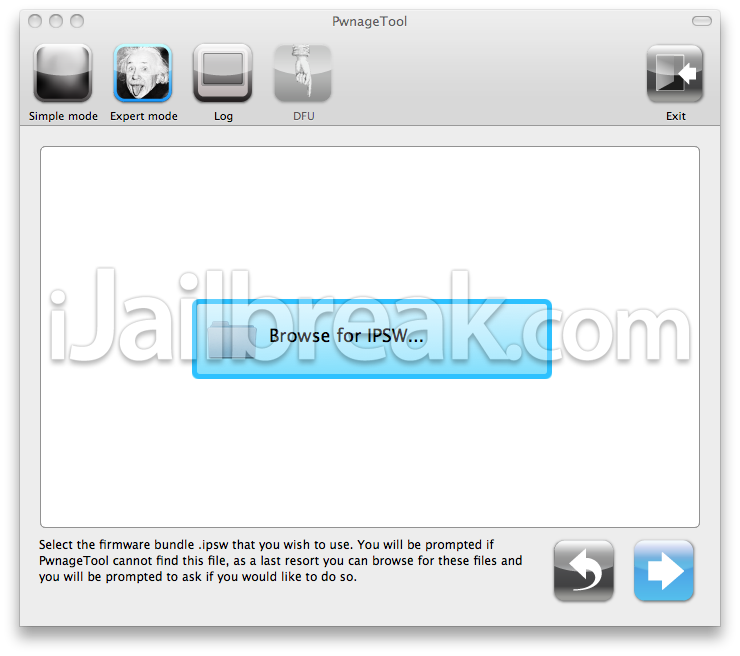
Now you need to select which firmware you need for your device. Make sure you pick the right one, or your restore later will fail right away. In expert mode you have to manually find your firmware. Typically, firmware is stored here: “username”/Library/iTunes/iPhone Software Updates.
Once PwnageTool confirms you have a valid IPSW, you will be informed that you are going to build a custom IPSW. It will also ask you if your SIM is on an official carrier. This to determine if your device needs to be “hacktivated”. For unlockers, PwnageTool automatically preserves your baseband.


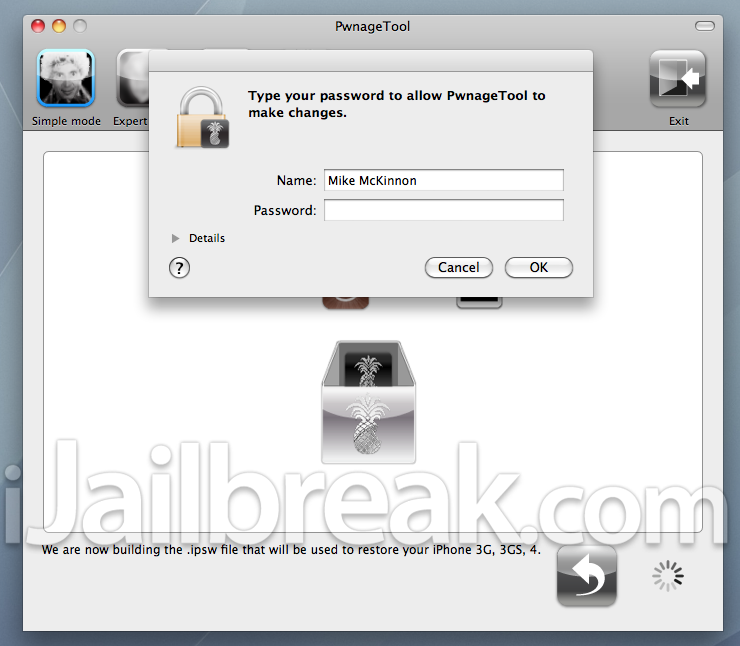
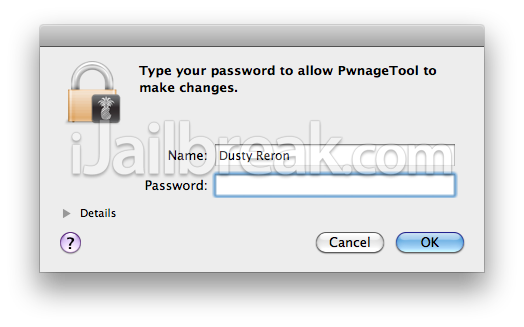
Next, PwnageTool will build your custom firmware. The process can take about 5 to 10 minutes, so don’t get impatient and interrupt the process. Part way through, you’ll be asked to enter your administrator password.
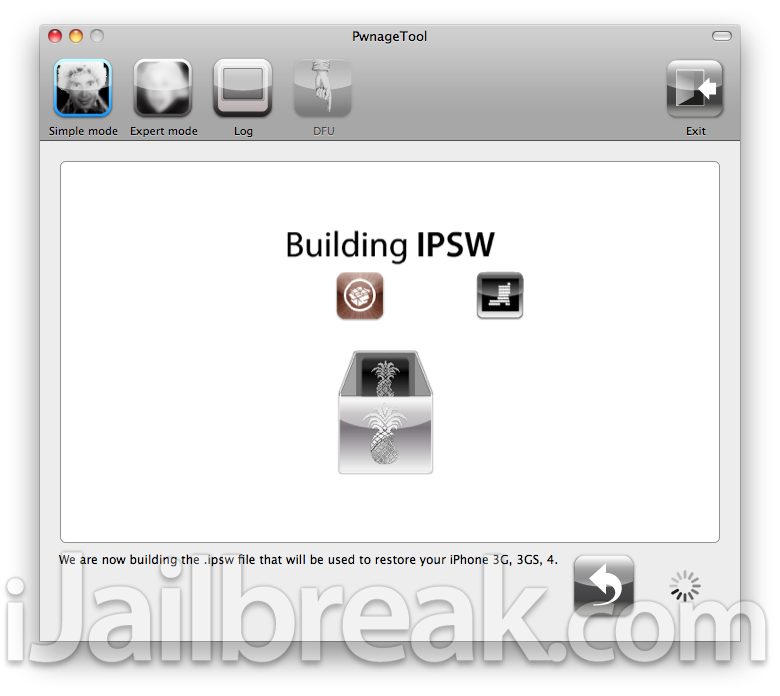
You custom firmware is done! You should see it on your desktop. Now, PwnageTool will help you get your device into DFU mode, in preparation for the restore in iTunes. Just follow the instructions, exactly and you’ll be fine. PwnageTool will let you know if you get it wrong, and let you try again.
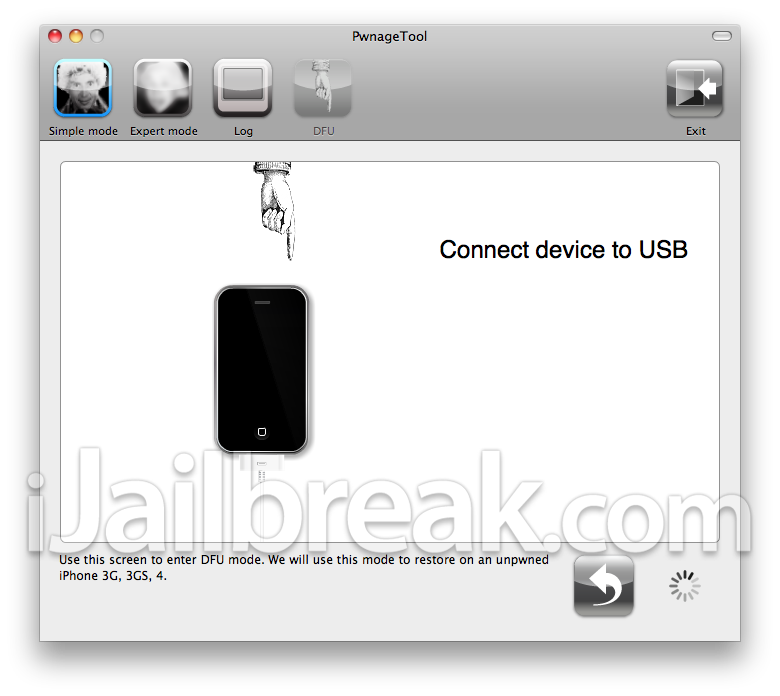
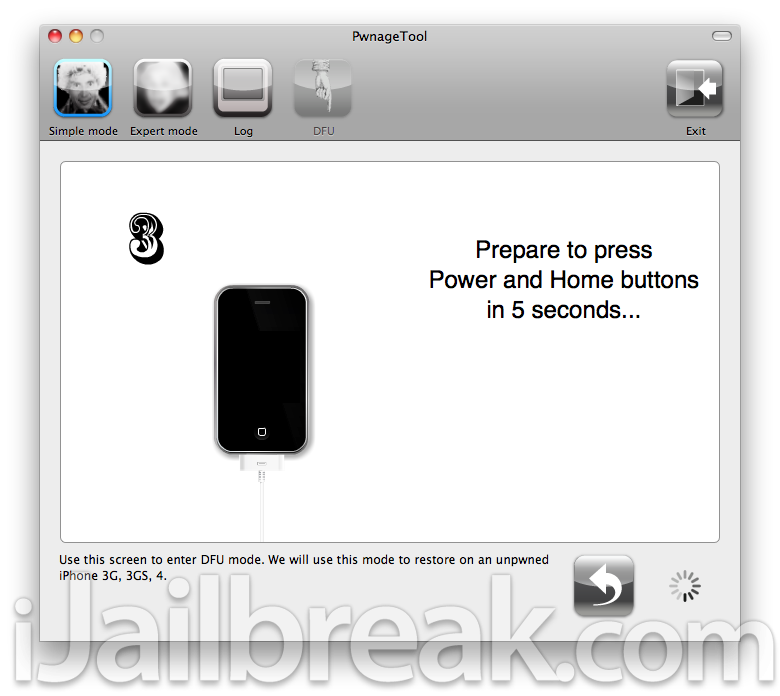
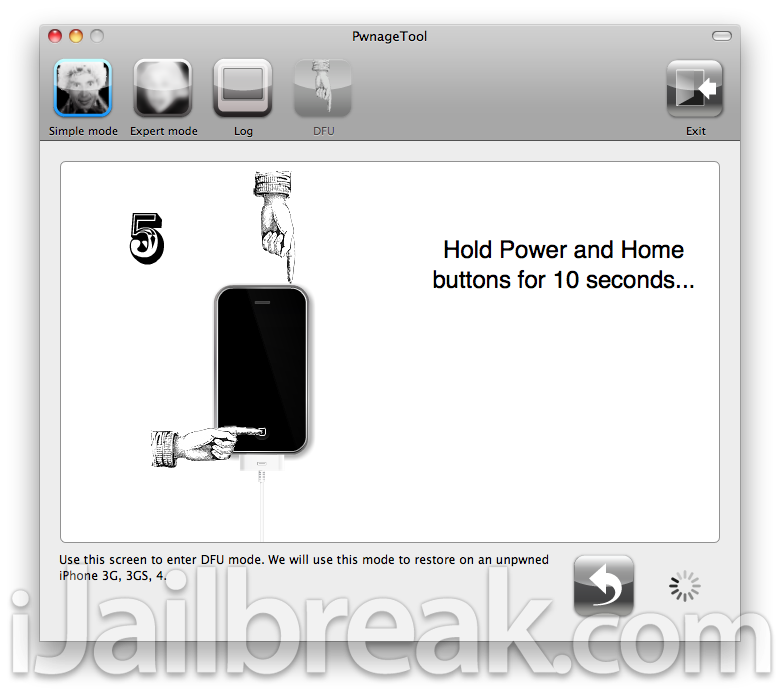
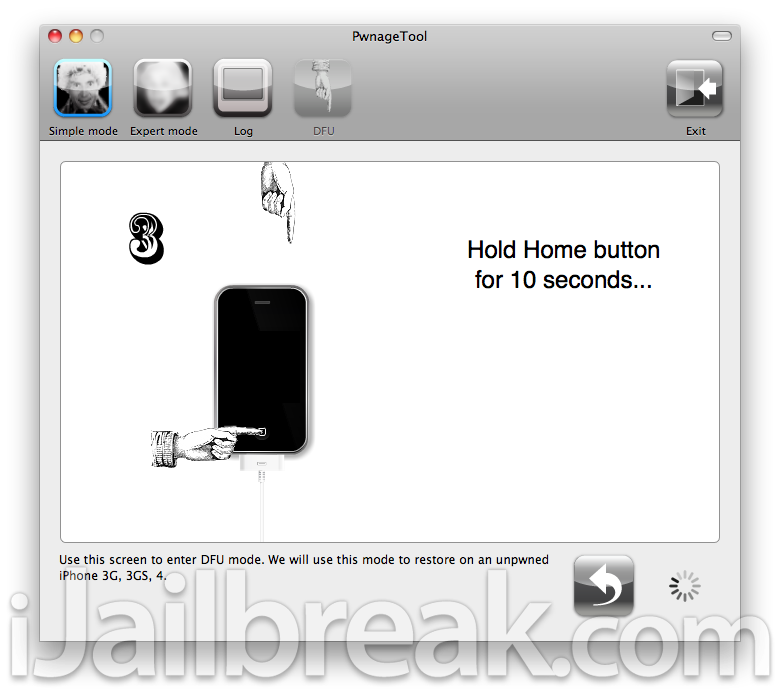
If you’re not successful, you’ll see the message on the left. If you are, you’ll see the message on the right, and you can continue on to your restore.


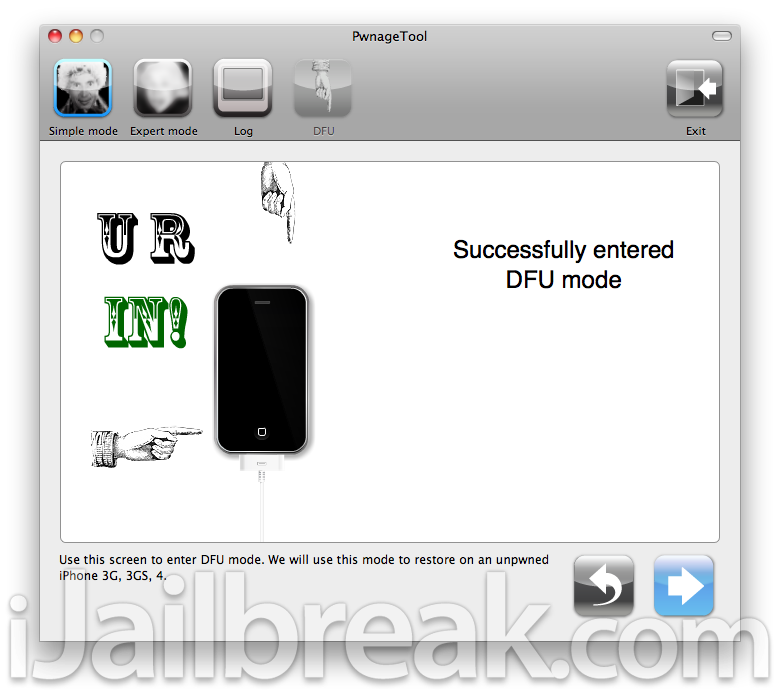
Phew! You did it! All that is left is to restore your device in iTunes. Open iTunes, and it will recognize your device and give you a warning that it is in recovery mode and needs to be restored. That’s fine. Just press and hold “Option” (on your keyboard), and then click “Restore” in iTunes. Navigate to your custom ipsw, and iTunes will do the rest. When that process is done, you’ll have a freshly restored, and jailbroken device. Congrats!
If you have any questions, or issues along the way, feel free to comment below. Hopefully, we will be able to help you out!
Jailbreak iPhone 4, 3GS, 3G, iPod Touch 4G, 3G, iPad, Apple TV 2G On iOS 4.1
Step 1: Download PwnageTool 4.1, latest version of iTunes and iOS 4.1 from the iJailbreak Downloads page.
Step 2: Launch PwnageTool.
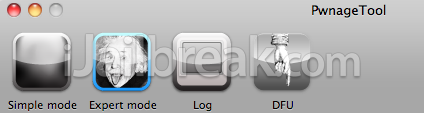
Step 3: Select “Expert mode” from the top menu bar located on the left side.
Step 4: Select your device. A Check-mark will appear over the image, then click the Blue arrow to continue.
Step 5: Click “Browse for IPSW…” button and select the iOS 4.1 downloaded from Step 1.
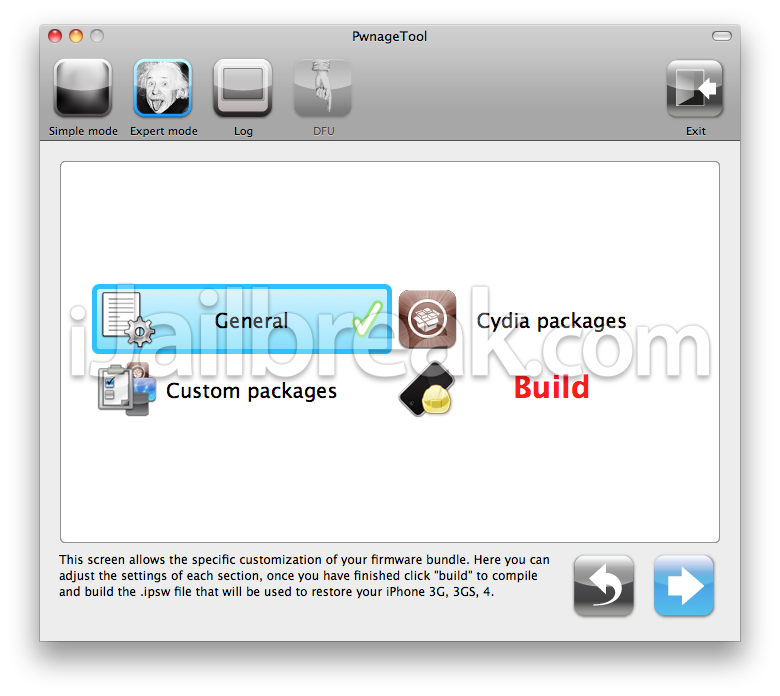
Step 6: A menu screen will appear, select “General” and click the Blue arrow.
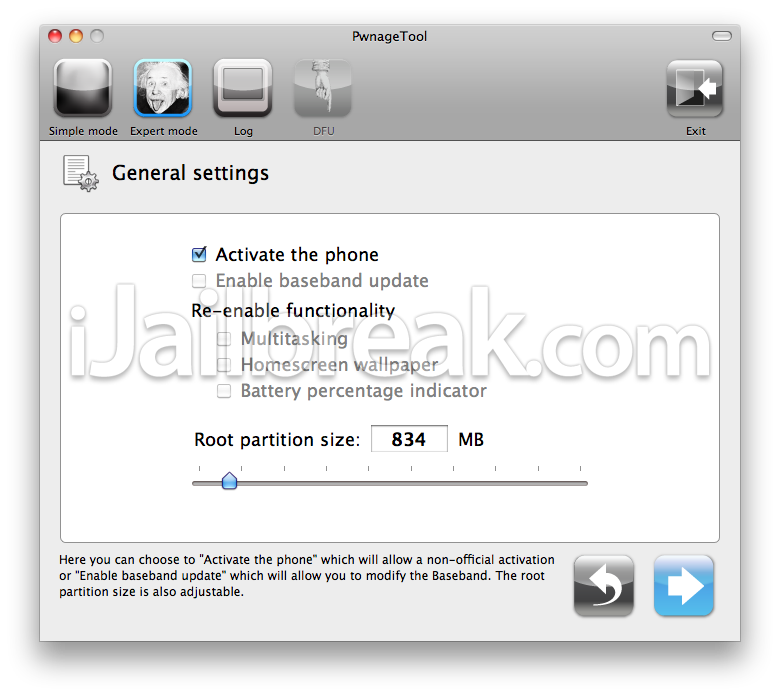
Step 7: Select “Activate the phone” if you’re on unofficial carrier. Deselect “Activate the phone” if you’re on official carrier (AT&T, Rogers, Telus, etc.). Click the Blue arrow button to continue.
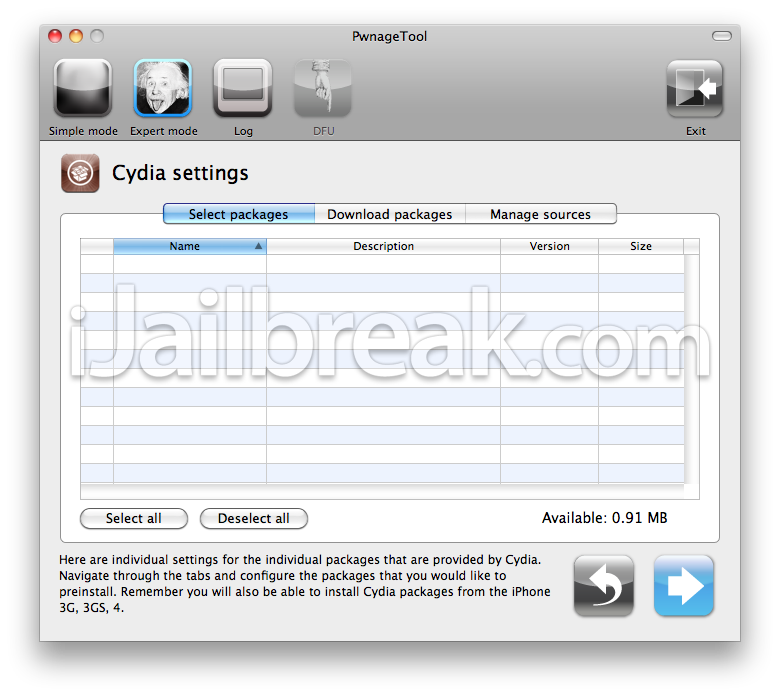
Step 8: A Cydia settings menu will appear which you can create custom packages so you don’t have to manually install through Cydia later. Once you have choosen, click the Blue arrow button.
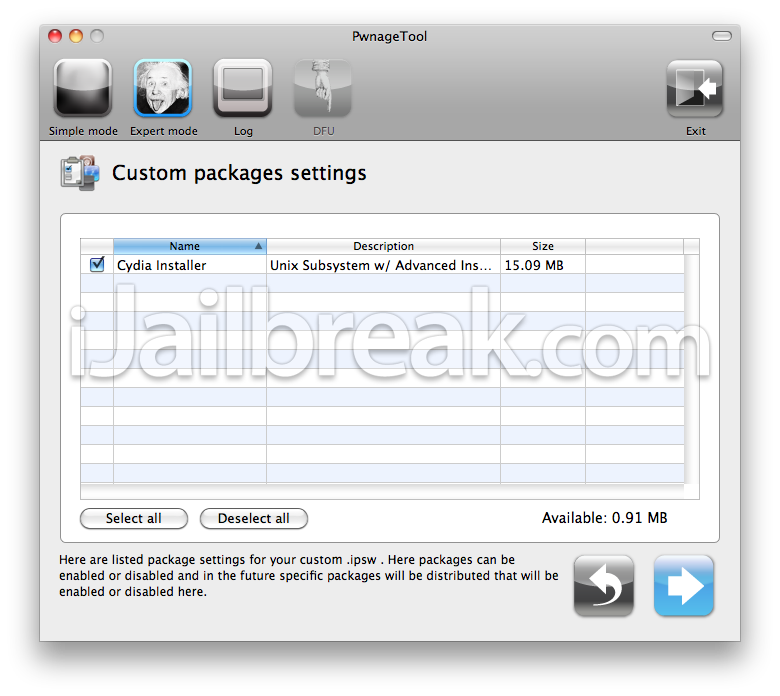
Step 9: A Custom package settings menu will appear and you can leave these settings as is. Click the Blue arrow button to continue (you should be back at the “General” menu).
Step 10: Select “Build” and click the Blue arrow button.
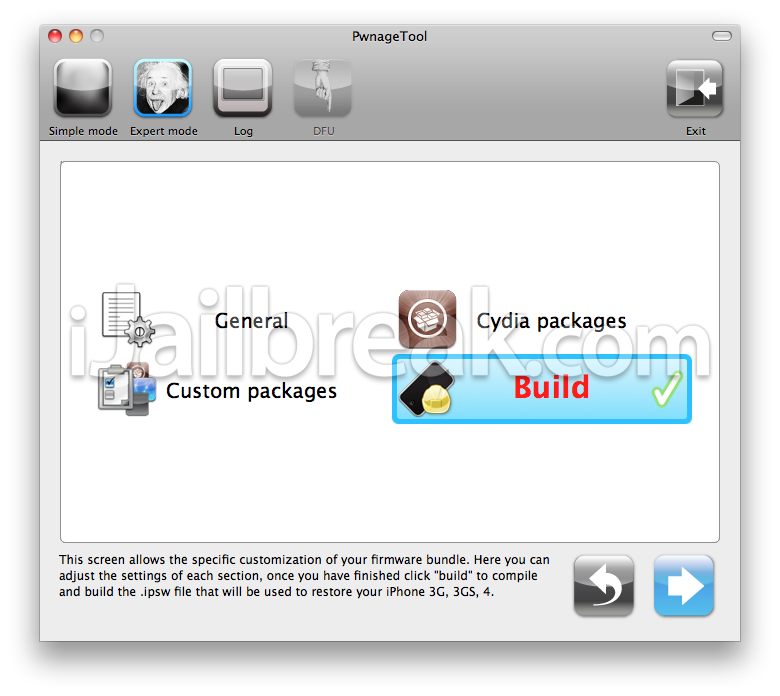
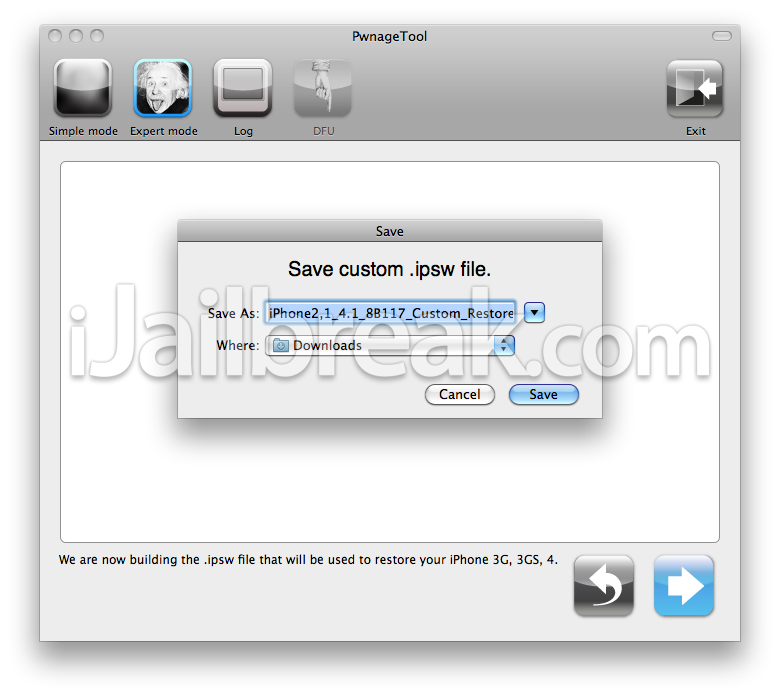
Step 11: PwnageTool will prompt you to “Save custom .ipsw file.” Select a location and click “Save”.
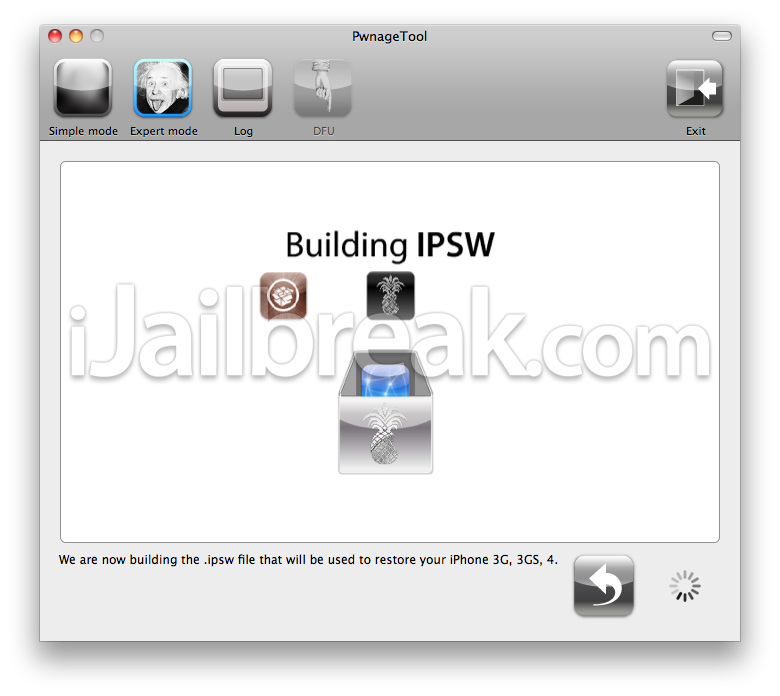
STEP 12: PwnageTool will now create the custom .ipsw file.
Note: During the build process you will be prompt for your admin password.
Step 13: Once the .ipsw has been built, PwnageTool will ask you to connect your device to your computer via USB. Follow the on-screen instructions.
Connect device to USB.
Hold Power and Home buttons for 10 seconds…
Hold Home button for 10 seconds…
Step 14: Open iTunes, and it will recognize your device and give you a warning that it is in Recovery Mode and needs to be restored.
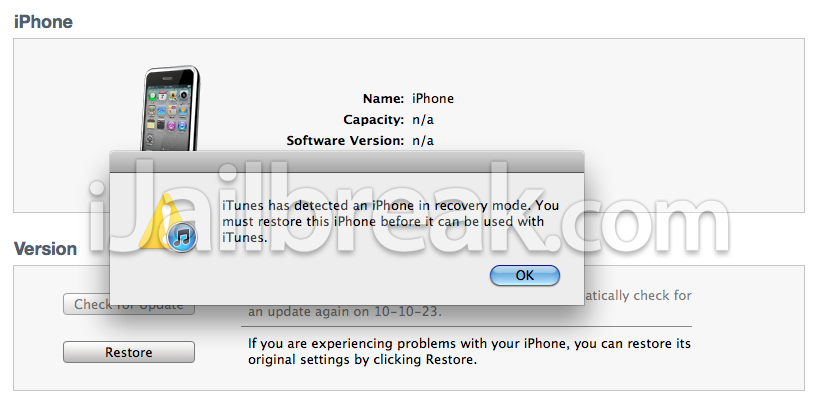
Step 15: Press and hold “Option” (on your keyboard), and then click “Restore” in iTunes. Navigate to your custom ipsw, and iTunes will do the rest. Enjoy!
This is Mac only.
Is this just for Mac or can Windows users use this as well?
so then the next question is: when will there be a Windows version?
There will not be a Windows version of Pwnage Tool. If you can’t get to a Mac, check out Sn0wbreeze, from iH8sn0w. It has similar functionality.
Will this keep the phone unlocked by ultrasn0w from the previous 4.0.1 or does it not update the baseband so you can run ultrasn0w again from cydia?
It keeps your baseband at 1.59, so you can run Ultrasn0w again.
i’m sorry but i have IPSW firmware of 4.1_8B117 and everytime is trying build the IPSW it fails… WHY? there is no explanation no were… does the phone has to be ON or OFF? does it has to be connected ???
thanks
William!
Hi, can I use this to restore a 3GS, that is stuck with the usb and itunes image? that happen after jailbreaking with redsn0w. Thanks!
Now its OS 4.2. My iPhone 4 was accidentally erased all settings and files, its mean it comes out empty. When I tried to open it it comes only with the apple logo while the cicular loading still moving, and doesnt stop till the battery drains.
I dont want to restore to 4.2 cause till right now my iPhone 4 was unable to unlock, still waiting for DEV TEAM to release iP4 4.1 unlock.
I want to bring it back and restore to its original 4.1 firmware baseband 2.10.
I eagerly download all files needed ( IPSW of 4.1 and Pwnage Tool ), its like 5 times I made a custom IPSW with Pwnage Tool, everythings doing right until when its time to connect to itunes, “iTunes will erase and restore your iPhone to iOS 4.1 and will verify the restore with Apple”. I clicked Restore then… EXTRACTING SOFTWARE…, then VERIFIYING iPHONE RESTORE. WITH APPLE..
Here comes the problem… “The iPhone “iPhone” could not be restored. This device isn’t eligible for the request build.
Please some one help me or tell me the reason of this warn. It is because the iOS 4.2 now is current firmware and they no more allow to restore iPhone in earlier versio?????
HELP HELP HELP..
This is 2 years late, I know.. but is this process valid for a 3Gs with a new bootrom?