Apple released iOS 4.3.5 today to fix another vulnerability within the iOS firmware. As iOS 4.3.5 patches Comex’s untethered jailbreak we do not recommend updating, as you will have to bare with a *tethered jailbreak. If you previously updated to the iOS 4.3.4 firmware, however, or do not mind a tethered jailbreak you can follow our how to guide below for jailbreaking the iOS 4.3.5 firmware on iPhone 4 and iPhone 3GS.
*For more information about tethered jailbreaks.
Note: This Jailbreak requires you to update/restore to the iOS 4.3.5 firmware, and then point RedSn0w 0.9.8b4 to the iOS 4.3.4 firmware (not the iOS 4.3.5 firmware).
Update #1: RedSn0w 0.9.9b1 is now available to download and will jailbreak all firmware versions listed in the title, as well as all iOS devices except iPad 2 (which can be jailbroken on iOS 4.3.3 with JailbreakMe 3.0). iOS 5 beta series firmwares are also supported.
Step 1) The first thing you will need to do is download RedSn0w 0.9.8b4 and iOS 4.3.4 from our iJailbreak Downloads Section.
Step 2) Once you have downloaded RedSn0w 0.9.8b4 to your desktop, you will need to launch it. Do this now by clicking the executable file (for Windows) or by clicking the application (for Mac OS X).
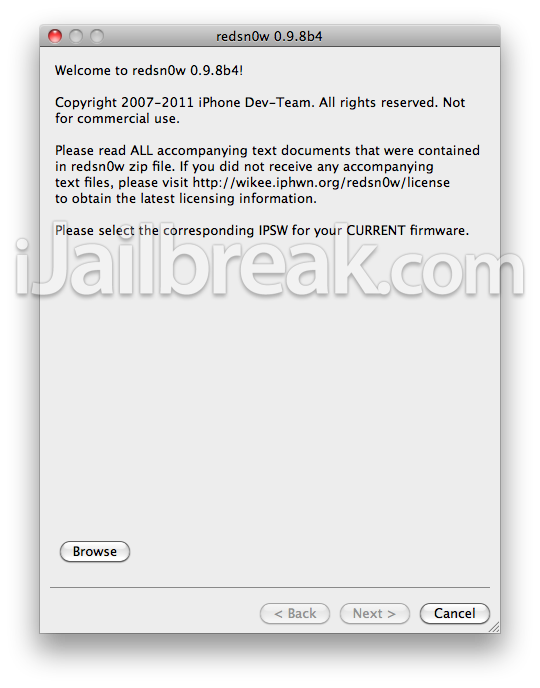
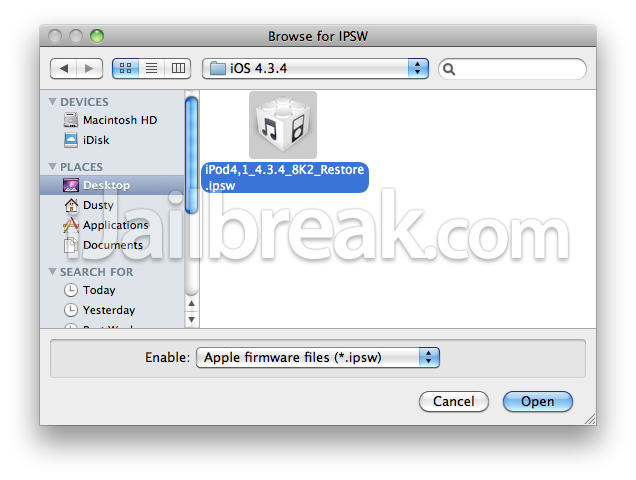
Step 3) Once RedSn0w is up and running, you will simply need to browse for the iOS 4.3.4 firmware (NOT iOS 4.3.5).
Once you successfully select your firmware file through RedSn0w it will say “Processing firmware” then “IPSW successfully identified”.
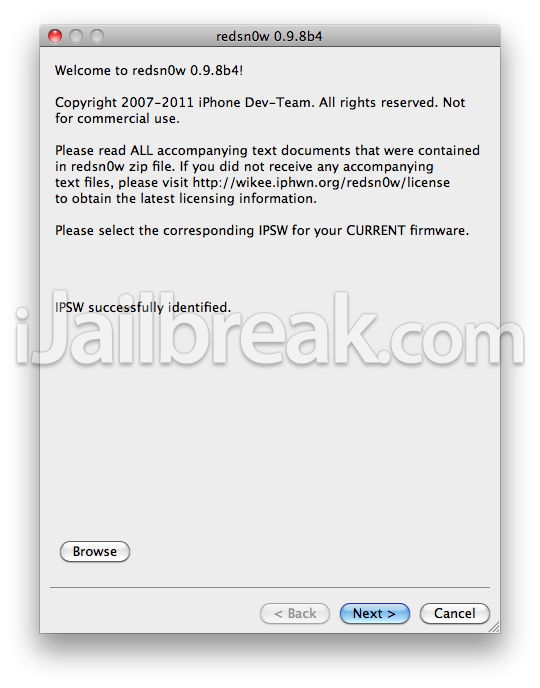
Click the next button to continue (when you do this RedSn0w will begin preparing jailbroken data).
Step 4) The next screen you will be brought to is a screen that features multiple checkboxes. The only checkbox that must be enabled is Cydia (as this is the default jailbreak installer); the rest of the checkboxes are optional and should only be checked if you know what you are doing.
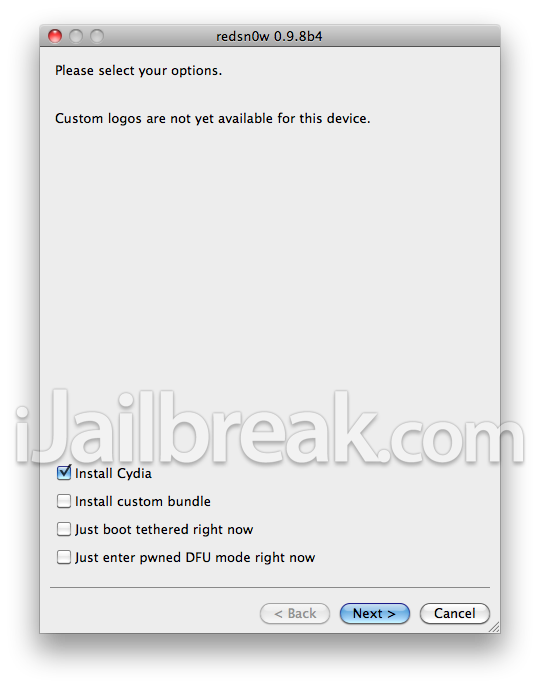
When you have ensured “Install Cydia” is checked you can click the next button.
Step 5) From this next screen the only thing left for you to do is put your iPhone into DFU mode. You will need to make sure that you turn your iPhone off, and you plug your iPhone into the computer before clicking the next button.
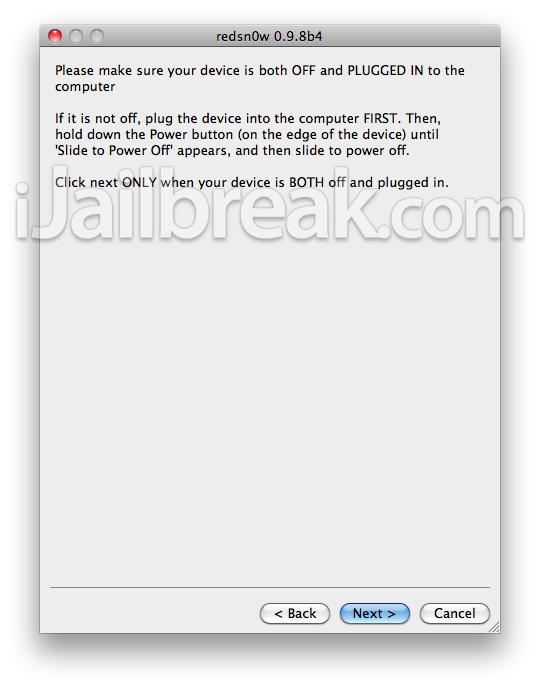
Once you have done this, click the next button and follow the on-screen instructions.
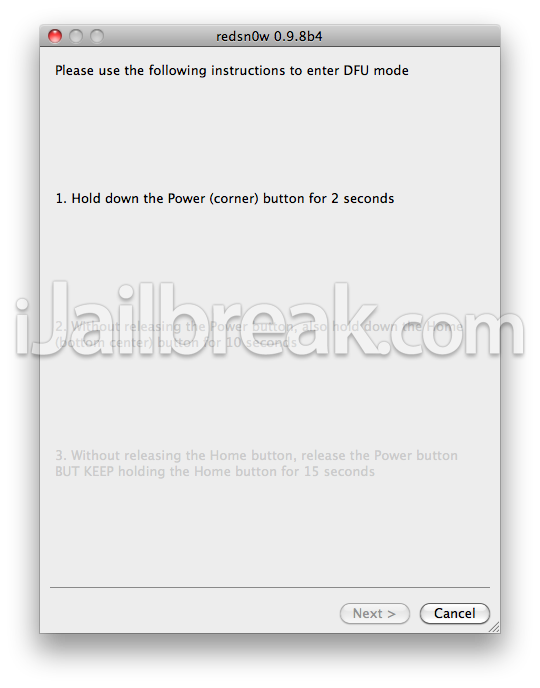
Step 6) Once your iPhone is into DFU mode, RedSn0w will handle the rest of the jailbreaking process. You just need to sit back and watch RedSn0w perform its jailbreaking magic. Once your iPhone is done being jailbroken, you should see Cydia on your SpringBoard. This means the jailbreak has been carried out successfully. Congratulations on jailbreaking your iPhone 4/3GS tethered on the iOS 4.3.5 firmware.
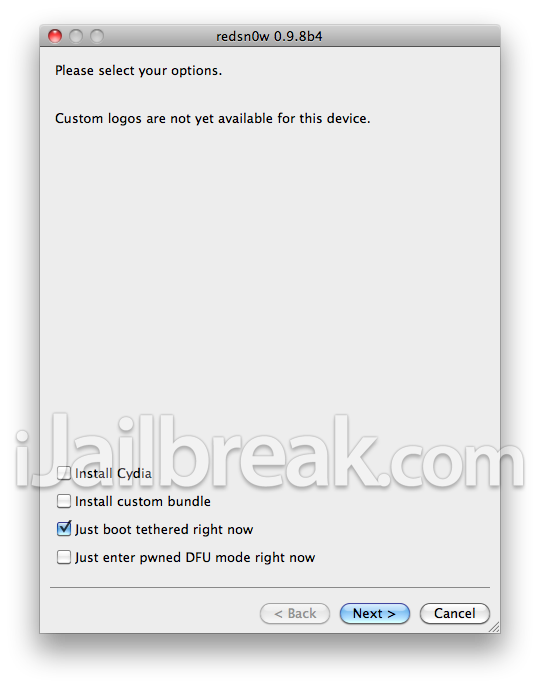
NOTE: How to boot tethered jailbroken iPhone 4/3GS after reboot, launch RedSn0w and select “Just boot tethered right now”.
Let us know if you were able to jailbreak your iPhone 4/3GS with RedSn0w 0.9.8b4 in the comments section below. Also if you experienced any difficulties please share them with us and we will try our best to help you out.
Helpppp!!!! the iphone stuck on Apple Logo after Jailbreak …. what shall I do!!!!
cyda doesent start it crashes the moment you open sorry but this doesent work
unable to load iPhone2,1_4.3.4_8K2_Restore.ipsw file in redsnow 0.9.8b3 or 0.9.8b4 (for Iphone 3gs). It says unable to recognize specified ipsw . Please help
downloaded same file from your link , and it works ! :) Next problem , how to unlock now? Thank you, cheers
I am a pineapple on the screen, what should I do now?
I have repeat the steps many times, but it goes back to pineapple forever.
i cant get the firmware
when i reboot device my iphone stuck on apple logo screen.plz help me.
mine also same problem.when i downlaod file from cydia an reboot my iphone stuck on apple logo.plz help admin an frns.
i cant :(
IF YOU GET STUCK AT THE APPLE LOGO SCREEN JUST PUT YOUR IPHONE IN DFU MODE THEN LOAD THE 4.3.4 FIRMWARE WITH REDSN0W AND THEN CHECK THE BOX THAT SAY “JUST BOOT TETHERED RIGHT NOW” THEN ALLOW THE IPHONE TO START UP U SHOULD AND U SHOULD BE GOOD FROM THERE BUT YOU HAVE TO REPEAT THIS PROCESS EVERY SINGLE TIME U WANT TO RE-BOOT YOUR PHONE…HOPE THIS HELP
I have the same problem what should I do now ?
I’ve tried doing this multiple times but it eventually ends up hanging at the “connect to iTunes” symbol with the usb pointing to iTunes. I assume it’s because my baseband and model isn’t supported. Could someone please confirm my theory? Also if it’s possible could you post a solution? Thanks for your time.
iPhone 4G White 16Gb
My model # is MC604X
Modem firmware # 04.10.01
You guys really need to start reading. Go back to RedSnOw and check Just boot tethered right now.
hi guys i want to jailbreak my iphone 4 4.3.5 so please could u tell me how to jailbreak my iphone using any software
please tell me as early as possible…
It worked no problem at all.
Same thing for me :(
thankx it works
Thats wat tetherd means
hey guys
i download redSnow 0.9.8b4 and IOS 4.3.5
but when i start up redSnow there is standing “unable to recognize IPSW”
why does redSnow not regognize this IPSW?
can somebody please answer?
You need to download iOS 4.3.4 and identify into Redsn0w but not the iOS 4.3.5…..
Try it and wish you good luck .. CHEERS!
Just to remind you guys, tethered jailbreak required to hook to PC every time the battery down. You can manage this by always taking care of battery charging level, however, the serious that matters when you download from Cydia then need to reboot >>> you’ll stuck and need to connect to the PC in order to start up from Redsn0w .. If you are soooo much patient, then go ahead with tethered jailbreak, otherwise stay on Apple iOS as it is till the UNTETHERED jailbreak released for you device version.
At the beginning of tethered jailbreak, you’ll get very happy; and after few hours you’ll find it sux!!!!!!
Again, Keep your happiness with you iDevice till untethered jailbreak released…..
thanks it works!!
Hi!
I got iphone 3Gs with 4.3.5 firmware and 5.16.02 BB and it is jailbroken but still with no service or locked. please help fix this problem….PLZZZZZZZZZZZZ
Thanks for great work you guys always do…
I did everything and cydia is on my iPhone. But it doesn’t want to open. PLZ HELP!!
you can bring it to the apple store they will help u reboot ur ipod as long as u didnt download any aps free from jail break
Jailbreak tethered 4.3.5 RedSn0w 0.9.8b4 to unlock?
My problem is that i did restore
my iphone 4 to firmware 4.3.5, but i dont have the original SIM and i am
stuck in the “Emergency call” screen, my doubt is that if the
“redsnow’s jailbreak tethered” will unlock my iphone.
Thanks for advance and I’m sorry for my english…
All worked fine, yet I have no signal. It’s as if my SIM card is not working.
(On a 3GS, used RedSn0w and 4.3.5ipsw etc)
All worked fine, yet I have no signal. It’s as if my SIM card is not working.
(On a 3GS, used RedSn0w and 4.3.5ipsw etc)
Worked for me, but then I lost service. I called Virgin and they said the Sim’s fried, but I fixed it by restoring, and NOT using back-up of jailbroken device. To restore it, I had to put it into pwned DFU mode, and then restore to factory settings. Cydia will be a white icon when you first jailbreak, and both cydia and safari will always crash. You need to “Just boot tethered now.” I’m on white iPhone 4.
when jaibeak my iphone 4 does that mean i can use a sim card from another company?
Please help. i have a ipod touch 4g and my firmware is 4.3.5 and im using redsn0w 0.9.8b4. when i go into redsn0w and select my firmware it continuasly comes up with this message.”unable to recignize spesific ipsw.” HELP?!?
All works fine with the redsn0w 0.9.8b3, iphone 3gs, 4.3.5 but my band is 5.16.02 and t-mobile does not recognized my imei#?
No Service? what next guys? please help
I tried the step mentioned above, however, I still can’t get network. can you please let me if there is any other options for me.
thanks
Sam
crediblesam@gmail.com
so can i update my iphone or do i restore it.please help
i did everything as instructed but after a jailbreak cythia is just all grey … i tried rebooting and also tried reinstalling cythia but still grey and wont open please help
After browsing for 4.3.4, it says that the IPSW was successfully identified but then says “Unexpected error during preparation.”
Does anyone know how to fix that?
Its Working.. Thanks Man.. u saved my Iphone :)
Now that the jailbreak 4.3.5 for my iPhone 3GS worked, HOW DO I UNLOCK THE PHONE FOR T-MOBILE? band is 5.16.02 and t-mobile does not recognize my IMEI #? Is there an unlock through ULTRASNOW and do I have to change my BAND to 6.15.0? HOW?
I had try this process for a view days ago, but it’s not working. Everytime I shutdown my iPhone & turn it on again after 10 second, a lot of shadow icons come up for hall window & it’s pissing me off. Any idea about that?
Benyamin Adriyan
E-mail : ben.adriyan@gmail.com
all u hav to do is
run redsnow again
browse and select 4.3.4 firmware again
click next
now select “Just boot tethered right now”.
click next
dont read it again click next
now follow instructions to bring ur device in dfu mode
it work`s perrrrfect guys!!!!! thanks a lot !!! :) my Baseband: 04.10.01 and works
(trabaja a la perrrrfeccion chicos as.. se los recomiendo!!!1 ;) !!!!
after i jailbreak it successfully, i try to install some apps from cydia. But i do not see anythings after install, and problem happened while turn off and open settings.
i have iphone 3gs 32gb with ios version 4.3.5 but when i open it with redsnow it gives a error of ipsw not specified. Can anybody plz help me !!!! my id is nazarawan_008@yahoo:disqus .com plzz mail me the solution to the problem>>>
yes…..
Try to Dowload the ISPW again and make sure u have the correct redsnow software :) let me know :)
hey, i have i huge problem after jailbreak my iphone 3gs i cannot boot in to DFU mode and Im stuck on the apple logo, when trying to boot in to DFU mode, instead my device boots to recovery mode every time, so I cant’t boot tethered now…
I’ve done everything as instructed to jailbreak it…
need help to solve this asap.
thanks
my screen is stuck on the pineapple logo ….
Hello, please help, I got this message when entering DFU MOD
” you have ended up in REcovery mode instead of DFU MODE. you probably misunderstandood the instructions”.
what should I Do ?
sad!! need help =( my iphone is stuck on the apple logo =(( so how
Once you run redsn0w you must run again, but this time select “just boot tethered” and then cydia should open smoothly. This happened to me exactly and took me a while to figure out.
guys can u help me!! my cydia turned white !!!
i sort it out,, but how long with this tethered version?
after i downloaded i can use but i used cydia to install the font then it hanged and now it’s stuck on the pineapple!!
Please Help!!!! Mine is stuck on the pineapple! :'(
PLEASE HELP!!!! What to do if it’s stuck on the pineapple?!?!?!?!?!?!!?!
how did yours work? mine is stuck on the pineapple! Please help me!!! :'(
Please help me!! mine is stuck on the pineapple!! :'(
i regret jailbreaking! my ipod touch is now stuck on the pineapple! if my mom finds out i’ll be dead meat! she’ll beat me! PLEASE HELP ME!!
i jailbreak my ios 4.3.5 but sadly not happy because everytime it turn off it will not directly open and it hangs to apple logo..always i need to used boot tethered jailbreak again and again..how to solve this problem?
hey guys if you jailbreak your ios 4.3.5 never turn off the power otherwise you need to jailbreak boot tethered again so if you do that again your happy…still waiting for the solution..
i jailbroke iphone 4 4.3.5 , everything went perfect. is there any way to unlock carrier?
I have jailbreak-ed IPhone 4 iOS 4.3.5 and was expecting it will downgrade the iOS to 4.3.4 but it didn’t. Does the iOS 4.3.5 gets downgraded too?
Is there any workaround to avoid this process after reboot every time.
browse and select 4.3.4 firmware again
click next
now select “Just boot tethered right now”.
click next
dont read it again click next
may i ask, do i download 3.4.3 GSM or 3GS?
the people never sleep it’s called banana republic now u know who i am zia
It is for iPhone 4.3.5??or 4.3.4??
I have “iPad2,1_4.3.5_8L1_Restore.ipsw” & “iPad2,1_4.3.4_8K2_Restore.ipsw”, the redsn0w_mac_0.9.8b4 & redsn0w_mac_0.9.8b5 in a folder. I have tried RedSnow b4 with 4.3.4 & 4.3.5, also RedSnow b5 with 4.3.4 & 4.3.5, but I always get “unable to recognize IPSW”. I have ipad2 4.3.5 & macbook Pro 10.4 but it just doesn’t work. Could you tell me what I am doing wrong?
Guys I did but the only problem u can’t turn off your iPhone !!! If u do it u have to do the process again !!!
guys i want to restore again my iphone to the original IOS 4.3.5 after the jailbreak but when i go to itunes to restore there’s a message saying error every time i try.
can someone please help me how to restore again because i want to remove the jailbreak.,,,
same with me! its just a white app which doesnt want to open. man :(!!!
Hey guys, if I jailbreak my phone, will it’s spoil my phone? Sorry I first time user. :/ please reply asap.
is the way around 4.3.5 by using 4.3.4, is like telling your wife that u r with the guys but u @ bar with a chick. She will not know until she sees you or someone tells her. But the good part it is that will have a tool similar to the “man in blk” that erase ur wifes memory every time she finds out! does it makes sence?
@b5cf9d34a0cbb7ded741e8272a05719c:disqus
It’s an apple, you didn’t enter DFU mode correctly. While device is off, Hold both Power and Home for seconds, than release only the power until your computer detects it
Okey, i’m doing this to activate my iPhone without a SIM-card ..
I think my firmware is 4.3.5 .. so I have to download the iOs 4.3.4? is that the right for 4.3.5? does it work on 4.3.5?
So if I have a iphone 3gs version 4.3.5 and firmware 05.16.02 and jailbreak it and doing what the thing tells you too my phone will be a tethered jailbroke?
Hey guys i have a problem with my itouch 4g. My uncle just jailbroke it with redsnow tethered jail break for version 4.3.5. My itouch was on iOS 4.2.1 and then my uncle jailbroke it to 4.3.5. So my question is that is it possible for me to downgrade it back to 4.2.1? Because i cant put cracked apps for my device. Please help !
Worked fine for me (iPhone 4 – 4.3.5).
Does anyone know of a good tutorial using the same software to unlock the phone please?
I have the same problem, some help please
Did everything, I even restart redsnow but my cydia is white and does not start pls HELP!!!!
i dd somanytimes but cydia ddnt open……
it all worked but the bluetooth wont turn on it just says unavailable plz help
Just had that “Unexpected” error pop up when I JB my phone yesterday. I DL’d the ISPW again, from a diff source as the first time, and it worked just fine.
Hey Vicky even I am looking for the same. Please let me know if you get anything on pbarjatiya@gmail.com as that will be of help. Thanks. Let me have your mail ID even I will share the news if I get any.
HI ALL TRIED THIS AND IT WORKED GREAT FOR ME. NOW ALL I HAVE TO FIGURE OUT IS HOW TO UNLOCK IT I HAVE A 3GS VERSION 4.3.5 BB 5.16.02.
YOU NEED IOS 4.3.4
ME TOO,. I HEARD ABOUT UPGRADING THE BASEBAND TO 6.15 BUT IDK….
YOU NEED TO RUN REDSN0W AGAIN AND JUST CHECK BOOT TETHERED
I did jailbreak the iphone 3gs with this tethered jailbreak. But problem is Im having the NO SERVICE message. I cannot use the iphone as a phone. Its like an ipod touch now. Any suggestions?
When I do “just boot tethered” my iPhone hangs with a pineapple Photo and it doesn’t goes!:(
I have tried it 5 times but it does no works!
cydia is not on my phone, how do i get it
its rally good very eazy and my devise is woring good..thanks for all.
When I do “just boot tethered” my iPhone hangs with a pineapple photo on the screen! I have tried it 5 times but nothing happens!!:(
HELP PLZ
I could successfully jailbroken my iPhone 4 g 4.3.5 by this method but still cannot use it as a phone as there is no service on top right corner beyond installing ultraslow through Cydia Please help me out guys!
pls i did every thing but no net work and my iPhone is the one with unloker pls help me farukuzee@gmail.com thanks
i downloaded the links stated above but it still gave me unable to recognize specified ipsw
pls help me ‘coz i already run the redsnow then i click browse for finding the IPSW for current firmware but then i can’t find the iOS 4.3.4?…where can i find it?…
OMG!!!!After i have download winterboard,they help me reboot my device….after that,i must restore my iphone!!!!HELP
My iphone is jailbreaked but i cant find cydia there is no cydia plss help
help..my iphone stuck on apple logo after jailbreak..i can’t restore my iphone to normal..any solution??
Pleas help!
I used all the step and I jailbreaked my 3gs bout it say NO SERVICE When i go to carrier it say Unable to load network listWhat can I do to get the service back?
Worked like a dream.
works great! thanks.
its because you are new jailbreak and you need to unlock you iphone to use carrier. what is your baseband?
what is your baseband? if your baseband is higher than 1.59.0 you cant use ultrasnow. the only way to use your phone is to buy gevey sim to unlock your iphone. hope this help..
the only way to unlock iphone with that baseband is Gevey sim. buy it and ur problem is done!
yes this jailbreak is tethered. if you don’t want tethered wait for the untethered jailbreak.
yes you will need 4.3.4 firmware to use it for 4.3.5 jailbreak.
the only way to unlock is to use Gevey sim.
you need to reopen redsnow and click just boot tethered. and if the pineapple logo appears its done!
you dont need to restore your iphone. just run redsnow and click just boot tethered and it’s done!
you need to download it first. after you download the ios 4.3.4 browse it.
launch RedSn0w and select “Just boot tethered right now”.
it just jailbreak, not unlock, wake up! guys!
Had some trouble finding the firmware through Redsnow, but I moved it to my desktop and all was solved!
after jailbreak i installed installouse ! then i turned off.. then on again and its stuck on apple logo
use redsnow 0.9.8b7 for this problem
My screen is stuck om the pineapple logo. What should I do.
This is a teathered break. Every time you have to reboot or the battery dies, you will have to plug it in and run the break again to boot it up. Every single time.
This jailbreak works great, however I have decided that I need an unteathered version since I am away from the computer A LOT! I tried to restore and it gives be error code 3194 and will not restore. Any idea what I can do to restore?
I did everything correctly, and cydia won’t open!
I have successfully got to the cydia app but when i try to download the add on or whateverit say reboot the device and i click on it then it stays on the apple logo.
it wont let me open cydia….
just boot it in tethered mode silly
dont jailbreak unless you know what youre doing…
mine also same problem.when i downlaod file from cydia an reboot my iphone stuck on apple logo.plz help admin an frns.
Very easy just enter redsnow and instead of checking the install cydia box check just boot tethered right now and it will work! and you have to do this every time your phone loses power or turn off
Very easy just enter redsnow and instead of checking the install cydia box check just boot tethered right now and it will work! but be aware every time you’re phone loses power or you turn it off. your phone will be blocked on the apple logo screen and u will have to redo the boot tethered right now to open it.
downloaded everything but cydia wont open
jailbreak went fine but when i downloaded first thing from cydia it rebooted and it stuck on screen with apple logo. help??
Did everything but no cydia please help
red snow keeps on saying “unable to recognize specified ipsw” i tried to re download the firmware and use redsnow 0.9.8b7
Help!!!! After I install Cydia, I couldn’t open the Settings it just appears white screen Please help!!!!!!!!
download redsn0w 0.9.8b7 and it will work
hii guys im trying since 3days to unlock my iphone 3gs. bt its getting struck on the tab saying please wait while ur phone is processed. can u suggest me wat to do nd hw much time i hav to wait??
ARGGGGGGGGG……… I cannot believe you people!!!!!! read what it says ” ITS A TETHERD JAILBREAK” That means if you reboot or turn off the device you “MUST” plug it back into your pc to get it to boot up !!!!!
Was going fine, until I downloaded an app from cyndia, then it said it was going to reboot when i installed the app now its been on the apple logo for 5 mins! bummer
So I followed the instruction and everything went good until I tried to open cydia which looked like a white box, it opened a window for a second, and than it closed.
Right I rebooted from the program again and its all good and i got my display out app! this is all i need from the jailbreak world! farewell and goodluck
restaure it and try again
Help me please. I broke my iphone. When my itunes got the software update it updated my jailbroken 4.3.3 3gs phone. After that, I got a 1015 error. I then tried to jailbreak it for 4.3.3.but wont let me. Ive also tried a lot of other stuff until the instructions on this page. Now my phone gets to boot but can only do emergency calls. Can I restore my iphone so I can load my backup? how? how is the baseband installed in the process as shown in this page? THanks in advance
Hi, i have the same problem. Were you able to fix this? please email kate0313@gmail.com
My baseband is 05.16.02
What’s the next step?
Thanks.
every one you MUST!!!!! run redsn0w again and “Just boot tethered right now”
it didnt work for me when i click CYDIA nothing there
I have the same problem . could anybody please tell me how to solve this problem? thx in advance
Greater eforts brings greater results
Thanx for this
i followed your steps, good it.. works but if you turn off the iPhone or if it looses power you have to connect it
to Redsn0w again to fire it up ! If not you will be stuck on apple logo
at the begining.. im always out of town and my pc is not always with me… what should i do?
i jailbroke my ipod 3G software 4.3.5 a while ago and my ipod lost power. cydia completely disappeared from the ipod. I connected it to the laptop to try the “just bot tethered right now” to recover cydia and it doesnt work. nothing works :( redsnow detects the device but then just freezes. plz help plzzzzzzzzzzzzzzzzzzzzzzzzzzzzzzzzzzzzzzzzzz
My jailbreak is stuck on “exploiting limera1n”??? (its on the “please wait while your device is being processed please” , please help soon as possible!!!
“please wait while your device is being processed” page*
the jailbreak works but..pls help after i restart my iphone it always stuck on apple logo.does this mean i have to run always redsnow (tethered) always guys pls help….help…help….
ive been able to jailbreak my iphone 4 but at a certain moment it blocked.i accidentally forgot and switched it off.now its block on the boot screen with the circle.how can i reboot it with redsnow?coz i cant go on DFU mode :s
i have a iphone 3gs with firmware 4.3.5 . omfg . i payed for the “easy 5 minute unlock” ive read 20 pages on how to unlock and jailbreak your iphone 3gs .. now im very mad .. steps ive taken so far . downloaded the iPhone2,1_4.3.4_8K2_Restore also the redsn0w_win_0.9.8b4 ive extracted both zip files into a folder on my desktop .. ive started the redsnow app it says to point to the
iOS 4.3.4 firmware wich im asumeing is the other file i downloaded and extracted to the same folder . i go into the folder i made with both files extracted with the origonal zip files too and there is no file it lets me select … PLEASE i beg you help me what am i doing wrong
why is it taking forever to process my ipod did i do something wrong?
dude i m also getin same problem for jailbreaker………………….
Hi my Ipad wont jailbreak, the redsnow stuck up with “waiting to reboot” waited several hours but no progress happened..my Ipad was restored because it was stucked up in apple logo then when we tried jailbreaking it no go. please help us what to do. thank you
it doesn’t help with unlocking iPhone 4right ? Please tell me by answering this post or by email ( my e-mail: baranto@op.pl )
i cant jailbreak iphone 3gs, when i follow instructions for DFU mode the apple logo comes up and phone just boots up as normal… tried so many ways now im stuck.
can anyone help??
boot with tethered and it’ll start working
redwnload your OS 4.3.4.. add download extension end with .ipsw .. and download as all file, not zipfile..
Did the redsnow reboot with an iphone 4 stuck in recovery after restore to 4.3.5. Is this because my has been updated to a different baseband? Should I do the tethered reboot?
Just wanted to use this iphone 4 given to me on T-Mobile.
Any info much appreciated.
I really can’t put it into DFU mode =((((((((((((((((((((
I have redsnow 0.9.8b4 and iOS 4.3.4_8K2_restore.
I installed Cydia, then did a teethered start up but now iTunes connection logo starts up after the pineapple logo and even if i do another teethered, iTunes connection logo again. iTunes detects as my phone is in recovery mode. What can I do. Can someone please help
it just gets stuck with my iPod on saying waiting for reboot on the resn0w application
isit meaning tt if got the pinapple meaning already open? and i dont nid to on again?
Same issue. I also tried redsn0w 0.9.8b7 with ipsw for 4.3.5, with no luck. Any leads?
it´s not the ipsw 4.3.5, but the 4.3.4 you must use. Run redsn0w and browse for the 4.3.4 ipsw. Put your phone in DFU moded (turn it off and then hold down the power and home button at the same time, cout to 10, release the power button but keep pressing home and count again unitll 10 and release). Select only the option install cydia and let redsn0w do it´s work. After the phone finishes rebooting, repeat the same steps with just one difference – instead of install cydia, check “just boot tethered wright now.
Hi Shayras2004. I did use the 4.3.4 ipsw and redsn0w 0.9.8b4. (That’s why I wrote “Same issue.”) I wrote that “I also tried redsn0w 0.9.8b7 with ipsw for 4.3.5”.
Has anyone succesfully jailbroken the white iphone with iOS 4.3.5 (8L1)? (My model is MC604LL and like Counting_potatos, firmware 04.10.01)
Jailbreak success with the white iPhone.For white and possibly black iPhone jailbreakers. Note that the DFU timing is not exact. 1) Hold down
POWER button for 3 seconds as directed by redsn0w. 2) Keep holding the POWER button and also hold down
the HOME button for 10 seconds as directed by redsn0w. 3) Release the POWER button and hold the HOME
button down not for the full 15 seconds that redsn0w directs, but just an extra 2 seconds after that
countdown disapears.And yes I got the white Cydia icon had to rerun redsn0w with “Just boot tethered right now”.
this is crazy, so everytime I shut off the phone I must plug it in to reboot. The other jailbreaks were not like this.
Buy a laptop :-)… hahaha.
Wrong, he´ll have to chose, jailbreak or working phone.
Cant have both as long as the jailbreak is tethered.
Is it really that f….. hard to read a little bit?
The answer to your q has been posted like 100 x.
jailbreak=cydia and installous.
Unlock is for unlocking.
Amasing how many of u who dont understand the English in this thread.
You have to boot it from redsn0w!
Select your firmware – and select ” Just boot tethered right now “
WTF it has deleted certain apps like message and settings and even phone, what the hell i followed the above instructions!
How do i unjailbreak it if my iTunes won’t restore my iPhone 4??
my ifone stuck in recovery moood. . wt shud i do . . . ??? plz
u only have to restore yor ipod
Well ran the first part of redsn0w to put it in dfu and all that, but when I try running it the second time redsn0w crashes. I tried changing its priority and its affinity in task manager but that doesn’t seem to help because it always crashes right at the beginning of tethered boot. Redsn0w .9.9b1 and Iphone 4 running on 4.3.5
Cydia just comes up and then dissapears…
Whats up guys @ ijailbreak =] so I totally think I’m a ditz when it comes to computers, but i follwed everything thing you guys said (it took me about a solid hour, cuz im not sure how to do everything yet) and I sucessfully got Cydia on my iphone 3gs and downloaded “scribble” theme and everything works awesome-ly!! =] Thanks its uber coooool!!!!
Any ideas when able to fully jailbreak 4.3.5
my screen is stuk in the pineapple scree….what now??? please help..i tried to rebooth it with the redsnow program and everything
i have a problem. when i download installous it doesnt show up
i cudnt found the boot tethered file
how to go to run on windows 7. update
it is not for 4.3.5! PLEASE CHANGE THE TITLE!!!
please?
can you supply screenshots for windows vista because without it i have no idea how to achieve what it says in the tutorial…
can u plzz tell me what does a firmware means
i have download firmware 4.3.3 for ipod touch 4g
now what does this mean
i hv ios 4.2.1
i want to update to 4.3.3
when i update through itunes it shows me 4.3.5
but i want 4.3.3
will firmware help me in this case
jailbreaking with 4.3.3 is easier
plzzzz tell me ehwat will firmware do
plzzzzzzzzzzzzzzzzzzzzzzzzzz!!
I have jailbroken my iphone 4 ios 4.3.5 (un-tethered) and i wanted to download installaous 4 on it, after I managed to do this I lost all the options in the settings. How can i get them back?
My Iphone has been going off for days now and I tried to jail break it but with the method above but it is still now working. If I boot it tethered the pineapple pic will show for about 4-6mins and it will go off. I have tried all methods but it is not working.
The iPhone is 3GS with 4.3.5 firmware.
Pls I need ur assistance
cydia issss’t on springbod, i hav already jailbroken it before does it stilwork
Thanks u help me so much,, so until now untethered jailbreak still not released yet??? if released cn u mail me n teach us again… thanks so much
Hi there I jail broke my iPhone 4 and I only have 3gb of memory left and since i booted it as tethered it got stuck in the pineapple icon for almost a day and its still there up to now. What should i do thnx :D
Im confused as to if your supposed to download the iphone or ipod 4.3.4 filmware to jailbreak an iphone 4..
hi i would like to know is it after jail breaking with redsnow I cannot reboot the device itself by not using the computer. As when i try to do this the iphone will stuck on the apple logo.
Managed to get jailbreak done and phone is functional for everything but actual phone. Shows no provider, need set up for Virgin in canada, already has sim, need to unlock it? I tried to do cydia unlock but didn’t seem to do anything…
The file 4.3.4 restore thing didnt work like the redsnow keep saying no IPSW found
i have got as far to the last step when you should reboot redsn0w.exe and checked the box “Just boot tethered right now” but it stucks at “exploiting with limera1n” how long should it take to boot my iphone 3gs with redsn0w.exe? minutes, hours, days? cause it has been plugged in a while now (half an hour) but my iphone starts and everything but nothing with cydia application… what should i do or what can i do? please help!
Hi. Is there a way to unlock my iphone 4? Done the jailbreak but its not unlocked.
I have this tethered jailbreak with no problems but now want to upgrade to the ios 5, is this possible to do as normal or do i have to restore to custom firmware first?
try and try, if you are stuck at any point just click the ” Just boot” from redsnow’s extras and everthing will Work!! “:)
what do i do at the very end almost done when it says please wait while your device is being proccesed and a bunch of spaces down it says waiting for reboot?
My iphone stuck at the pineapple logo for 5 minutes… what to do now?
why is there a pineapple on my screen its just like stuck
update ur itunes that same thing happend to me
Once I download Redsn0w, I make it to the part where you have to browse for your firmware but when I click browse, it takes me to my documents & it doesn’t look like what’s in the picture above, help!!! please :(
put on dfu mode again it happened to mines and thats how i fixed.
Hey guys I have successfully jailbroken my iphone 3gs 4.3.5 with model firmware 05.16.02 but now i need to unlock it so that i can make some calls………someone please help me out
hi guys, i need some help.. i have iphone4 4.3.5 tethered jailbreak… i manage to jb it successfully and the started to install stuff from cydia.. then i installed iblacklist and prompted to restart the phone,,after that i use again the redsnow, then check “boot tethered” and now im stuck on the pineapple logo… i cant even restore it in the itunes, it is showing different error… pls help me … thanx guyz and more power
hey, i have same problem.. did u manage to fixur fone??? thanx..
hi, i have same problem with my phone… did u happen to fix ur phone? thanx
I want to restore my iphone to the original settings , when i click in restore , apears error 3194 , what can i do ?
My current iPhone 4 firmware is IOS4.3.3 signed IPSW from iFaith.
Can I Jailbreak my iPhone with Redsn0w IOS4.3.3 ? What Firmware should I use for Redsn0w, between IOS4.3.3 Signed or IOS 4.3.3 original from Apple?
Please advice, Thanks.
mine worked well everything is kicking but i had to install a micro sim to activate the phone, i think yu definately need a sim to get this baby kicking
e mail me mjisthewaytogo@yahoo.com or you can reboot tethered
after done wit jailbreak n tethered…my screen stuck wit an itunes Icon and USB plug…cant open again……it stuck….i tunes asked me to restore it….wat to do???
Try downloading the latest redsn0w directly from dev team website
i upgraded my iphone 3gs to ios and i forgot its jailbroken.. what am i going to do? PLS HELP ME :(
I have Iphone 4, 4.3.5, based band 4.10.1, It’s stuck in recovery mode. Please help me get out this problems.
thanks
WORK PERFECT! AND SO EASY TO DO! THANKS~ =D
Me too!! when I remove ultrasnow in cydia, I just get one signal bar. does not show my service provider which is Family mobile (by t-mobile) I know the family mobile works in jailbroke phone cuz it worked in my previous one and works in my husbands 3g which is also jailbroken. If you figure out the prob. plz let me know…I’m sooooooooo lost without my phone..I have been trying to fix this issue for several days now. Someone please help!!!!!!!!!!!!!1
I have tried what was posted about the pineapple situation and It is not working for me. what do we do?? the phone stays on the pineapple for a few minutes then goes back to the apple logo.
I selected ‘ just boo tethered right now’ and the screen is now stuck on a pineapple. Whats happening?
Help i just rebooted it but when i do i can unlock it which means scrolling part is gone
I did and unlock my iphone 4. on the cydia it says this device is in the pending TSS queue. what shall I do?
download ultrasn0w after jailbreaking the phone dude
My iPod 2g is disable
What shal I do?
you need to go and to a local phone shop and say the logo will not move he charge u £10,$10 to fix it but you fone will be automaticly be set to 4.3.5
shut the power then turn it on a immidiatly hold the home button for 1mi, when you get a sign of a usb cable to itunes, connect it to itunes then restore it.
reset it
u r a smart cunt arent you…
will it work on my ipod 4.3.5 if its bricked?
ok , i used to this all time , until one day it didnt work anymore .
when i try to boot my tethered iphone , i hold 3 sec then blah blah blah thing .
after that when redsn0w says ‘rebooting deivce’ the apple logo comes again …
any idea?
How do u download 4.3.5 jailbreak? I want to jailbreak my iphone 4 but i don’t know how. When u jailbreak your iphone n download cydia before that in your iphone u have all the apps so when u jailbreak n reboot the iphone will all the apps you have before still there or is it delete? There’s several games that i want but it’s not free and so i want to jailbreak me iphone so i can download some free cool app i want. I dont know how it’s going to be like but I’m downloading now.