This is a complete tutorial which will show you how to jailbreak iOS 4.2.1, 4.2, 4.1 on iPhone 4, 3GS, 3G, iPod Touch 4G, 3G, 2G and iPad using RedSn0w.
WARNING: If you rely on your iPhone to be unlocked, to use it on an unofficial carrier, you should avoid this jailbreak. This jailbreak requires you to upgrade your firmware, via iTunes, which upgrades your baseband. The current baseband cannot be unlocked at this time, and cannot be downgraded. Use PwnageTool. This also requires the new version of iTunes 10.1 to install 4.2 (4.2.1).
Redsn0w brings untethered jailbreak for the following iDevices:
- iPhone 3GS (with old bootrom)
- iPhone 3G
- iPod Touch 2G (non MC)
Redsn0w brings tethered jailbreak for the following iDevices:
- iPad
- iPhone 4
- iPhone 3GS (new Bootrom)
- iPod Touch 4G
- iPod Touch 3G
- iPod Touch 2G (MC)
Update #1: iOS 4.2 GM was released to developers this week and it seems like it can be jailbroken with the current version of RedSnow.
Update #2: iOS 4.2.1 GM is now available and can also be jailbroken with RedSn0w.
Update #3: You can jailbreak iOS 4.2.1 untethered using RedSn0w 0.9.7b4.
Update #4: You can now jailbreak and update your iPhone 3GS, 3G to unlock iOS 4.2.1 on baseband 06.15.00 with RedSn0w 0.9.6b5.
Follow these steps…
Step 1: Download iOS 4.2.1, 4.2 or 4.1 and RedSn0w from the iJailbreak Downloads Section.
Step 2: Upgrade/Restore to iOS 4.2.1 via iTunes 10.1 (iPhone users: iOS 4.2.1 will update your baseband which is NOT unlockable right now).
Step 3: Launch RedSn0w and find your way to iOS 4.2.1 and click “Open”.
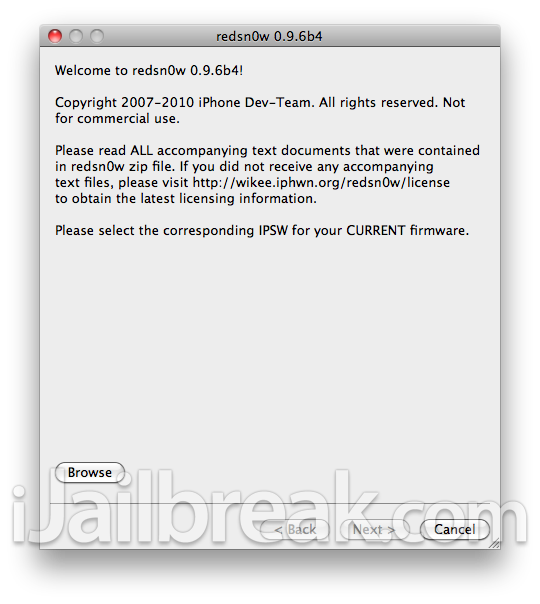
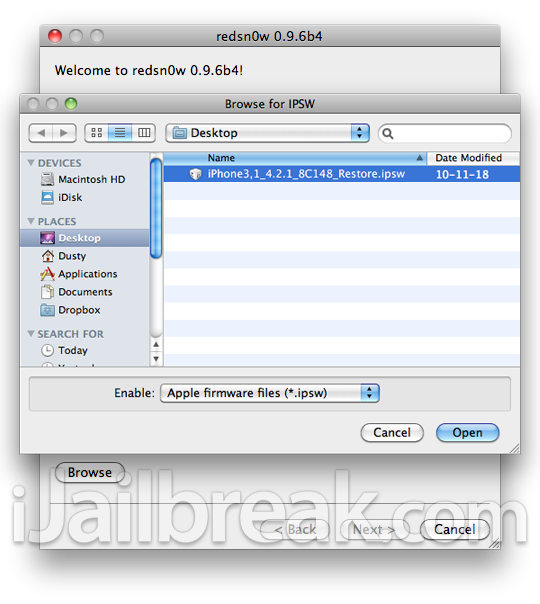
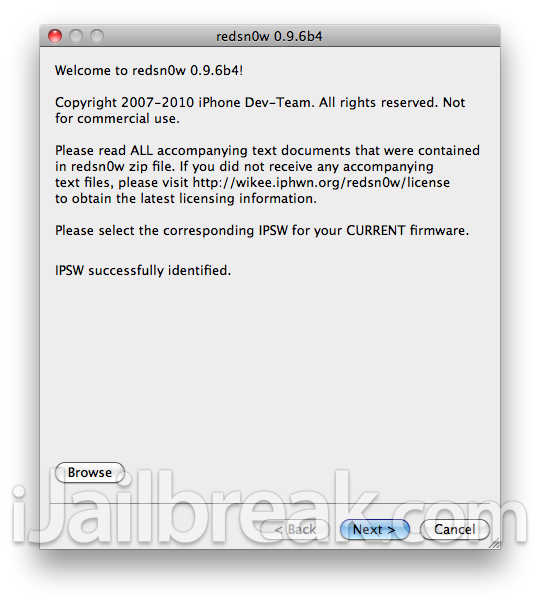
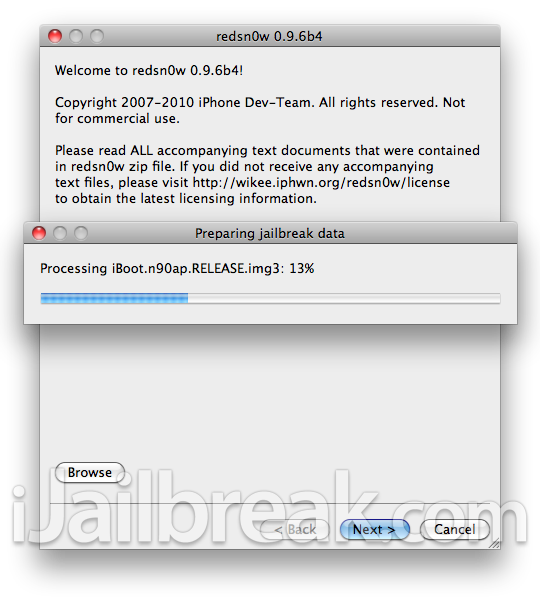
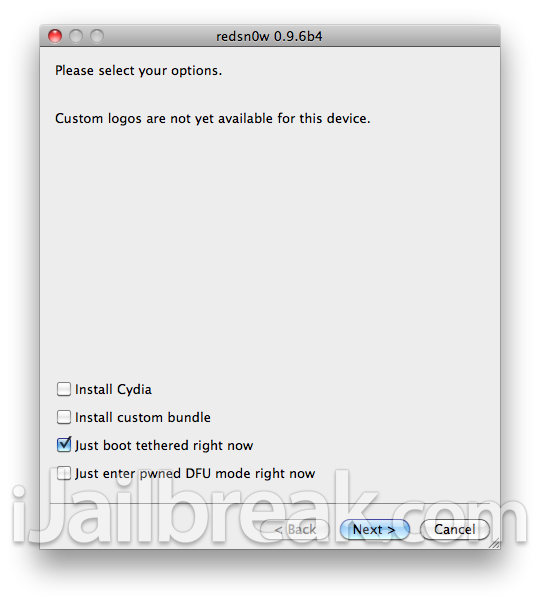
Step 4: Select “Install Cydia” and click “Next“. You can also select the optional choices if you like (read Step 7 for how to boot tethered iDevice).
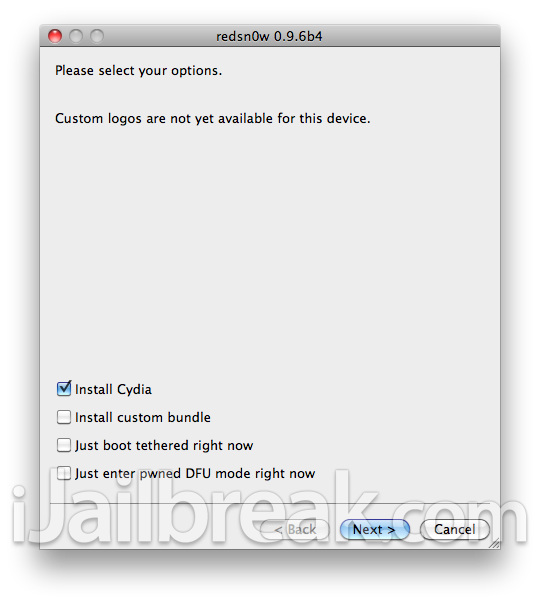
Note: Make sure your device is both OFF and PLUGGED IN to the computer.
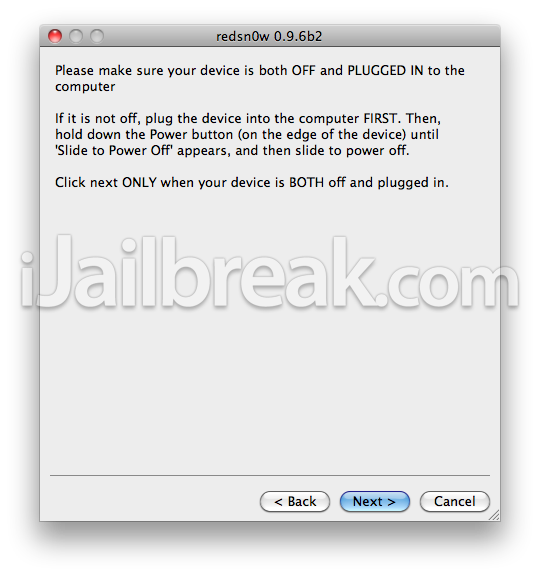
Step 5: Follow the on-screen instructions.
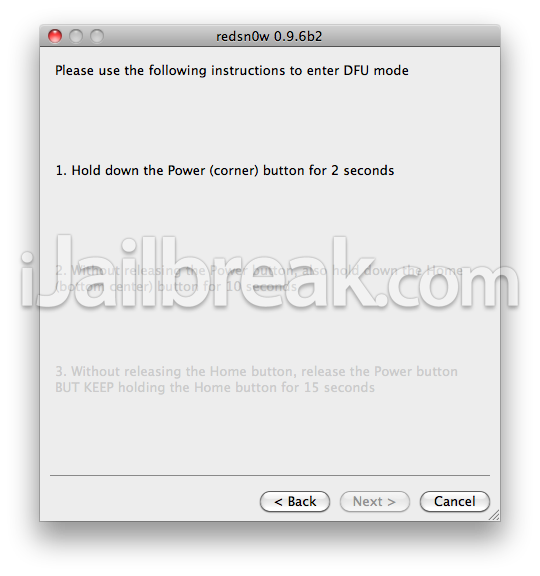
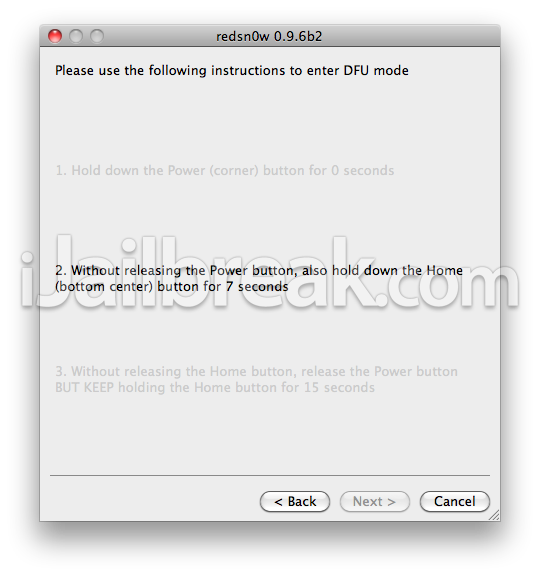
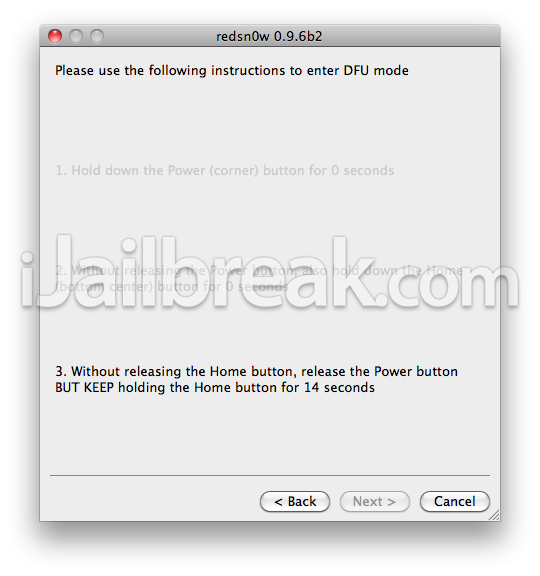
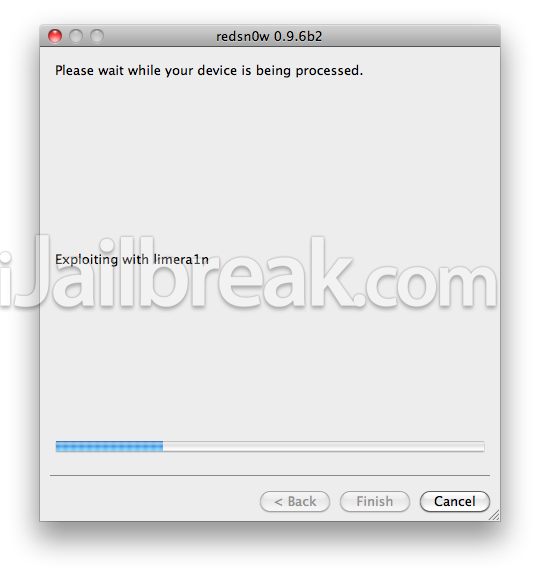
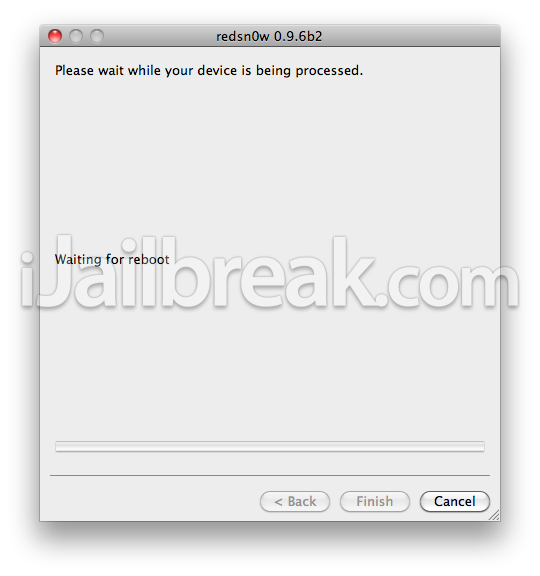
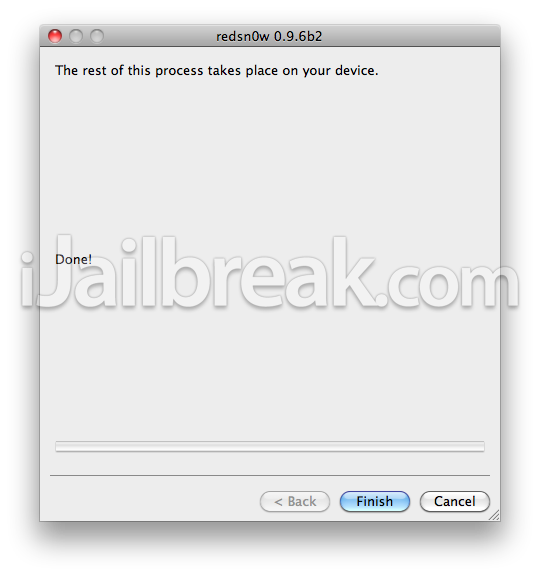
Step 6: Now sit back and relax while Redsnow does the thing it does best, jailbreak your iOS Device. After the process is complete, your device will reboot and you now have a jailbroken iOS 4.2.1 iOS device.
Step 7: How to boot tethered jailbroken iDevice (iPhone 4, 3GS (New Bootrom), iPod Touch 4G/3G/2G (MC), iPad) after reboot, select “Just boot tethered right now”.
If you have any questions, concerns or issues just leave a message in the comments.
ok, got ya, dumb question,,,,now can i restore from backup so i get all my phone numbers/apps/and crap???
its not working. i found the firmware but it just takes me to dfu which is an empty foler. what am i doing wring?
agree with Malorie1…Cydia is a blank square which blinks once and return to homescreen!
guys help me pls… i cant get a network signal.. pls help!!
try rebooting your device
This is driving me insane. I have an iPhone 3GS, 4.2.1. Im trying to jailbrake it following your guide. Im using redsn0w 096b4 & the latest iTunes which is 10.5 (I think) I downloaded the 3GS firmware from the links you provided, Im entering redsn0w and selecting it via browse, redsn0w asks me if my device is new(fixed) or not, Im checking the week using the SN which is week 32 of 2008 so im clicking on no IE that the device is not new,selecting only to enter DFU and when it does i click on shift+restore on itunes, select the files and it says it is not compatible >_<
Please help
how long does it take to reboot
?
it worked great thanks a million :)
thx so much!! finally, i could jailbreak my 3g myself!!
I have an iPhone 3G v4.2.1 with firmware 05.15.04. I am having a problem with my network. PLEASE HELP ME…. M FROM INDIA
i had successfully jailbreak of my iphone 3g 4.2.1 ios with redsn0w_win_0.9.6rc19 by adding iPhone1,2_4.2.1_8C148_Restore.jsp.
jus download above software and fallow the instructions nd njoy :)
guys i did all steps for jailbreak my ipod3g(4.21) and limera1n on half stop one hour,i am waiting continue…
when i am looking for my i phone under desktop i can’t find it.
I have an iPod touch 3G v4.2.1 but my iDevice wont open what will i do? :(
i have a ipod touch 2gen and ios4.2.1 and i jailbreak my ipod at redsnow but it was a 0.9.9 and had iphone and ipad and it doesnt whant to turn on
what worked for me is recovery mode, try holding power button and home button until the apple logo comes on.
Your comment is awaiting moderation.
I have an iPhone 3G .my power button is not working ,when I jailbreak it by redsnow by choosing DFU IPSW And when I select my ipsw it’s shows that “unable to parse ipsw .it’s really an ipsw ?”then nothing happens it takes to the extras screen please help me I’m from india