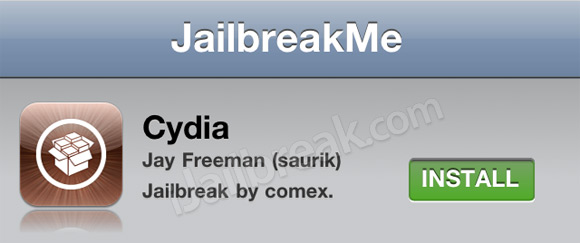
That is right folks. Comex has pulled off a midnight release (depending on your time zone) of JailbreakMe 3.0! With JailbreakMe 3.0 you will be able to jailbreak your iPhone, iPod Touch or iPad (1G + 2G) by simply visiting www.JailbreakMe.com. This is because JailbreakMe is a userland jailbreak; meaning in only a few taps of a finger your iDevice will be jailbroken straight from Mobile Safari.
This past week has been full of rumors about the tool, and unless you have been hiding under a rock, I am sure you already know all about it. So without further hesitation lets begin this how to guide on using JailbreakMe 3.0 (the iPad 2 untethered jailbreak).
Section 1: Prerequisite
In JailbreakMe’s initial release it only supports a certain range of firmware versions and iDevices. Please make sure you meet the following requirements:
- iPad 1G (iOS 4.3 through iOS 4.3.3)
- iPad 2G (iOS 4.3.3)
- iPhone 3GS (iOS 4.3 through iOS 4.3.3)
- iPhone 4 (iOS 4.3 through iOS 4.3.3
- iPhone 4 – CDMA (iOS 4.2.6 through iOS 4.2.8)
- iPod touch 3G (iOS 4.3, iOS 4.3.2, iOS 4.3.3)
- iPod touch 4G (iOS 4.3 through iOS 4.3.3)
Note: As explained prior these requirements will change as Comex adds additional support for older iDevices and older firmware versions.
If you meet the above requirements you can move on over to section 2.
Section 2: Using JailbreakMe 3.0
Step 1) The first thing you must do before jailbreaking your iDevice is clear Mobile Safari’s History, Cache and Cookies. To do this go into the Settings.app then go into the Safari tab and scroll to the bottom where you will see three options – Clear History, Clear Cookies, and Clear Cache. Click all three of these buttons now.
Note: While this step is not “officially” required it will help you avoid troubleshooting later (so do it).
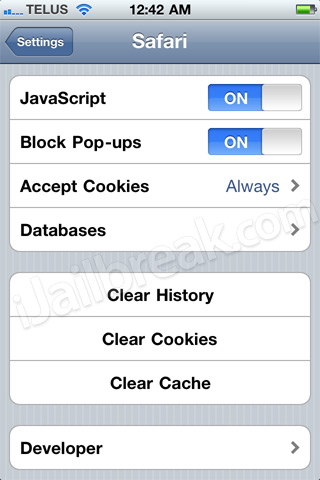
When you have cleared Mobile Safari from any cached data you will now need to ensure no applications are running in the background. To do this double click the home button to activate the multitasking bar and exit out of all running applications (there should be no icons in the multitasking bar).
Step 2) The next thing you will need to do is launch Mobile Safari and navigate to the following URL:
http://www.JailbreakMe.com
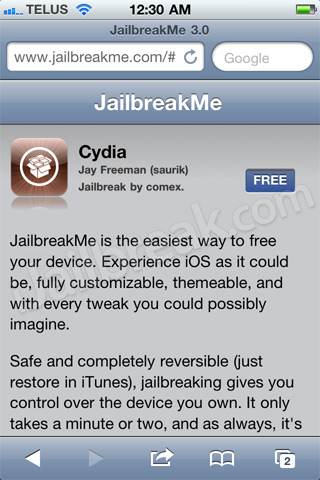
When it has finished loading on your iDevice you will need to first click the free button…
Then click the install button…
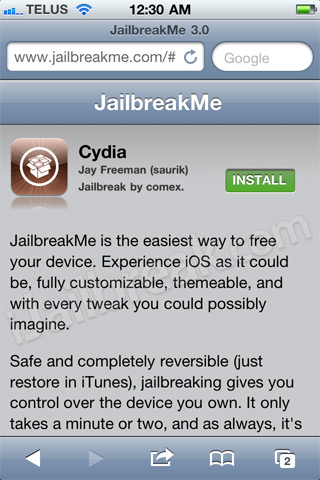
Step 3) Once you do this Mobile Safari should exit and you should see a Cydia icon appear on your SpringBoard with a loader bar (like you were downloading an application from the AppStore). You will now need to simply wait for the loading bar to reach 100% and you will have a jailbroken iDevice.

Note: It is recommend that you restart your iDevice after jailbreaking it with JailbreakMe 3.0 (again, to avoid troubleshooting later).
That is it! If you have followed all the steps correctly you should have a jailbroken iPhone, iPad, iPod Touch. Congratulations!
Update #1: IMPORTANT: Install PDF Patcher 2 now!
I am new to the Jailbreak community so somewhat of a beginner when it comes to all this stuff… I had a friend who is experienced Jailbreak my phone, and I would like to Jailbreak my girlfriends phone, but have heard that there is risk of “blocking” the phone… Is there a risk of doing this using the method and site you mentioned above? I think ruining her Iphone would not be good for our relationship =).
Thanks!
In terms of performance, is this jailbreak better on iPhones than the previous ones (sn0wbreeze, ipwnage, etc.)?
In terms of performance, is this jailbreak better on iPhones than the previous ones (sn0wbreeze, ipwnage, etc.)?
As comex explained on jailbreakme.com there’s no real risk that you’ll brick (that’s how it’s called) your device.
Does anyone know when there is going to be a Jailbreak me for iPod Touch 2G? Thanks.
Will jailbreakme be released for 4.3.5? Beware of certain Apps from Cydia. One of them crashed my system and I had to restore which caused me to lose 4.3.3 and jailbreak. Will a new version be coming out.
How can you undo the cydia install….???
i am desperately trying to take my jb’d 3G on 4.1 to 4.21 or higher, but have no luck whatsoever, keep gettting bad solutions…. any help anyone?
This method is untethered or tethered jailbreak for iphone 3gs
it wont let me cos i hav a 5.1 f**k
what if u have vesion 5.1.1 ????
i have a version 4.2.1 ipod touch 2g and i cant do it is there any way i can with cydia
i wish this worked because redsn0w aint doing sh*t
Give absinthe a go! Its a great way to jailbreak your idevice untethered. Just google “absinthe untethered jailbreak download 5.1.1” you can find instructions on how to intall it on google and youtube! :) i always use it if i wanna jailbreak my idevices. Its great and free! :) good luck