It is no question that Apple unveiled some great new products and software yesterday! It is also no question that Apple released the iOS 5.1 firmware update. For all of those who are wondering whether you can Jailbreak the iOS 5.1 firmware or not, you will be glad to know that you can. This is because the iPhone Dev-Team have released an update for RedSn0w bringing support for the iOS 5.1 firmware. There are a few of things you need to keep in mind however.
Firstly, this Jailbreak is only for the iPhone 4 and iPhone 3GS; not the iPhone 4S. Secondly, this is a tethered Jailbreak and not an untethered Jailbreak that we have been very lucky to have on the iOS 5.0.1 firmware. As this is a tethered Jailbreak it means you will need to plug your iPhone into your computer and re-run RedSn0w to boot your iPhone into a fully operational state every time it loses power. Lastly, iBooks will not work on the iOS 5.1 firmware until the iPhone Dev-Team have had a chance to implement a patch.
If you understand the three points I have just brought up about this Jailbreak and meet the requirements you will be able to easily Jailbreak your iPhone 4 or iPhone 3GS on iOS 5.1 tethered. And in this how to guide from iJailbreak.com you will learn how to do just this using the Windows version of RedSn0w 0.9.10b6.
Note #1: This is a tethered Jailbreak and this Jailbreak will not work on the iPhone 4S.
Note #2: iBooks will not function correctly until the iPhone Dev-Team have had a chance to implement a patch.
Note #3: The old bootrom iPhone 3GS will be untethered on iOS 5.1.
Note #4: If you are looking to Jailbreak your iPod Touch 4G or iPod Touch 3G click here. If you would like to Jailbreak your first generation iPad click here.
RedSn0w 0.9.10b6 Tethered Jailbreak (Windows)
Step 1: The first thing you will need to do is download RedSn0w 0.9.10b6 for the Windows operating system using the download mirror below or through the iJailbreak Downloads Section.
Download RedSn0w 0.9.10b6 for Windows
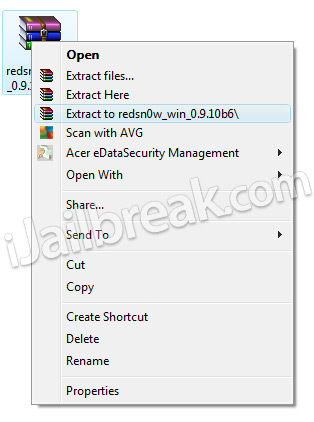
Step 2: Once you have downloaded RedSn0w you will need to extract it to your desktop by right clicking on the RedSn0w.zip file and then clicking the extract to folder option.
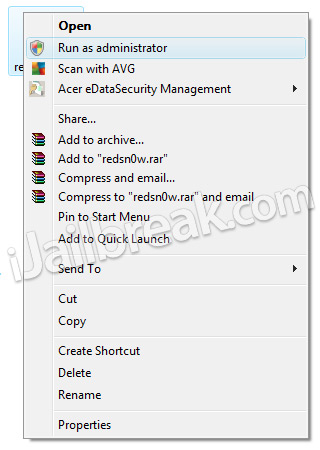
Step 3: Next you will need to launch RedSn0w by right clicking on the redsn0w.exe shortcut and then clicking the run in administrator mode option.
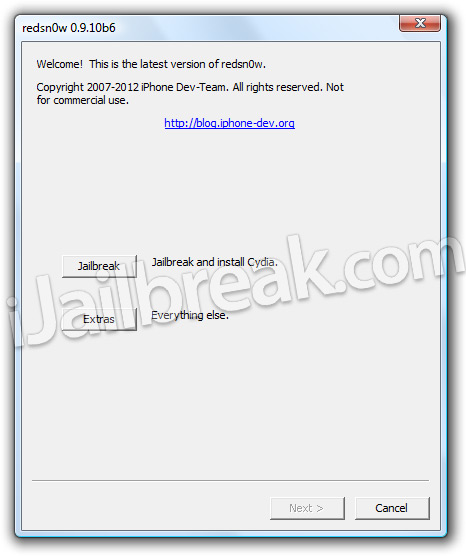
Step 4: With RedSn0w running you will need to click the Jailbreak button.
Step 5: After clicking the Jailbreak button you will come to a screen where you will need to put your iPhone into DFU mode.
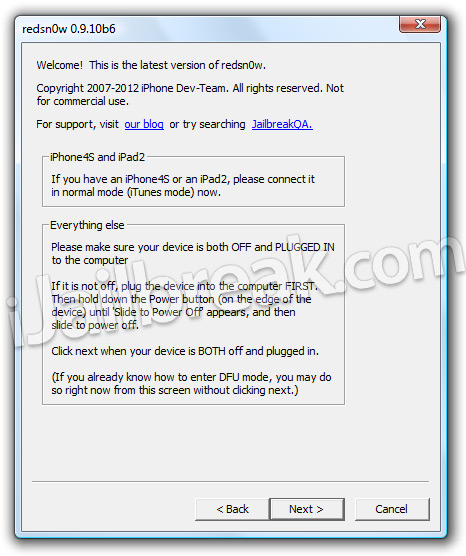
Read through and follow the instructions presented to you which is to plug in and power off your iPhone and then click the next button when you are ready to begin the DFU mode process.
Step 6: When you click the next button you will need to follow the instructions presented to you in real-time to put your iPhone into DFU mode.
- Hold down Power (corner) button for 5 seconds.
- Without releasing the Power button, also hold down the Home (bottom center) button along with the Power button for 10 seconds.
- Without releasing the home button, stop holding down the power button for up to 15 seconds.
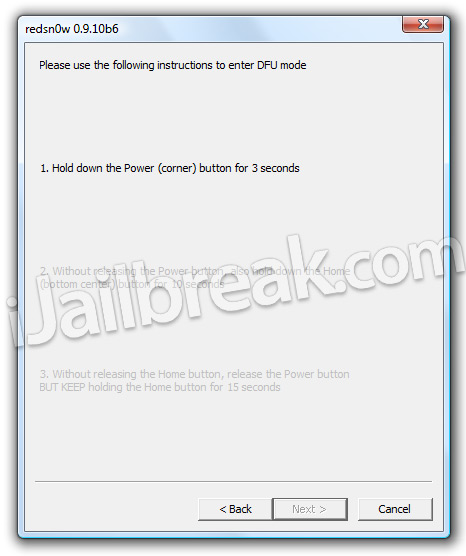
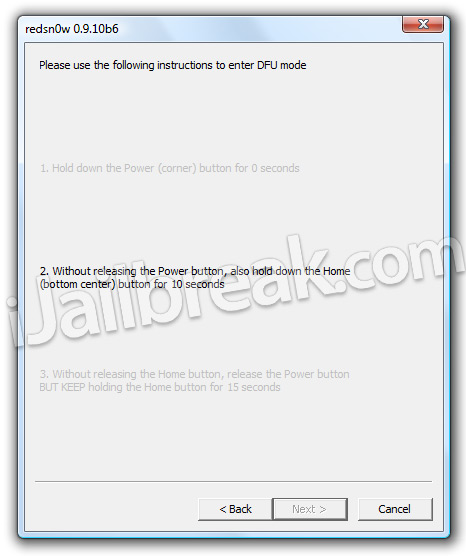
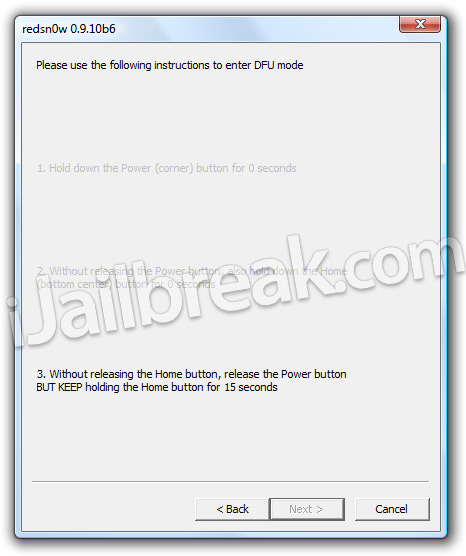
Step 7: After you successfully enter DFU mode RedSn0w 0.9.10b6 will begin preparing your iPhone for the iOS 5.1 Jailbreak.
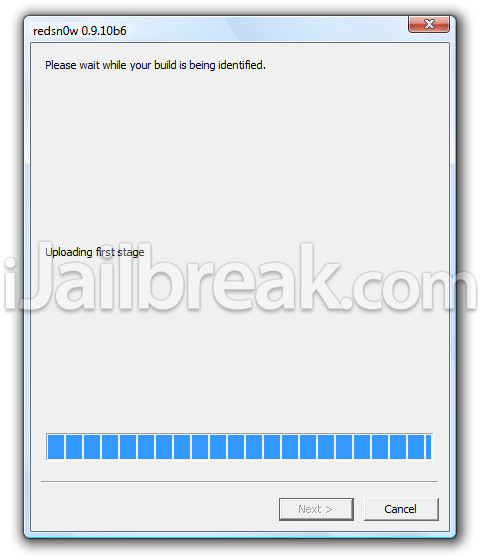
Step 8: Once RedSn0w has finished preparing your iPhone for the iOS 5.1 Jailbreak you will be asked you to specify options to go along with your Jailbreak. The only option that you actually need to make sure is checked is the Install Cydia option. Once you have ensured this option is checked, and any other options you may want, click the Next button.
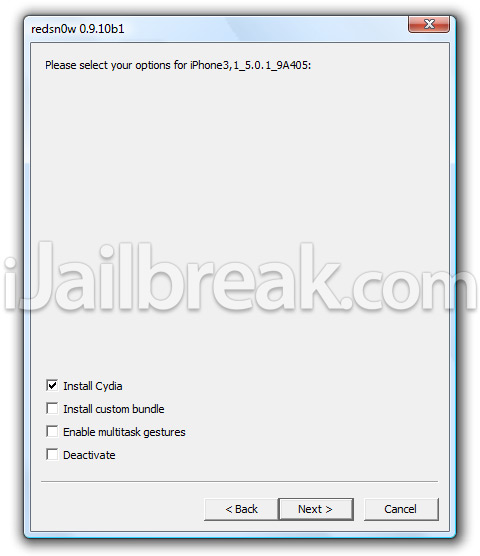
Step 9: After you have specified your Jailbreak options you can click the next button and RedSn0w 0.9.10b6 will begin jailbreaking your iPhone. DO NOT interrupt or use the computer during this time. When your iPhone is finished being jailbroken it will boot up with the Apple logo and not go any further. This is because this is a tethered Jailbreak and you will need to boot tethered with RedSn0w in order to get your iPhone in a working state again.
Step 1o: As explained previously when you Jailbreak your iPhone running iOS 5.1 you will have a tethered Jailbreak. Meaning in order for your iPhone to turn back on you will need to boot it using RedSn0w (this applies every time your iPhone loses power). To do this launch RedSn0w again and click the Extras Button > then click the Just boot button and you will simply need to put your iPhone into DFU mode again.
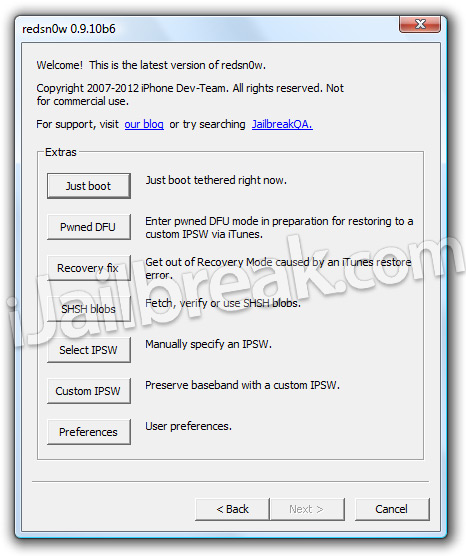
You should now have a tethered Jailbreak on your iPhone 4 or iPhone 3GS running the iOS 5.1 firmware. For more tutorials visit the How To Jailbreak Section. Leave any questions in the comments.
If it isn’t for 4S how come it says something about 4 S in the installer??
can we still get in under ios 5.0.1. for the ip4 if we still have our links? i tried, it accepted the ipsw but would crash before it finished loading? and how come cydia doesn’t save our ques?i wouldn’t be trying to jailbreak all over again if it did. i was adding mods and was put into safe mode and then crashed because i got a call while loading. the only thing missing was cydia so i couldn’t or still cant get back in. other than that everything is good
Is there any hope for those of us who have 4S and being incredibly stupid upgraded to iOS 5.1???
I’ll never do another tethered jailbreak. That is a pain.
how do we hacktivate it?????!!!! because i dont have the original sim card! will it automatically be activated?? someone please explain to me thanks!!!!
I have jailbreak my iphone 3gs as per you guidlines.. everything is working fine… but still its showing ‘no service’ (sim)… Plzzzzzz help me out… This is the first time i have jailbreak my iphone..
Thanks Arthikin.. My Iphone 3gs is working fine with with tethered Jailbreak!
Nu Problem Bro~ It Was My Pleasure.
Note #3: The old bootrom iPhone 3GS will be untethered on iOS 5.1.
i have iphone 3gs with old-bootrom. Can someone please explain to me either i can jailbreak my iphone to ios 5.1. Then, it is true if i jailbreak my iphone, it will be untethered version?
Hey… I have a two questions please answer:
1. When we can expect Untethered Jailbreak for IOS5.1?
2. I did tethered Jailbreak and unlock to my iphone 3gs… so next time i will go for untethered jailbreak.. do i need to unlock again??
I stupidly upgraded to 5.1 and am now trying to jailbreak my iphone 4 again. Anyone had the same problem whereby firstly when you open Redsn0w an error message states that “Certain operations (like the A5 jailbreak) are disabled due to incomplete iTunes libraries. Please be sure the latest iTunes is installed. Couldn’t load Mobiledevice.dll.” – I have upgraded iTunes to latest version. Then when attempting the jailbreak anyway, once in DFU mode iTunes fires up saying i’m in restore mode and I get a message from Redsn0w saying device not detected!
it keeps saying that redsn0w is not the right one for my phone and something about a finger print. Is there a later redsnow that I need to download? I just got the one off ur link… please help this has been one of the better tutorials I have seen since I’ve been hunting online for a solution. I also need to unlock my Iphone 4 too.
hi i jail breaked my phone and its stuck on the pineapple picture wat shall i do
im stuck on the pineapple picture
iphone 4s 5.1 jailbreak ?
any news for untethered jailbreak for iphone 4 on IOS 5.1 soon??
I have the same problem !
I have proplem i try all redsn0w and snobreeze this not working. i need help!!!!
Redsnow is not downloading to my cpu..its asking me do i want to save and when i click save nothing happens..
while jailbreaking some registry errors are shown and which as effects on cydiacydia is’nt working in iphone 4
any suggestions why this errors are appearing
after successful installation of cydia and reboot, i installed Siri and it asked to reboot, but when rebooted, now stuck on Pineapple logo, no matter how many times i rebooted its just stuck on pinapple logo. nothing happens. WHY?
heeeeelllllllp..!!!!!
Hey.
I have jailbreak iphone 4 IOS 5.1 and now bluetooth does not work. Please help.
I can turn it on, but I can not connect iphone to anything???
i’m almost done everything.i can install everything..appear at my 3gs screen..but i cannot use it..and at my cidya home screen still have “this device is in the pending TSS queue”…what should i do???pleaseee help me..
try to do clean copy of your ios and then jailbrake again
any news for untethered jailbrake for iphone 4 ios 5.1????
hi used this and after a couple of goes worked great thanks
any luck?!
Superb!! thanks to your guide i can enjoy from my iPhone..!!!
thank you very much!
I am jailbreaking my iPhone 4 5.1 on windows with redsn0w and i’m following these steps EXACTLY and everything is working perfectly except that i don’t have cydia installed on my phone after the jailbreak is complete. i’ve made sure that i am cheching the box that says “install cydia” and it just won’t work. help anyone?
if i try this jailbreak on my iphone 4S , what will happen?
Worked great for me thanks so much for sharing this you guys rock. I tried this on another comp that i did not have administrator rights too and it didnt work. so definately make sure you follow the instructions to the tee.
I need to install the iPad baseband option with this in order to receive signal once it’s up and running. It gave me a strict warning not to go ahead with this option if the serial number is xx134 or later. My serial number is xx946, so is that later or am I safe to proceed???
Ohhhh noooo I think that mine does have a later serial number doesn’t it?? :(
I have tried installing this many times and i keep getting the same error “Exploit Failed” how do i fix this?
i dnt have my sim card for my iphone 3gs 5.1 so will it activate it for me i just want to use it as a ipod cuz i bought it for 10 dollars plzz help me sumone
if i have a ipod 3gs 5.1 and i used redsnow to jailbreak it will it activate my iphon kuz i dnt have my sim card anymore
Same exact thing happened to me.. Are there any solutions?
it does not install cydia on my iphone 3gs 5.1.
you can downgrade iphone 4 ipod 4th generation ipod 2 ipad1using ifaith
Why do people post questions here when they NEVER get answered?
is it okay to use this jailbreak if i have 3gs with old bootrom but installed with ipad baseband?
any chance to unlock iphone 3gs on 5.1?
No luck on my side. Upgraded 3GS to 5.1 and jailbroked it using
RedSn0w 0.9.10b6, but unable to unlock since SAM stopped working.
yall lucky my phone turned back on i would of been heated bra
my cydia doesnt work, how can i make it work?
Use Absinthe ben
its only for jailbreak.. you still have to UNLOCK IT :)
You do not need iTunes installed as iTunes is only needed for the A5 exploit. You mustn’t be pressing the buttons in time for DFU. (You can stop iTunes popping up by changing it in preferences.
i know me too! and no one is helping me !
i was on ios 5.1 and i updated the ios it still says its 5.1 tho will this jailbreak still work ?
Hi Matt, i’m pretty sure i’m pressing the buttons in the right order as I used Redsn0w previous to upgrading to 5.1. I’m still receiving this error message and when I attempt to jailbreak it still goes into restore mode.