Well folks we finally get some pois0n for our iDevices! In this tutorial you will you learn how to jailbreak your iPhone, iPad, iPod Touch running the iOS 4.1 firmware, with Chronic-Dev’s new jailbreaking tool – GreenPois0n. GreenPois0n is a new iOS 4.1 all purpose jailbreaking tool that will jailbreak the following iOS devices: iPod Touch 2G (MC And MB Model), iPhone 3G, iPhone 3GS, iPhone 4, iPod Touch 3G, and iPod Touch 4G and iPad on iOS 3.2.2. As of right now, GreenPois0n is only available for Windows and Linux (Chronic-Dev is working on porting it to Mac), but we will keep you updated on the progress of this…
Note: Right now GreenPois0n only supports the iOS 4.1 and iOS 3.2.2 firmware. If you require an unlock for your iPhone, DO NOT update to iOS 4.1 as this will update your baseband.
Jailbreak iPhone, iPad, iPod Touch With GreenPois0n
Step 1) The first thing you are going to need to do is download GreenPois0n to your Desktop. Right now GreenPois0n only works with Windows and Linux (A Mac version is coming soon).
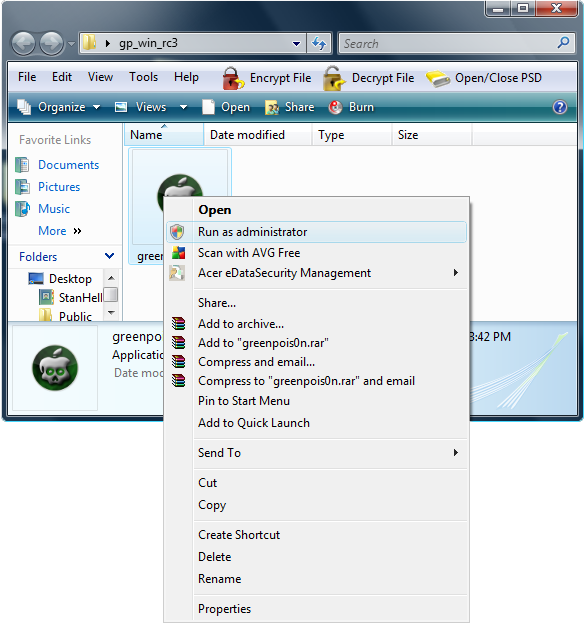
Step 2) Once you have downloaded GreenPois0n to your Desktop you will need to extract it. Do this now by right clicking on the GreenPois0n .Zip, file and hitting the extract now option. Once GreenPois0n has extracted to your Desktop you will need to right click on the GreenPoison.exe file and Run it As An Administrator. (Windows only)
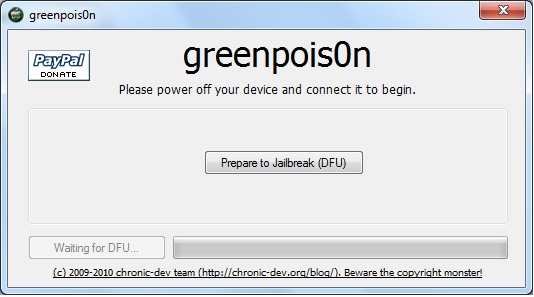
Step 3) GreenPois0n should now be up and running. Now you will need to plug your iDevice into your Computer and turn your iDevice off (ensure iTunes is not open). Once you plug your iDevice into your computer and turn it off and you will need to click the Prepare Jailbreak Button (DFU).
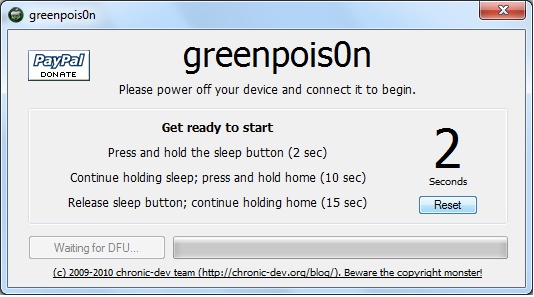
Once you click this button you will be brought to a screen with some instructions to put your iDevice into DFU Mode. Make sure you follow these instructions exactly as shown, and you will not run into any errors.
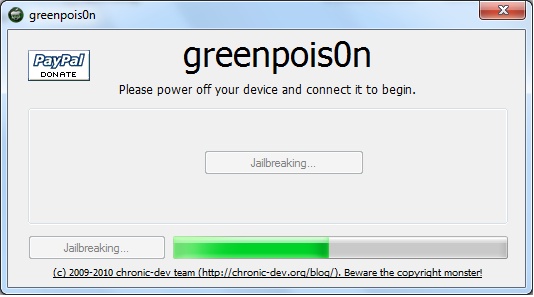
Step 4) Once you have put your iDevice into DFU Mode, all you need to do is wait for the jailbreak process to complete. GreenPois0n will alert you when your iDevice is done being jailbroken, and then your iDevice will reboot into a jailbroken state.
Step 5) Once your iDevice reboots into a jailbroken state, there should be a new icon on your SpringBoard called loader. Click this loader icon, and select the Cydia option and then the install option. Once loader has successfully installed Cydia, you will be asked if you want to remove the loader icon. Click the Remove option and your iDevice will reboot itself for a last time.
If you have gotten success congratulations! You now have jailbroken your iPod Touch, iPad or iPhone running the iOS 4.1 or iOS 3.2.2 firmware with GreenPois0n. Please let us know how this jailbreak went for you, and if you experienced any errors.
Hi,
I have done the jailbreak and installed cydia but I am still getting no service with a foreign sim card. Any ideas?
@Stephen No service with foreign sim card usually means you’re simlocked, greenpoison only jailbreaks and not unlock
hi. sorry am abit lost, need to clarify 2 things.. 1stly must i update to 4.1 the normal way through itunes? 2ndly when u say it unlock do you mean a carrier appoved network? so if im on a carrier approved network i’ll be ok wit this jailbreak?
If I have already jailbroken with Limera1n, what are my steps to ensure I exploit SHAtter.
Do I restore to 4.1 and jailbreak with Greenpois0n?
Do I run Greenpois0n over top of Limera1n?
Hello, as long as you are using a legit cell carrier, and do not need to unlock your iPhone. Which allows you to use it on other networks: for example tmobile. Then simply either upgrade to ios4.1 or restore to ios4.1 and use greenpoison to jailbreak your iPhone. Limrain is just another jailbreaking tool.
I have tried this twice, the “jailbreak loading bar” goes all the way, the phone reboots, but then it says “jailbreak failed, try again”. ANyone else have this problem or know what the deal is?
Hello I have being trying this jailbreak withouth succes i have followed after evry single step and whan it comes to the end it says “try again”
BTW: I have iTouch 3g runninng 4.1 firmware.
HELP ME PLZ!!!!!
i have the exact same problem as the guy above^^^ however in on iTouch 2G
Oh sorry, No GreenPois0n will only jailbreak the iOS4.1 firmware. LimeRa1n however can jailbreak the iPhone 4 running the iOS4.0.2 firmware. View this tutorial here:
Then you can use ultrasn0w to unlock iOS4.0.2
Please reply back if you need anymore help. Best regards,
StanHell :)
Hey guys, really make sure you are entering DFU Mode Correctly. DFU mode should mean your iPhone screen stays blank. Also follow these steps if you still do not get success.
1) – Restart Computer
2) – Use USB ports on the back of the computer, or change usb ports.
3) – Ensure you run GreenPois0n on administrator mode, you can even try changing compatibility mode to Windows XP.
If all else fails try LimeRa1n, lots of users have gotten success with this tool! Let me know how it goes guys. Peace.
hi. i am a bit confused. i think the basic straight question i have is this – will po1son jb an iphone 4 with ios 4.02? this is not an upgrade or anything like that. i just got this phone this week from at&t. it’s completely brand new. i would like to jb and then unlock it to use on tmobile.
oh and btw i did save my SHSH files on sauriks server with tinyumbrella
ok great thanx for ur answer and i will do this tonite when i get home and revert with an update then.
for now 1 just have a few questions4 u b4 i get started tonite.
is it ok to update to itunes 10 as long as i don’t allow it to update my i4n?(i have 9.2 and it will not read my iphone 4 says i need to update)
after it rains on my i4n will it also hacktivate it?
once all this is completed is it true that
1-i should never reset the phone or power off otherwise it will lose the jb/unlock?
2-if that happens for the jb/unlock process to be repeated it can be performed on the same Lappy/pc i used first to JB/unlock it ONLY?
@14ner: Whoever told you the above shit is totally shitty!!!!
There is no crap like dis!!
It worked really well for both my iphones thank you! :)
hi,
i have already jailbroke with limra1n..if i want to jb with greenpo1son, do i need to restore to 4.1 again?
my 3GS right now is locked to at&t, does ultrasnow can unlock the carrier if i use greenpo1son? ultrasnow is not working on my limera1n 3GS.. it says “unable to load network”
please help
Having major problems… I cannot get the jailbreak to open. Every time I click on the greenpois0n.exe, it acts as though it is going to work, then I get an error that says the program must close. It makes no difference whether or not I click to run as an admin. I can’t find any solutions to this via google.
I have a new iphone4 with ios4.1, how do I unlock it???
yeahh! just jailbroke 2 ipods, a 2g and 4g both succesfull, and running clear so far!! thnx! stan! and to dev-team, ill report any issues.
greets from mexico city!
i try several time, changing usb ports, vrs. 4.1 (8B117), 05.14.02.. no luck always said jailbreak faild… try compatibility mode, admin mode etc. any hint help ?
Awesome I am glad to see this worked for you josecaos!
Unfortunately if you have an iPhone on iOS4.1 by default you will not be able to unlock it, until the dev-team releases a new version of ultraSn0w.
Hmmm it seems like you have tried everything. Can I ask you what iDevice you are trying to jailbreak?
my pc goes into sleep mode after i release the sleep button = =
Lollzzzzz@ Above u need to press the sleep button on Iphone not the PC dude.
i keep getting the problem size mismatch when downloading installous
why in “Release Sleep button” phase, my computer turns into sleep mode?
I did it and everything appeared to be perfect, but when I try to install certain usefull things from cydia I keep getting the same error –> “Note: The requested modifications cannot be applied due to required dependencies or conflicts that cannot be automatically found or fixed.”
and at the bottom the are like the things missing, but they vary bettween apps. Any idea of how can I solve it??
Thanks
DID EVERYTHING AS INSTRUCTED AND WILL NOT GO INTO DFU MODE! HAVE HAD NO LUCK WITH THIS THING!!!!!!!!!!!! GIVING UP JAILBREAK
actually this a question!
Can I use it on already jailbroken device(4.2.1 jailbroken+tethered)?
Success! On a iPad. First try successful. Nice!
OK everything works fine right before you hit the jailbreak button. It stops counting down at 8 seconds. Then when I hit jailbreak, it always says fail. I am running windows 7 64x bit. If anyone has done this please let me know. I have JB twice or at least that is what the program says but obviously it has not worked.
perfetto io l ho fatto su 4.2 è funziona benissimo
I tried to jailbreak my iphone today, all day long.
Each time I managed to complete the prepare for jailbreak step and then when I press jailbreak, almost immediately I get this error: “greenpoison.exe has encountered a problem and needs to close”. And this happened several times on two pc with windows (one of them is vista and the other is XP with service pack 3).
Awesome!!! Just jailbroke my ipod touch 2G MC model and my ipad first try!!!!!!!!!
Both succesful!!!!
Everything went as planned but the “loader” icon is a blank, white, square and it wont work and I cant delete it
Reboot your device and then you’ll see the icon and will be able to open it :-)
Downloaded greenpois0n alright but I’ve had No Service ever since. Getting free apps isn’t muuch good to me if I can’t make phone calls, send texts or emails.
it downloaded loader but will not complete the cydia download??? says timed out after some time ??? why is this?
nerverminded i ran it as admin and it worked great…thanks
i did this, but i have no service
I have the same problem
Although it did try to search when I downloaded ultrasn0w
I have the same problem
make sure your doing the instructions while the ipod is locked,. i had the same issue
it wont find cydia what am i doing wrong?
do you have itunes?
I did everything as instructed, and it’s now stuck on what looks like it could be an SSH of some sort. I litterally feel like i dont know what i’m doing. :(
I can’t find the loader that has been referred to here. Where is it?
and what if that didnt work??
ive rebooted a few times and it’s still a white square and i cant open it or anything
It says connection reset by peer
It said jailbreaking failed
ok well whenever I get passed the black screen with the writing it says connect to itunes……
ok well whenever I get passed the black screen with the writing it says connect to itunes……
i cant open cydia after successful jailbreaking 4.2.1, when i click cydia icon the ipod touch is going to be hang and the ipod touch unlock automaticaly