For a long time now downgrading on the iOS 5 firmware generation has been impossible. This is because Apple changed the method in which SHSH blobs are essentially used, to make sure users could only run the latest version of the iOS firmware. With the release of iFaith v1.4, however, users now have the ability to downgrade on the iOS 5 firmware generation. This means if you would like to downgrade from the iOS 5.0.1 firmware to the iOS 5.0 firmware, you can do just this.
If you remember to earlier last week I showed you how to save your SHSH blobs and APTicket using iFaith v1.4. Now, I am going to show you how to make use of your saved SHSH blobs and APTicket using iFaith to downgrade from the iOS 5.0.1 firmware to the iOS 5.0 firmware.
Note: To downgrade from the iOS 5.0.1 firmware to the iOS 5.0 firmware you must have saved SHSH blobs and APTicket on the iOS 5.0 firmware. If you do not have the SHSH Blobs and APTicket on the iOS 5.0 firmware, but the iOS 5.0.1 firmware you will not be able to take advantage of this How To guide.
Downgrade From iOS 5.0.1 to iOS 5.0
Step 1) – The first thing you will need to do is download the latest version of iFaith (currently v1.4) from the iJailbreak Downloads Section.
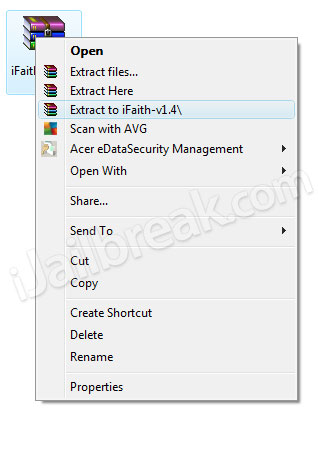
Step 2) – Once you download iFaith you will need to extract it to your Desktop (or whichever location you downloaded iFaith to).
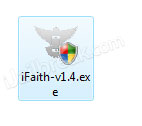
Step 3) – Next you will need to launch iFaith by double clicking on the iFaith.exe file.
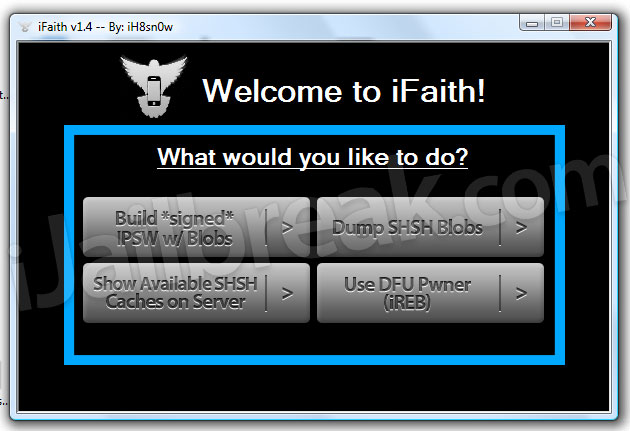
Step 4) – With iFaith up and running you will simply need to click the Build *signed* IPSW w/ Blobs button.
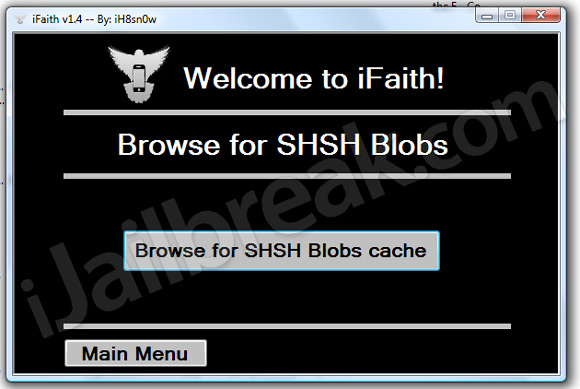
Step 5) – On the next screen you will need to browse for the saved SHSH blobs file that you put in a safe directory.
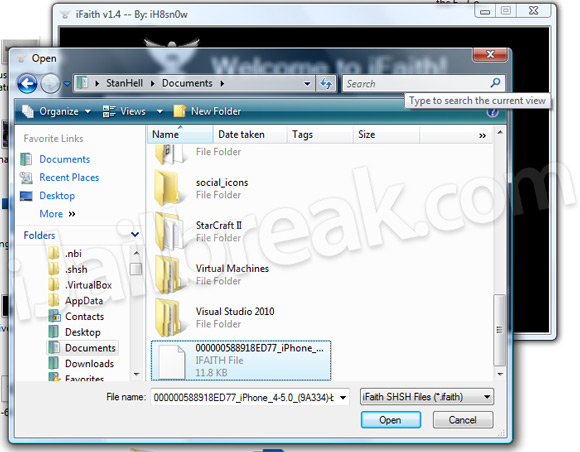
Step 6) – Now either select the directory of your iOS 5.0 firmware file for your specific device, or download it using iFaith.
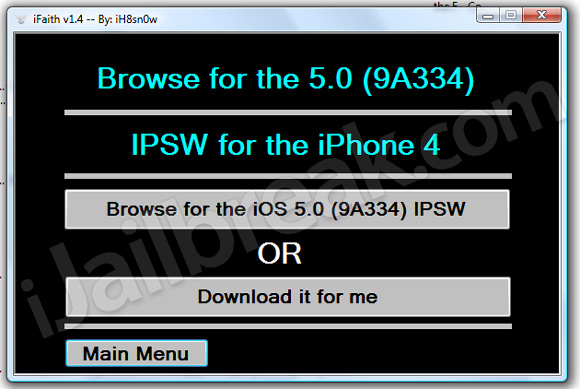
Step 7) – Upon selecting your iOS 5 firmware file, iFaith will begin creating a custom iOS 5 firmware file with your SHSH blobs and APTicket.
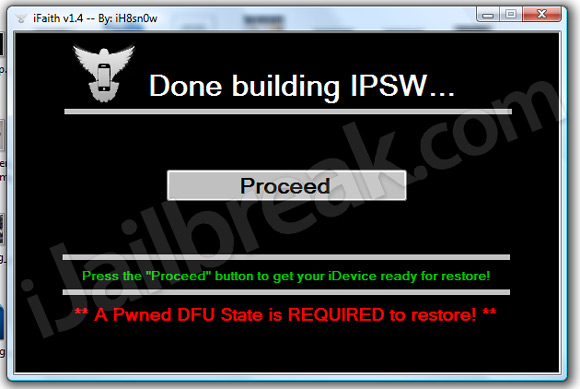
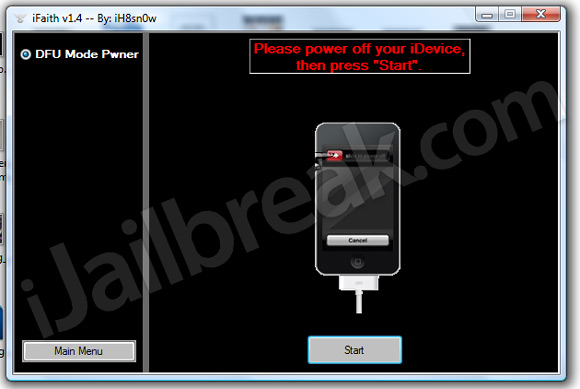
Step 8) – When iFaith has finished creating your custom iOS 5 firmware file you will need to click the Proceed button and then the Start button to begin putting your iPhone, iPod Touch or iPad into DFU mode (follow the on-screen instructions).
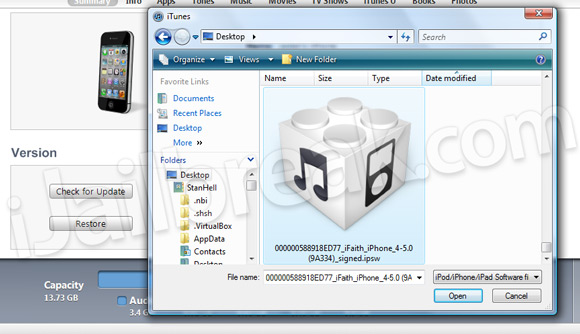
Step 9) – After your iPhone, iPod Touch or iPad is in DFU mode you will need to close iFaith, open iTunes and then Shift click the Restore button and select the custom iOS 5 firmware file you created using iFaith. Upon doing this your iDevice will begin being restored to the iOS 5 firmware.
Congratulations! You have just downgraded from the iOS 5.0.1 firmware to the iOS 5.0 firmware file using iFaith. If you would like more How To guides like the one you just followed click here. Additionally, please share any thoughts or questions in the comments section below.
It is not possible to downgrade a baseband. In fact, I don’t think it has ever been. The Dev-Team were trying to work on something at some point, but it never saw the light of day. Sorry.
It is not possible to downgrade a baseband. In fact, I don’t think it has ever been. The Dev-Team were trying to work on something at some point, but it never saw the light of day. Sorry.
No you will need to re-jailbreak
No worries :) Your only option is a GEVEY SIM card unlock I think.
Does this downgrades baseband too?
oookkk, it´s unlock or nothing… thanks-a-lot Jaden!
so nobody is working to unlock 4.11.8? too difficult? or risky?
Does this work on jail broken devices and will they stay jail broken
Can someone email me a shsh blob for iPhone4 gsm on iOS 5 using ifaith v1.4 at richardklok@live.com please!!
After downgrading I’m having issues with AppSync. The cracked apps just fail to sync or install. Anyone else having these issues?
It doesn’t work like that…the SHSH blobs are specific to your device. You can’t use somebody elses.
if i got 5.0.1 with bb 04.10.01 i use ifaith to make cf 5.0 my bb after restore will be 4.10.01 or bb from ios5 ?
how about baseband?
Not if you just dumped blobs. The blobs saving porocess does not unjailbreak. Just restoring to the iFaith IPSW does. Not actually using the tool to save blobs.
it couldn’t detect my SHSH blobs file. Any idea what’s happening?
my iphone 4 ios 5.0.1 isn’t jailbroken btw
GEVEY does Not unlock 4.11.8! I’d know I didnt make a custom ipsw with my old baseband preserved. Now that GEVEY magic cant work according to @applenberry:twitter
when about ot restore it had a pop-up saying that there was a problem and now my ipod is starting-up and i think it is frozen on the apple symbol. It was jailbroken when i started. Any help?
it wony detect shsh plz help
this works in a version 5.1 para 5.0.1
hi im trying to downgrade my iphone i have upgraded to ios 5.1 n im tryin to downgrade to 5.0.1. i created my blobs on ios 5.1 and now i am having some issues downgrade can some1 help me
I had updated to 5.1.1 and successfully untethered
it… but my backup had failed to restore… got an error saying backup corrupt
or not compatible… i had important data… So i wanted o downgrade and i
tried many a times using tiny umbrella and red snow… stitching ipsws and all…
failed… I found this. Worked Perfect. Thanks a lot :) Now i can restore my
backup…
when i downloaded it . i extracted and it gave me absinthe… should’nt it be IFaith v.2
I had this problem with my jailbroken iphone… It got frozen in the middle of installing an app via cydia and i had to force shut down my Iphone! No biggy i thought but it turned out i couldnt start my iphone anymore so i wanted to recover my iphone but that didnt work :/ so i tried everything to make my iphone working again and i told myself that this would be the last thing i would try(downgrading it) and it worked :D!!!
So i couldnt fix my iphone with apple’ s software but it did work with hacking :3