Moments ago we told you that UltraSn0w was updated to version 1.2.3. This guide will show you how to unlock your iPhone 4, iPhone 3GS running the iOS 4.3.3, iOS 4.3.2, iOS 4.3.1 and iOS 4.3 firmware. Unfortunately unlocking is not as easy as just installing UltraSn0w, if you have never unlocked prior to this moment you will most likely be unable to unlock your iPhone. This is because UltraSn0w only supports six older baseband versions that you will need to check, (Go into Settings > General > About) and see if you have a supported baseband version by comparing your version number to the list below.
Supported Basebands:
- 01.59.00
- 04.26.08
- 05.11.07
- 05.12.01
- 05.13.04
- 06.15.00
Step 1) Jailbreak your iPhone on the iOS 4.3.3, 4.3.2, 4.3.1, 4.3 firmware using RedSn0w, Sn0wBreeze or PwnageTool. If you have not done this please follow one of our guides. If you are already jailbroken on one of these firmwares, please skip to step 2.
Step 2) When you are jailbroken on the iOS 4.3.3, 4.3.2, 4.3.1, 4.3 firmware please launch Cydia from your SpringBoard.
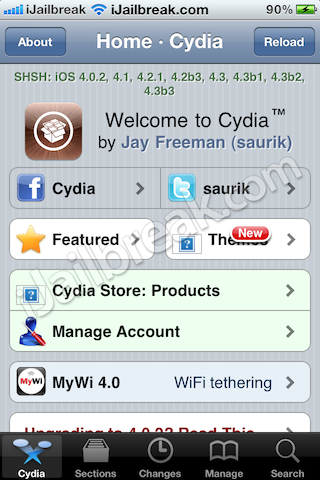
Step 3) Now you are going to:
- Tap on the “Manage” icon
- Go into the “Sources” section
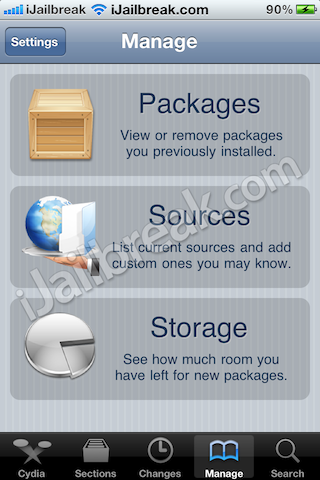
Step 4) Once you are inside the “Sources” section you will need to:
- Tap on the “Edit” button (top right corner of the screen)
- Tap on the “Add” button (top left corner of the screen)
Step 5) Once you click on the “Add” button a window should prompt you asking to enter a Cydia/APT URL. Add the follow source listed below into the input field:
http://repo666.ultrasn0w.com
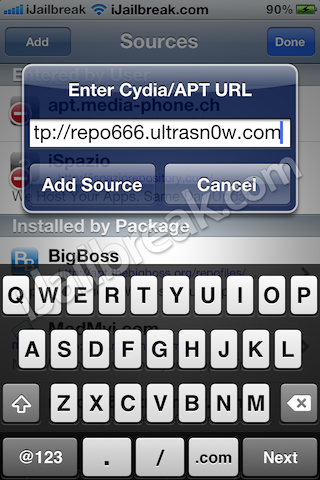
Once you add the source shown above please click the “Add Source” button. Cydia will now begin adding the source. Once Cydia has finished adding the source you will need to click the “Return to Cydia” button.
Step 6) When you have successfully added the source you will need to go into the Search tab and search for “UltraSn0w 1.2.3″.
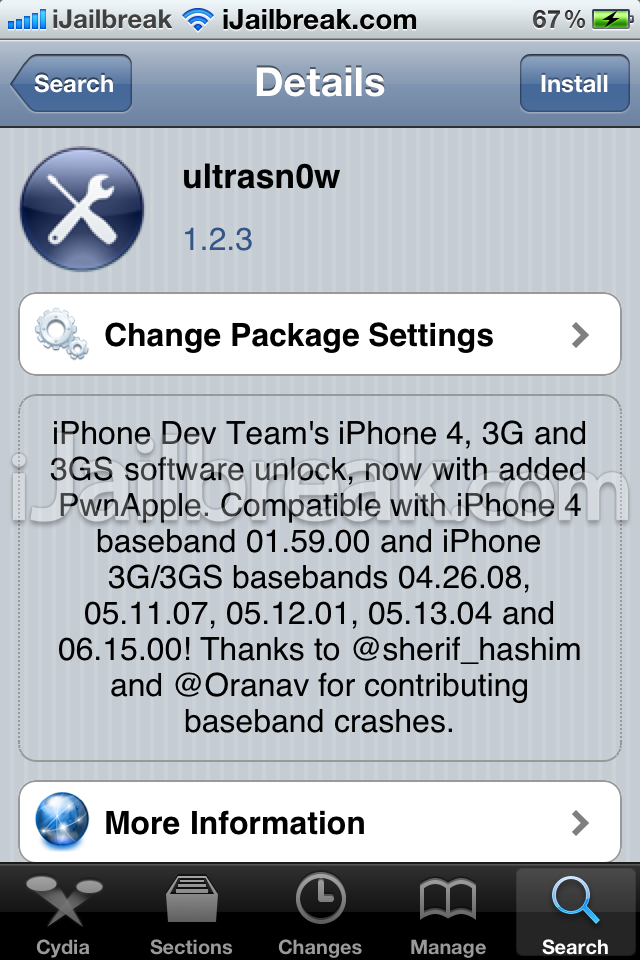
Step 7) Once you find “UltraSn0w 1.2.3″ you will need to click the “Install” button.
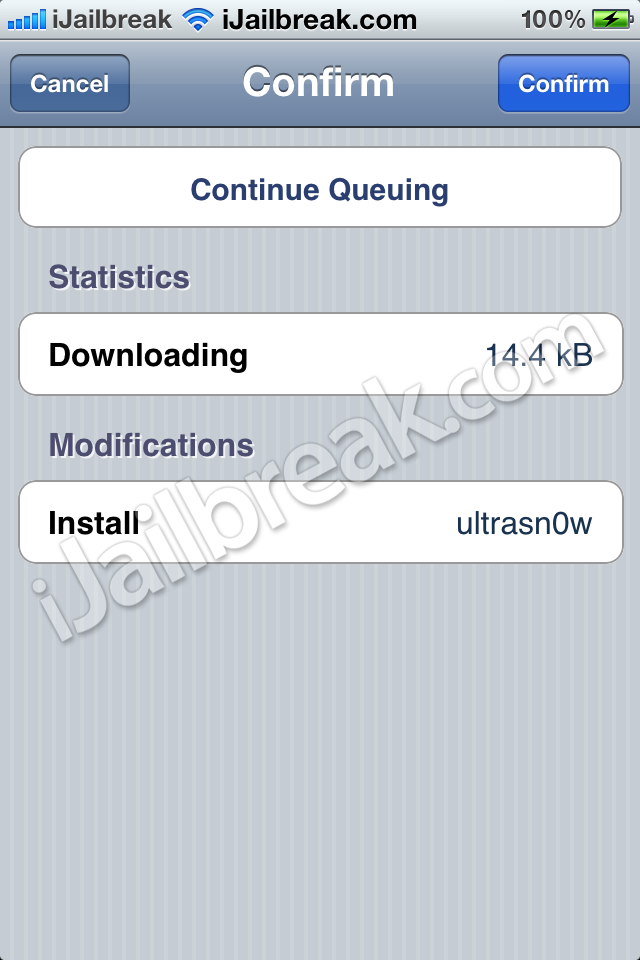
When you have clicked the “Install” button please click “Confirm” and then wait till UltraSn0w is installed to your iPhone.
Note: You will need to restart your iPhone after installing UltraSn0w 1.2.3, and then your iPhone will reboot in an unlocked state. T-Mobile users in the USA also should also disable 3G mode in Settings->General->Network after installing UltraSn0w (while you do the first reboot).
Congratulations if this tutorial helped you unlock your iPhone 4 or iPhone 3GS on the iOS 4.3.3, 4.3.2, 4.3.1, 4.3 firmware. Leave any questions or comments below.
I’m using iPhone 3Gs iOS 4.3.1 bb 05.16.02! i wanted to know if instead of waiting for the downgrade to bb 05.13.04 in meanwhile i update my baseband to ipad bb 06.15.00 and unlock my phone, will that be ok?
some people have had issues with GPS on bb 06.15.00 For me, I upgraded my wife’s 3G to iPad baseband and everything is working beautifully, including GPS.
does it make your battery drain fast????
No, battery still holding good charge..
Has this worked for the iPhone 4, OS 4.3.3? How does one know that the iPhone is in fact unlocked?
keep trying to download but freezes ?? any help
while downloading Ultrasn0w there was a error message; … (GPG error) and there is not any ultrasn0w of 1.2.3 it shows only model for 1.2.5
Hi, i want to know if my iphone 4 softbank running ios 5.1.1 bb 5.12.01 is possible to downgrade to 4.3.3 then unlock using ultrasnow ? pls answer me asap thanks more power to you!