SBSettings is an essential Cydia utility for many jailbreakers, because it gives us immediate access to Settings toggles we use every day. It’s theme-able, it’s expandable, but it also is a utility that contains more depth and power than most users realize. The More button menu contains many hidden tools that advanced users should know about, but many of us don’t.
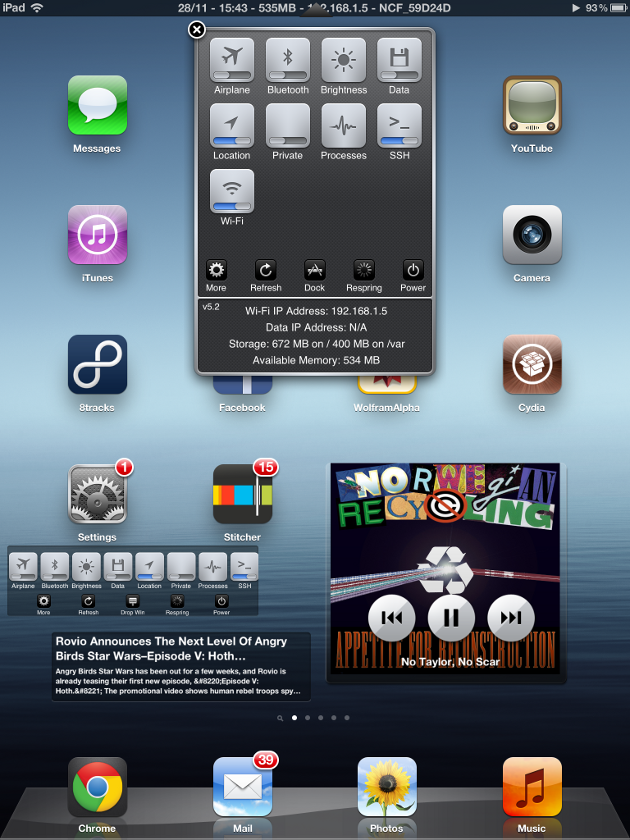
Basic Functions: The basic functions of SBSettings are features you are probably already familiar with, so we won’t go into too much detail here. Most users think of SBSettings as the dropdown window or the toggle panel that appears in notifications. This is the panel where you can install and enable additional toggles through Cydia. You can also pin applications to the SBSettings panel, respring, reboot, and activate Safe Mode. You can set themes, set activation methods though activation, and even manage different lists for the Dropdown Window and Notification Center.
There’s also an unassuming SBSettings Options menu under the SBSettings Setup header. Along with the settings you would expect for centering the dropdown window or disabling the dropdown animation, there’s a section for Statusbar Options that allows for displaying the date, free RAM, your IP Address and WiFi SSD, all through the status bar–it can even change the clock to military time.
But that’s not where the functionality ends. SBSettings contains advanced ‘System Wide Options’ header, which you might not have known were there–but can be incredibly helpful.
System Wide Options
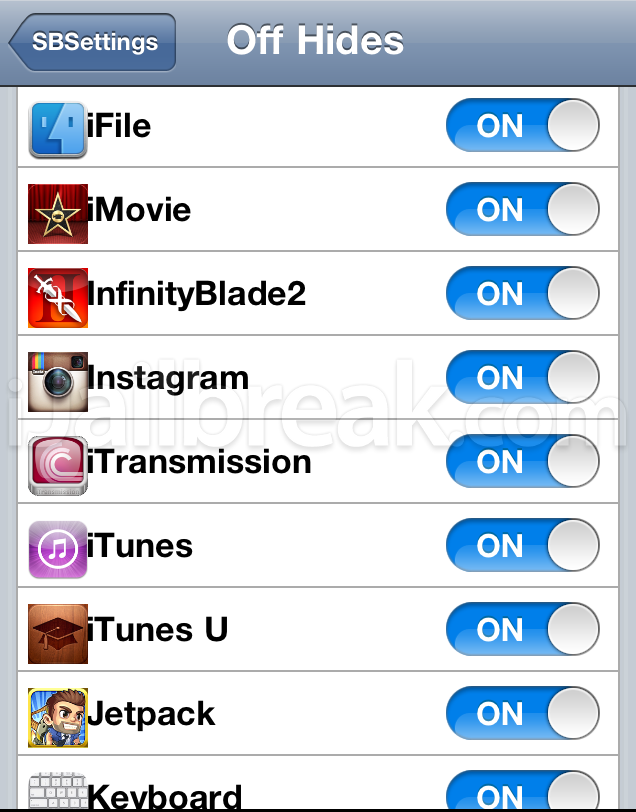
Turn an icon off to hide it.
Hide Icons: SBSettings contains a built-in menu that allows you to hide unwanted items from the SpringBoard. Never use the default calculator, calendar, or stocks pages? You might not be able to delete them normally, but you can take them out of sight and out of mind.
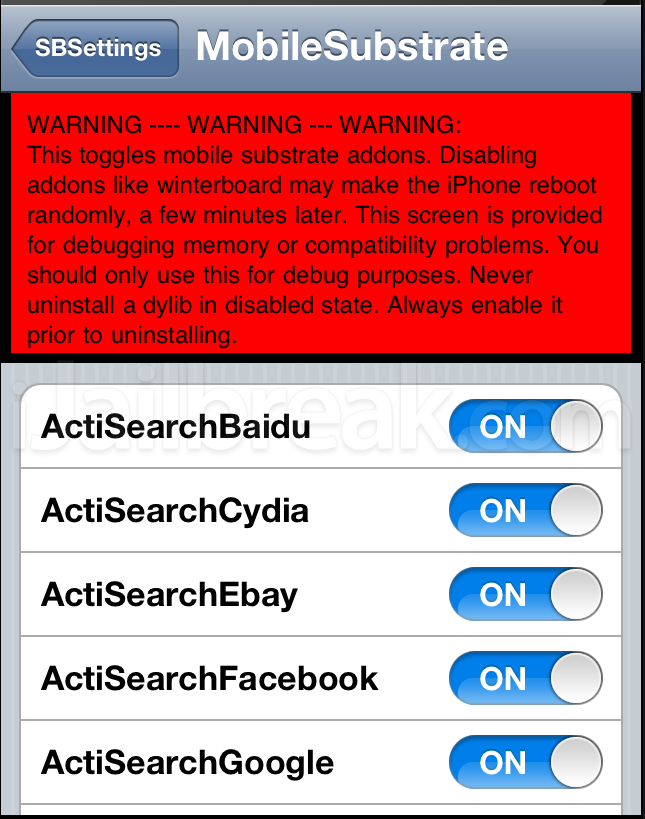
SBSettings provides a method of directly disabling tweaks from MobileSubstrate.
Mobile Substrate Addons: We’ve already covered Mobile Substrate Addons in its own troubleshooting article, but it’s worth mentioning again. If you have a lot of tweaks on your iPhone, iPad, or iPod Touch, and you know one of them’s acting up, but you don’t know which one, you can save yourself the trouble of installing and uninstalling everything and disable groups of tweaks directly from the ‘Mobile Substrate Addons’ list–even tweaks that don’t have toggles in Settings. Keep in mind that this tool is expressly for debugging purposes only–it should not be used as your day-to-day toggles panel, as you can screw up your phone if you’re careless. WARNING: You should always make sure the tweaks in this panel are switched ON when you’re uninstalling.
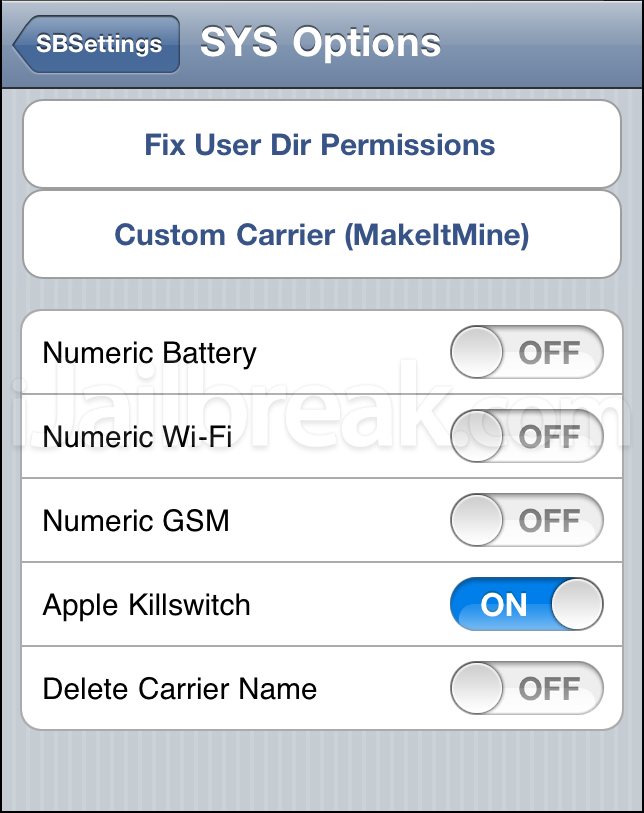
SYS Options: This page contains random features and toggles, but there are three items of interest. 1) There’s a button that will set user permissions in Library and Media to 755–that you should not press, 2) a Custom Carrier button for the status bar, and more toggles. One of the toggles includes 3) the ability to disable Apple’s Killswitch, which Apple could otherwise activate to disable any App Store app. (Altough the Apple Killswitch is a concern, as far as we know it’s never been used to deactivate either legitimate or malicious apps.)
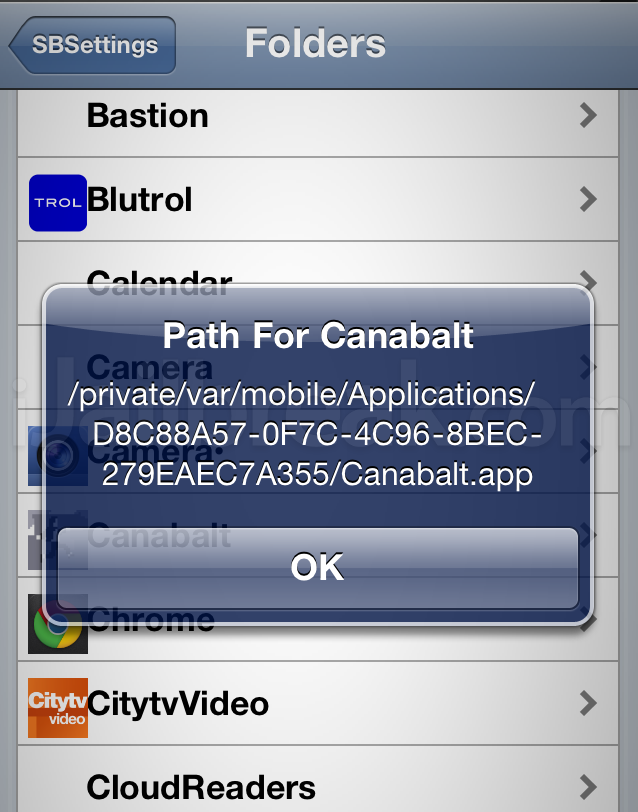
AppLinks is a faster method for indexing your files, but SBSettings’ App Folders function will do in a pinch.
App Folders: By default, iOS’ App Folders are an arcane mess of randomized hexadecimal gibberish which could take you hours to manually navigate through. We’ve already covered one method of quickly and permanently sorting through the randomized folder names in our Save Game Backup article, but if you want another method for poking around your program files SBSettings contains another method. Just click on any app on the list and you’ll get the path to its application folder that you can look for in iFile or over a FTP client like WinSCP.
How To Install and Use
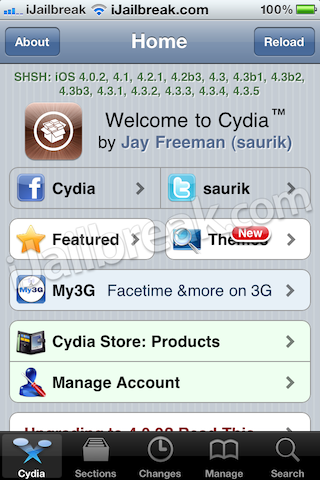
Step 1) Launch Cydia from your SpringBoard.
Step 2) Tap the Search tab located on the bottom tab bar and search for SBSettings.
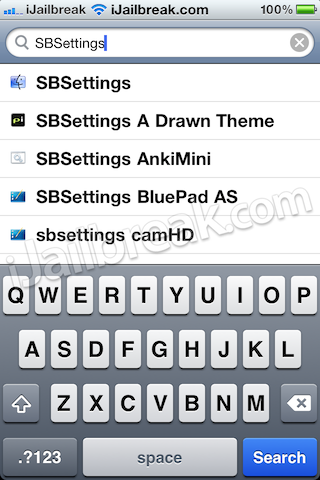
Step 3) Once SBSettings appears, tap it.
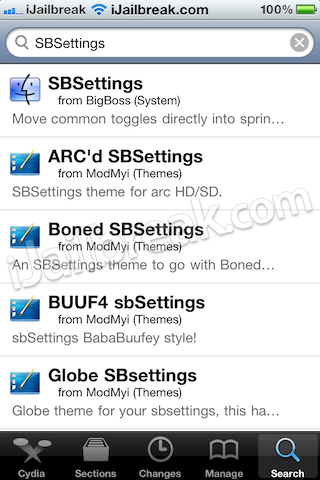
Step 4) You should see it. Tap Install.
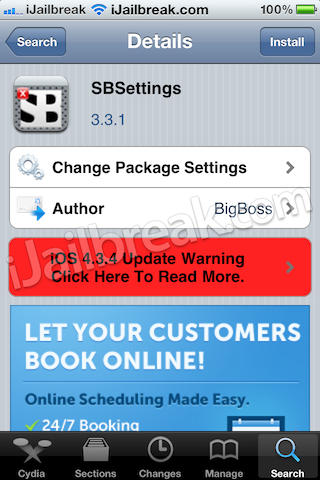
Step 5) Tap Confirm in the top right corner.
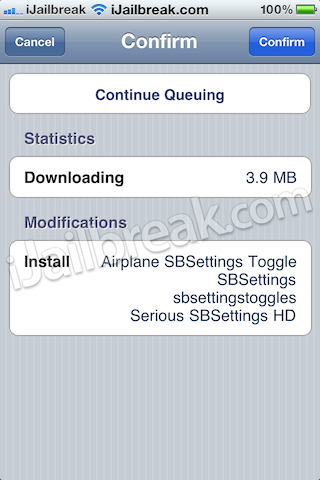
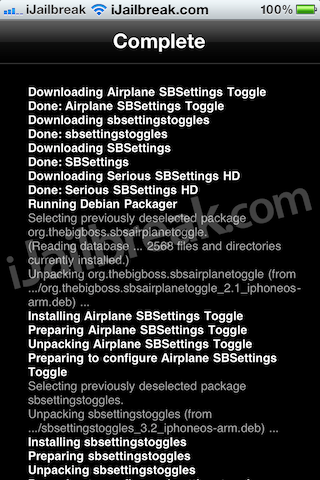
Step 6) Once installation is done, tap Restart SpringBoard, and your iOS device will respring and appear at the lockscreen.
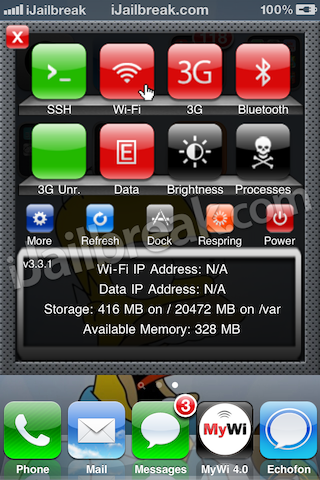
Step 7) To launch it from your SpringBoard, slide your finger from left to right over your status bar. A menu will appear with buttons that are toggles for WiFi, Edge, 3G, Bluetooth, SSH etc. Red means Off and Green means On. Tap the icon to toggle it between on and off.
How To Install Themes
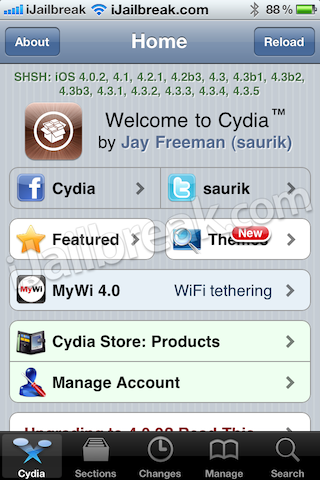
Step 1) Launch Cydia from your iDevices SpringBoard.
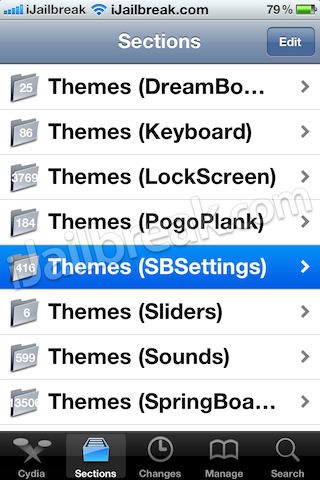
Step 2) To search for SBSettings themes simply go into the Sections tab and scroll down to the Themes (SBSettings) category. In this how to guide we will be showing you how to install SBSProBlueHD SBSettings theme. If you wish to install this specific theme, search for SBSProBlueHD in Cydia’s Search tab and continue to step 3.
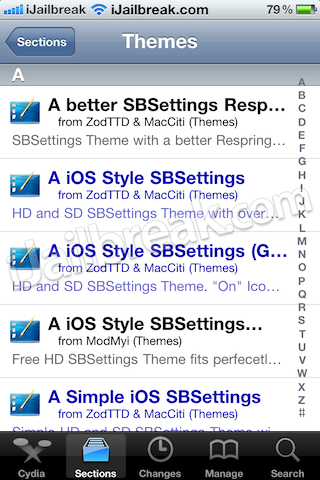
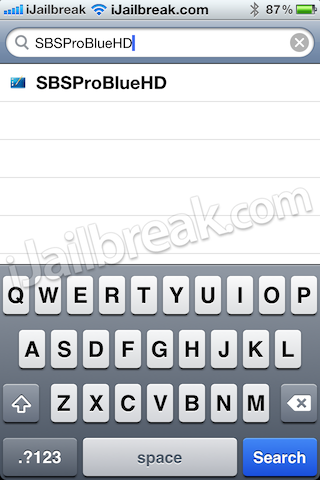
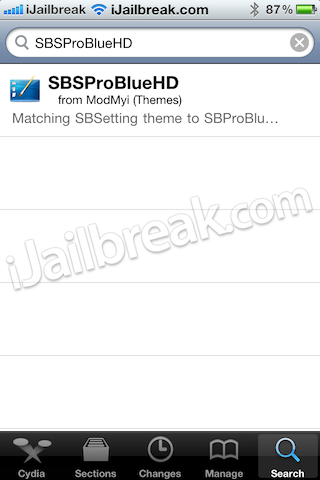
Step 3) Once SBSProBlueHD appears, tap it.
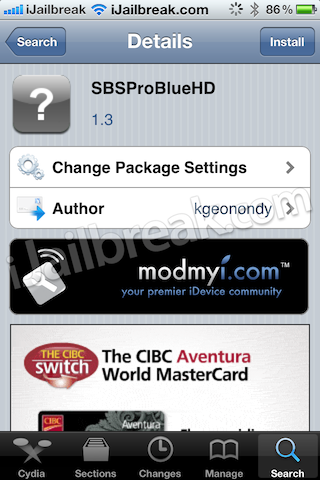
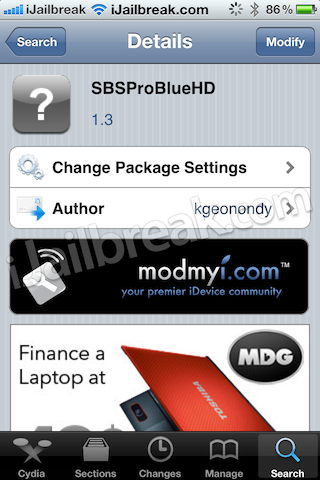
Step 4) You should see SBSProBlueHD (version 1.3) or a higher version depending if SBSProBlueHD has been updated. Tap Install.
Step 5) Tap Confirm in the top right corner.
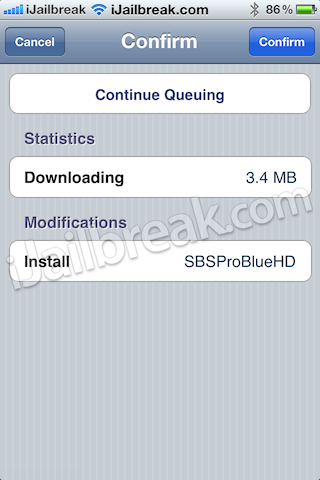
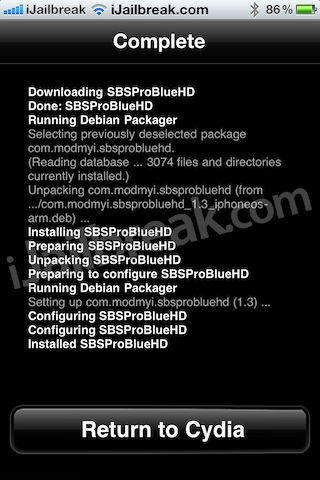
Step 6) You should now see the SBSProBlueHD package being installed. Once installation is done, tap Return to Cydia and press the Home button on your iDevice to return to SpringBoard.
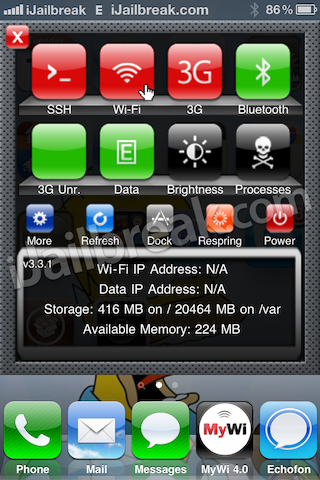
Step 7) To launch SBSettings from your SpringBoard, slide your finger from left to right over your status bar. A menu will appear. Tap the More (blue with a gear icon) button to continue.
Step 8) Here you will see the Setup menu. Tap on SBSettings Theme.
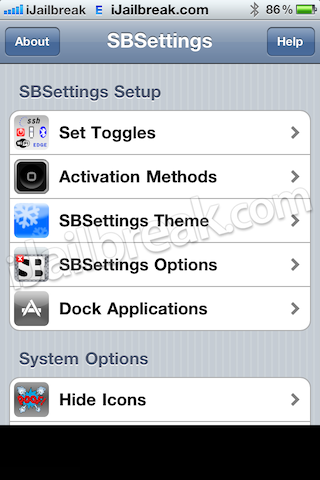
Step 9) Search for the theme you installed. Example: SBSProBlueHD.
Note: you can click on the blue arrow to preview the theme.
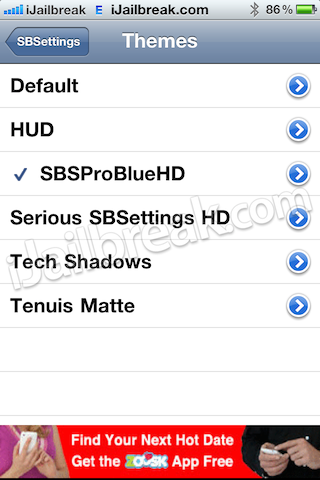
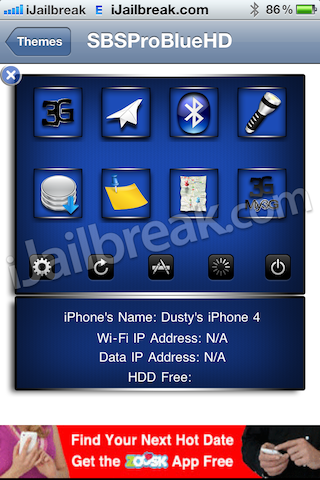
Step 10) Once you found a particular theme (SBSProBlueHD) tap it and you should see a blue check mark. This means the theme is enabled.
Step 11) Tap the SBSettings button to return to the SBSettings Setup menu, and then press the Home button on your iDevice to return to SpringBoard.
Note: your iDevice will respiring and you should be on the lockscreen.
Step 12: Slide To Unlock your iDevice, then slide your finger from left to right over your status bar. The SBSettings menu will drop down with the new theme you downloaded from Cydia and enabled in the SBSettings Theme.
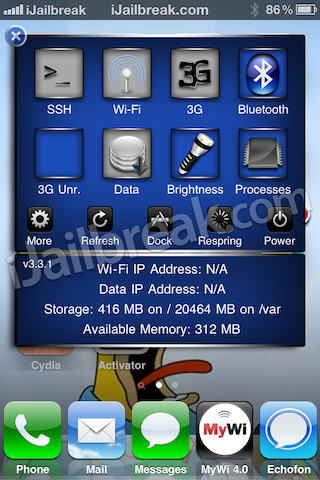
As you’ve seen, SBSettings isn’t just a handy shortcut panel. The utility contains essential tools for jailbreak power users, some of which you might not have even realized were there. Leave any questions, thoughts, or your favourite SBSettings function in the comments.
I installed SBSettings and after respring my screen was transformed into a little screen and rotated too. It becomes like a little phone remoted to my iPad.
Please help me get out of this.