Yesterday we told you that MuscleNerd pointed out a Chinese hacker Loktar_Sun managed to manipulate SAM (Subscriber Artificial Module) to unlock any model of the iPhone on any baseband. This is some very big news because we have not seen a new software unlocking solution that adds support for all basebands and all models of the iPhone for a very long time. For those of you who are interested in unlocking your iPhone 3GS, iPhone 4 or iPhone 4S (CDMA + GSM) on any firmware above iOS 5.0 and also any baseband version you will be glad to know in this how to guide you will learn how to do just this.
Before you start however, there are a few things you need to keep in mind. First of all you need to make sure that you have Jailbroken iPhone that has not been listed on any IMEI blacklists. Secondly, you will need to ensure you have the latest version of iTunes and also know which carrier your iPhone is locked to. Finally, please keep in mind that this process only applies to the SIM card you carry it out on. This means if you have another SIM card you wish to use on your unlocked iPhone you will need to repeat this process.
Unlock Jailbroken iPhone On Any Baseband
Step 1) – The first thing you will need to do is open up Cydia on your iPhone and add a 3rd party repository from the developer who created SAM. With Cydia open go into the Manage tab, followed by the Sources section, and then tap the Edit button proceeded by the Add button and type in the following URL:
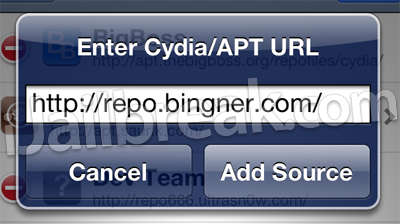
Note: Be patient when adding the repo shown above. It is currently under a lot of stress, and it took me about 10 minutes before Cydia was able to process the repo properly.
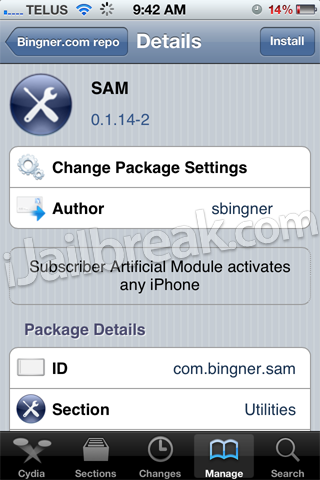
Step 2) – Once the repo shown above has been added you will need to go into the sources page by simply tapping on it from the list of installed source and then find the SAM package.

When you see SAM you will need to install it to your iPhone.
WARNING: Make sure the SIM card you would like to use on your unlocked iPhone is inserted before moving on.
Step 3) – With SAM installed you will now need to open the utility by tapping the SAMPrefs icon on your SpringBoard (homescreen).

Step 4) – Go into the Utilities tab and then tap on the De-Activate iPhone option. In order to double check that your iPhone is truly de-activated return to the main settings menu and go into the More Information tab. Look at the ActivationState label and it should display as Unactivated.
Step 5) – Now go back to the main settings pane once again, and then into the Method tab where you will need to select the By Country and Carrier option. You will then need to select the Country you are going to be using your iPhone in and then your actual Carrier. Please keep in mind that for some carriers with more than one network ID you will need to select the SIM ID option instead of selecting your carrier’s name.
Step 6) – After you have selected your carrier that you wish to use your unlocked iPhone with go into the More Information tab once again and copy the IMSI number that is present in the SAM Details section
Step 7) – With the IMSI number copied down somewhere safe you will need to click the Spoof Real SIM to SAM button.
Step 8 ) – When you have pushed the Spoof Real SIM to SAM button you will need to once again go back to the main screen, find your way to the Method tab and select the Manual option. Upon selecting the Manual option and returning to the main screen you will notice an IMSI input field. Paste the IMSI number you copied in step 6 now.
Step 9) – Grab your iPhone’s USB cable and connect it to your computer so that you can use iTunes to re-activate your iPhone. When iTunes has finished re-activating your iPhone you will need to double click the Phone Number label found in the details pane and ensure the ICCID matches that found on the SIM Card. Unfortunately if the numbers do not match you will need to restart the process from the beginning.

Step 10) – As long as the ICCID numbers do match you will need to unplug your iPhone, go back into SAMPrefs and disable SAM by sliding the Enabled button to the off position. Finally re-connect your iPhone to iTunes and do not be worried if any error messages pop up alerting you that your iPhone cannot be activated. Simply ignore these messages and restart iTunes a few times.
Step 11) – After a few minutes you should notice signal bars on your iPhone. This means the process has been successful and you now have an unlocked iPhone with the SIM card of your choice. One last thing to keep in mind however, is that if you notice push notifications are not working you can simply select the Clear Push option found in SAM, followed by once again re-connecting your iPhone to iTunes.
For all of those that have successfully unlocked their iPhone following this How To guide please keep in mind that this process only works with the SIM card used during the unlocking process. If you would like to use multiple SIM cards on your unlocked iPhone then you will need to repeat the process on the other SIM cards. Additionally, it is also recommended that you manually save the activation ticket generated that allows you to use your iPhone unlocked as it could be crucial in the future to preserve your unlock.
Manually Save Activation Ticket
Step 1) – An unlock ticket will be generated after you successfully follow steps 1 – 10 outlined previously.
Step 2) – Use an SSH program to access your iPhone’s filesystem (WinSCP Windows or Cyberduck Mac OS X). You can of course also use something like iFile on your actual iPhone.
Step 3) – Navigate to the following directory:
/var/Root/ibrary/Lockdown
Once you are in the directory shown above you will need to copy the contents of the directory for each SIM card you unlock your iPhone with.
Congratulations! You should now have an unlocked iPhone with the SIM card of your choice, with its activation ticket backed up. Please leave any additional questions or thoughts in the comments section below….
Update #1: For a more detailed guide on backing up your iPhone’s unlocked activation ticket please click here.
Does this solve the network related issue of baseband 6.15.00?
Probably not no, since this is only spoofing, and not actually unlocking it.
has anyone try this?pls comment..tnx
i did and i fucked my iphone 4 i prefer applenberry sure stuffs cause for this shit now i restored my iphone
The problems with the 6.15.00 baseband are never going to be fixed. I don’t know why it’s so hard for people to understand? AT&T has unlocked OVER 75,000 iPhones in the last few weeks. Nobody cares about phones stuck on the iPad baseband anymore because there is no need for them. Sell the thing for whatever you can get for (likely not much) and buy an IMEI unlocked phone with none of the problems.
Wow finally I got my iPhone locked !
I cant Lock my Iphone, It say ‘The Simcard Inserted in this iphone does Not appear to be supported” :(
Just worked for me and it’s pretty simple. Thanks
Yes MuscleNerd has mentioned this method with work with the 06.15.00 baseband. I am not sure if it will fix the network related issues though.
My Sim Card is Activated!! Why…..
worked with 06.15.00
Is all this true or is false like all the others videos.
same here… and i dont know whats the problem… i thought we can unlock…
In step five above….when you speak of choosing the actual carrier…..are you speaking of who I have a contract with or the carrier I want to unlock to (such as t-mobile)? Thank you……..wmuhamma@gmail.com
Maybe you want to provide more simplified instructions for the simple fact that some people are not technologically informed. For example; in step five above it is stated to choose your carrier…some people would choose at&t if that,s who they are with now…but does it mean another carrier like t-mobile. etc. simplify.
It doesnt work, I tried different carriers here in philippines but itunes says “Sim card inserted is not supported”
As i observed in the video, you need to copy the original carrier’s IMSI and paste it to your new Sim. I think this is how SAM worked. If you dont have your original Carrier’s sim then i think this doesnt work. What if you dont have the original carrier IMSI? Does this SAM still works? I bought my iphone 4 in a pawnshop and it doesnt have its original carrier and i dont have any idea about its original carrier.
thanks it’s worked
Hi All,
I am getting SIM card not inserted after step 8, I am in India.. do it work here also??
it works!! but as phen said in his comment below, you will need the original carriers imsi and paste it on sam..
it’s worked for me. now i can use t-mobile.
what happens to my att acount if i unlock it?
You can still use it, just insert your At&t on your iphone.
It will work as long as you still have the original sim of your iphone. Just copy the ISMI of your original sim then everything goes well.
No the original carrier for the phone for example bought it for ATT you need to select ATT
my phone is not de-activating… stuck at step 4….
it shows that ” your iphone is currently factoryactivated-this means you are hacktivated. until you are not hacktivated your phone cannot be activated so SAM is disabled.”
follow step 5 to 9… be careful not to skip the IMSI…. or else you’ll start all over again…
stuck at step 9.. itunes is not detucting my iphone….
You need to press revert lockdowned stockification to finish hacktivation
sim card inserted in this iphone does not appear to be supported….
getting this error while activating in step 9…
I Dont have the Original SIM :(
You do not need it
i see above this says CDMA+GSM. phone that r cdma do not have sims for the original career. like say C Spire. so how would you go about it on companies like C Spire?
Check SIM ID
you can still give it a try. some people got it worked without the original sim. just make sure you identify the original carrier of the iphone, if it is at&t then choose US.
Hello. I unlocked iPhone 4 (5.0.1, 4.11.08) for one Serbian career. Is
that unlock for one SIM, or for all SIMs on that career? Which is
procedure to unlock for other career? Is needed to do every process or
someone is not needed?
unlocked or locked?
OKAY!!!!!!!! Went through the process successfully but this is what i am getting when i was activating for the first time via itunes ‘we are unable to continue with your activation at this time’
Disconnect iPhone from computer, disable SAM, and connect again to iTunes. Maybe is needed to disconnect/connect many times…
Thx for the reply.
Phone is unlocked to AT&T.
I am stuck at Step 4. Doesn’t Deactivate!
Activation State Shows:Factory Activated.
Pls help :(
When sam is disabled, it says sim card inserted is not supported. Gosh!!!!!
had made mistake….
had removed SAM without activating my iphone… now it sucks..
can u pls help mee out in activating it….pls
i’m wondering if this is really working. who has tried this successfully? because it either u get ‘
e are unable to continue with your activation at this time” or the unsupported sim error.
can’t able to add repo… verification error… request time out… now??
Thanks a TON bros its worked!!!!!!
Just Select Revert Lockdown to Stock if it doesn’t Deactivate.
Work Fine for me ( waridtelecom Karachi,Pakistan
Unlocked successfully. Thank you so much!! For guys in India, Karnataka .. Please note that unlocking will work only for these service provider SIM cards –
Vodafone, Reliance and BSNL.
Currently the SAM module has wrong/old SIM IDs for other networks and hence the problem with unlocking.
servers are busy..
Thank you!!!!!!!!1 IT WOOOORRKKKSS!! IM WAITING FOR THIS FOR SO LONG!!!
will it work with airtel gujrat>????
Does it work for iOS 4.2.1 with firmware 03.10.01?
When i’m adding the repo it shows “Verification Error The request timed out”
In step 6, both the SIM details and SAM details are blank. An it shows invalid SIM on the status bar. Any help?
it’s been over 20 mins and it shows “verification error the request timed out”
Same thing is happening with me
When I’m actually downloadingthe source for Repo, it keeps finishing all the way up until the end and says POSIX: Operation Timed out and if I reload cydia then the Repo source is empty, and I’ve deleted the source a couple of times and re-done it a couple more. ANy ideas or options?
So when I download the source, at the end it says POSIX: Operation has timed out
and I’ve already reloaded cydia and redownloaded the source and the same thing keeps coming back up, any ideas?
Check your SIM if not reboot phone
Solved. I adjusted the sim card a little bit.
It works.
What is the carrier for mc604c iphone4… Need ur support guyz… i dont have the original sim and i dont know which carrier it was locked to..did anybody faced this issue? need your help guys,.,,,
lol ! i mean unlocked
jUST DONE WITH MA UNLOCKING THANK U
hi in step 9 after i connect my iphone to itunes it says the sim card inserted in this iphone does not appear to be supported what can do ?? help please!!!
I got the same problem with my other iphone, unlocking is pain if you dont know what carrier your iphone is locked to. I think your iphone is from Canada, i suggest you will choose all the carrier from canada 1 by 1 since you really dont know what carrier your idevice locked to. Good Luck
You are mistaken ID of the SIM / country of origin or the carrier of the iPhone which is locked, you should repeat the procedure if you have the original SIM and insert it before you start and take a note of Sim (Click Method and select by country and carrier and thereafter select the country of origin of the iPhone is the operator with which it was sold / blocked, so you can get the ID of the SIM to be inserted later) Note: this must be done only if you have the original SIM, otherwise you can go to sim attempts selecting an ID at a time
Everything is perfect, the activation state says activated, the imei and the iccid numbers are a perfect match in itunes but no matter how long I wait, It still says No Service at the top left. Any ideas on how to solve this?
You are mistaken ID of the SIM / country of origin or the carrier of the iPhone which is locked, you should repeat the procedure if you have the original SIM and insert it before you start and take a note of Sim (Click Method and select by country and carrier and thereafter select the country of origin of the iPhone is the operator with which it was sold / blocked, so you can get the ID of the SIM to be inserted later) Note: this must be done only if you have the original SIM, otherwise you can go to sim attempts selecting an ID at a time.
Try it later, maybe the server is bc or loaded.
I have simple mobile and I cannot find the carrier in the sections also what is the SIM ID i do not know which one to choose please help!!
Please help I think I have followed all steps properly maybe 20x now… but I will have service & see my carrier name but only very briefly, then goes to no service.
Brandon you need to select the carrier to who the phone is already locked to, not simple mobile (t-mobile)…was it locked to at&t?
i bought my iphone 4 last year from app store and it came with at&t sim but i never used it, and now when i do as you said in the itunes it says sin is not active, what should i do???? help me i really want to unlock it
can you be more specific with details of what to do please step by step
Great I was having a little issue the pop up did not come up but the phone activated.
my phn hving lock of uk three network….
in carrier opt i can’t find three carrier…. wat 2 do??
m getting error msg like “we are sorr. the iphone u connected may be damaged or cannot be activated for service…””
how do you find “sim attempts”
Did you check by “bundle” if it shows there?
Read step number 9 make sure you turn SAM off
Reboot the phone
Reboot the phoen that solved it for me
if we already unlocked it on 5.0.1 with sam and have 4.11.08 baseband, could we now update it to 5.1 and 4.12.01 basebnad and keep the sam unlock or do we have to do the process all over again?
do i need to insert sim without turbo sim as i m using gevey sim for my iphone 4 5.0.1 fw 4.10.1??
please help me out..
do i need to insert gevey sim along with my sim card before installation??
please help me out..
same here somebody pls help wats next step??
For Bulgaria there is only “Globul” and “Mtel” when will support and VIVACOM ?
worked for mee now… unlocked succeccfully… now using airtel gujrat india…
thanx a lot friends….
insert the original SIM first to take the ID code of the SIM. In selecting the method by country and carrier, then select the country of origin country of the iPhone, the manager with whom Carrier is locked and finally going to ID Sim should find the ID selected automatically. Note: This is used to derive SIM ID.
To unlock you have to insert the sim you want to use from the beginning. Among the comments you should find my guide detailed enough. Mohamed
my iphone is locked to at&t?. Do i need a at&t sim for the unlocking process too?
when i get to the itunes stage it gives me the message ‘the simcard inserted into this iphone does not appear to be supported’
can someone please help?
Hi I need help please, I unlock my phone using SAM from AT&T to T-Mobile, my question is if I want use any T-Mobile sim card after that or does it have to be this T-Mobile sim card only I used with SAM, thank you
but when i connect after procedure its show the sim card in this phone does not be supported
how did u do it divyesh even m using airtel gujarat. i jus dont know wich carrier my fone is locked to except i kno is its from uk.. plss helpp
Do you have any network related problems. I mean at times it shows full network n suddenly the network is lost.
WHy do u know to which carrier it is unlocked? This tutorial never ask fot tat info anywhere
It worked with my Iphone4 base 04.11.08
Felix – Nigeria
Thanks a lot to these good people :) We will be always own you! Thank You again guys! Work perfect! My iPhone is 5.1 bb 4.10.01 Succsessfully unlocked by SAM
Finally I unlocked my iPhone stuck on BB 4.11.08. In above steps you can choose auto detect in step 5. Enjoy
when i try to install sam it doesnt load all the way it freezes half way.. anyone know whats wrong? thank you!!
Hi there, just a quick question… what about those “replaced under warranty” iphones? I have one here from AT&T fully updated (iOS & BB) with no signal outside US… will this work on such a model?
Thanks in advance
imsg and factime is not working and have incoming calls but when i make calls it says callfail . . . .any sloution
i don’t have a sim that my phone is locked with…….what shall i do now.? plz help
my sim is not compatible…..what should i do? plz do relply
i don’t know how to find the carrier… mine was three network from uk…
m from surat.. u???
Hi, I can’t get past step 4. I deactivate it but in the main information page it always says FactoryActivated. Help?
will this unlock method work on IOS 5.0.1? Please help
can sam unlock sprint’s phone ?? i am running a gsm sim, itunes continues to say sim cant be activated, plus in more information it keeps saying unactivated
I was able to solve this problem by unhacktivating the phone!
I am having the same problem.. It is staying at the screen with the Apple logo on start up and won’t advance any further..
I have been trying this process repeatedly with no luck, I get all the way to the itunes step and always just get the register screen or sometimes the apple ID login, I never get the error. I am going from Sprint to AT&T on an iPhone 4s, can anyone help?
but if my iphone is originally for at&t and i want it to work with t mobile what carrier should i pick and what sim id ???
when i am doing it with t mobile sim inside in step 9 itunes say that the sim doesn’t appear to be supported what should i do please helppp!!!
3 network is of Hutchison 3G UK
can you tell me how you unlock it from at&t to t mobile , because i have been trying alot of times and it always says in i tunes(step9) that the sim (t mobile ) that is in the iphone does not appear to be supported ? can you please help me?
Please correct me if I’m wrong Divyesh… I still assume that 3 network is of Hutchison UK.
Confirmed working on two devices, one has baseband 01.59.00 and the other is 02.10.04. The thing is that my reception quality indicator is always showing one bar, even though I have great service here.
Yoused tell me i think i am missing some steps, do u really have to use ur new sim for the process or you would have to select the carrier it was locked to, this is really confusing.
Any experiences here with SAM unlocking Sprint CDMA/GSM combo iPhone 4S in US?
Have never contracted with carrier but iTunes and subsequent 5.0.1 locked my GSM.
Have had a happy jail broken “i Pod” and excited to finally be unlocked, but this is a no sim CDMA unlock and i’m not sure how to proceed. I have a foreign sim if needed. Thanks for any and all suggestions….GL
i got it to work for those of u who get sim not support u did not copy the correct sam imsi number. regenerate it and copy it once i did that it worked and then make sure you quit itunes few times once you do it will activate phone and its unlocked
Where did you follow the procedure to unHactivate from…What did you do and what errors were you getting…Seems like a lot of Sprint 4S phoneds are having trouble when a SIM is introduced and they have not been activated and freed from the cdma obligation….
hi i dont unlock my iphone4 cuz i dont have the original sim..what i can do…pls help me
anyone having problems with sam,, I follow the instructions and when i open iTunes still says unsupported sim
I have a Gevey unlocked iPhone 4 running iOS 4.3.5. Would this method of unlocking still work if I update my iOS version, which would relock me? I just want to be sure that I won’t be locked permanently by doing that.
You DO NOT NEED THE ORIGINAL SIM
Reboot the cell
YO DO NOT NEED THE ORIGINAL SIM
Same surat! How did u do it? Xplain me about dat by country & name step. Wat u selectd in dat?
stuck after step 8. Can anyone help?
Details help you know…. Like exactly stuck on what.
Its Working Great…..!!! Unlocked Iphone 4 IOS 5.1 Baseband 04.12.01 Successfully…!!
Anyone who use SAM here in the Philippines?
same problem….have a verizon CDMA/GSM combo…..i get the sim card not recognized error
And no!!verizon is not listed in the bundle’s list also
You need to use your new sim in sim card tray , and need to provide the details of the career the iphone was locked to.. I have done it, i did the restart of the iphone and sometime redone all the process, and it all worked and i have a unlocked iphone now
are your push notifications working?
i have trouble with it and can’t receive any push ntifications at all.
worked great thanks… note: i didn’t have original sim but i poked around with ifubox and found some logos from at&t so i assume thats one possible way to find the original carrier… also did trial and error with the sim id until it worked. followed all the other steps accordingly
After all the steps my Activation Status is “Activated”, when connected to iTunes it doesnt throw any error. But still I’m not getting any signal bars… I’m using Aircel India. Anyone please help!
i keep getting ”the sim card inserted in this iphone does not appear to be supported” ive done 1-8 steps like 20 times and keep getting this error.. also ive tried rebooting iphone.. nothing happens.. any ideas?
hari its right..
vatsal in country u hv to enter the country name by which ur phn is locked.. in ur case enter uk..
yes..
jailbreak again without cydia (with redsnow)
I faced the same problem initially. I used the redsn0w to jailbreak again. I selected the “deavtivate” option and unchecked “Install cydia” while jailbreaking.
By this i was able to get past this problem but got stuck on step 9. On step 9 while connection to itunes.. it says that there is no sim card.
before starting the process what was the status in more information. mine is showing factory activated. what does that mean.
In some places it says that i need to un hactivate and i got no clue how do I do that
How to use Unlock tickets in future ??
and is it possible to unlock with 3-4 sim and save tickets,
and when we want any sim to use, by just using that ticket ?
And with which SIM wer you trying to unlock earlier.
Finally I tried with my Vodafone SIM and it got unlocked.. :D it took 150days to unlock my iPhone… :) :) :)
Nothing yet. I’m waiting for someone to enlighten me. It can’t be that uncommon of a problem.
I have the same problem, but im running iOS 4.3.3. You got any solution?
Were you using it previously with Gevey sim or what?
in my case mc604c is Rogers
same happened to me at first. but works fine now =D
hi…i unlocked mine finally…phew….
1)insert the original sim(the one that the phone is contracted with)
2)open SAMPrefs…and copy all the imsi and iccd’s no given
3)insert the unofficial sim….and manually enter all the imsi and iccd values
and connect the iphonme to the comp
bang…it’ll show that the iphone could not be activated and stuff
then close itunes
disable samprefs
open itunes
and voila!!!
u r done
Now i have an invalid sim, is there any way to solve this? pls help.
Got your push notifications working? I still didnt. But my iPhone is unlocked at least.
so i unlocked my iphone, i get signal then after a few mins no signal.. then signal again then no signal.. it keeps fading in and out.. do anyone else have this problem? HELPP ME!!
As
Saurabh Bhatnagar said!
How when i plug mine into itunes all it does is say the sim card is not supported??
Cant get mine to work i do everything and then when i plug my phone back into itunes it says its not supported any ideas why??
Got it to work thanks again great guide!!!!
I dont have a AT&T sim card. Can you please please share your AT&T IMSI number.
My email id is amjadpathan@hotmail.com
Use AutoDetect instead of selecting the country and carrier.
After that activate thru SAM
no need of itunes
Guys i successfully unlocked my iPhone 4 iOS 5.1 tethered Jail Break with Baseband 04.12.01
1) no need of Sim to which it is locked to.
2) Those who are getting
the sim card in this phone does not be supportedmessage thru iTunes
must use AUTO Detect instead of selecting Country and Carrier
3) I Activated thru SAM (wifi must)
no need of ITUNES
even i am facing the same issue..
help???
After step 8, i get unsupported sim, Any Help?
I can’t go further than the deactivate step (step 4) the ActivationState label just keep Activated no mather what I do. I think it’s probably because I had chosed previously the activate method when jailbreaking my I phone 4 (Because I don’t have the ATT Sim card anymore). What should I do?
im not gay.. but i really cant tell how much i love you right now dude.. i made it using your guide:D thanks a lot bro
u have to use unhack(or whatever its called) option in utilities list
Pls help me my itunes says sim not supported. pls give me a guidance.
go with the bundle method…i had to do it manually because verizon isnt listed in the bundle name
instead of country and carrier go with the bundle method
what have you done..??? i still get this error :((
how did you get it to work?
Ive tried loads of time but to no avail !!!
yes it would but just incase update your iphone while preserving your baseband so you can use your gevey sim incase it doesnt work.
give me your email and i will send you the steps for notifications because it is too long
it says that because you have chosen the wrong sim ID from country/carrier/sim ID if you dont know which one is yours u will hve to keep trying until it works
If you have ANY questions about unlocking with SAM just email me and i will help you: omar_usa1995@yahoo.com
Guys I need your help, I try to unlock my Iphone 4, I did what they say on the notes but now my phone that’s not wand to power up, please Tell me there is a way to fix this … Maybe a reset and how to do it. Fegv@hotmail.com thanks.
obviously u are messing up the IMSI, try again making sure SAM and SIM match
What does it mean when you click Spoof Real SIM to SAM using original sim and then you put the sim you want to unlock to in and click attempt Activation and it flash backup activation and de-activate for a second carry on with please wait but then fails any idea please?
firasezzat@yahoo.com
I want to use simple mobile. but at the end of the process, itunes returns the message “the sim card inserted does not appear to be supported”. The sim card works in another phone that i have. What can I do?
real_steps@yahoo.com pls i need help as well.
YAAAA!!!!!!!!!!!! APPLE IS FIXING SAM UNLOCK. 2DAY IT’S NOT WORKING AGAIN!!!!!!!!!
the problem is iccid and everything matches, but after sam is disabled and i reconnect, it says sim not supported again.
FELLAS!! it’s the end of the line… Apple’s activation servers has been patched and sam unlock is no more.. do not waste ur time.
Please does any knows how to use sam activation ticket to restore iphone unlock? , After reboot, no service appears again.
Sooo Apple has now Fixed its activation issues and broke the SAM trick. All who have activated are good for 3 years or until a firmware upgrade. All those that are trying sam now, It does not work anymore .
I used this when it came out. I am now on sprint iphone 4s on att. This is probably why i cannot do this on my friends Sprint iphone 4s with tmobile or my att sim that is working in my sprint phone.
does anyone know how to use the ticket we gt nd activte the sim we want…
I tried and it seem to work when i select Auto Detect and the springboard reloads then comes back and says “Searching..” then comes the nightmare “No Service” i hate you apple greeedy bastards
ajibolabello26@yahoo.com pls i need help as well.
Notification Push is still not working after sam unlock, can sam still fix this?
Dear I have tried as you uploaded the video, i was on ISO 5.0.1 with baseband 4.11.08 …..and it worked perfectly, but i don’t know what happened I Lost the signal, then i tried the whole day and was not been able to get the signal. so i upgraded the ISO to 5.1 with baseband 4.12.01 and it didn’t worked at all.. please tell me what to do..? Is SAM is working for you guys? or i did mistake to upgrade..? HELP ME IF POSSIBLE….
I have problem in 10 step when enable sam itunes dont show error he seys put original sim card to active phone.Can help someone?
Hi I jail breaked my iphne 5 IOS5 4.11.08 using SAM but finally when i Insert the sim it doesnt activate.. unlock is nt wrking any help please let me knowl
Hello, I accidentally pressed hactivate and now the SAMprefs software is not able to be used. I then restored my phone and re-jail breaked and downloaded SAM, but I am getting still the same error message from the first time I used the software (prior to restoring). Anyone know what to do and what is exactly is going on with the phone? (iphone 4, 5.1, 04.12.1, ATT). Thanks!
ireyes119@gmail:disqus .com
pls i need help as well, i bought this phone on craigs and it’s jailbroken but not unlocked.
No
Is Sam Unlock method still working ??
then please tell me how to unlock my iphone 4s and 4g plzz i dont know how ,, my 4s carrier was at&t and now its Zain Jo ( the network in my country ) i insert a sim and get full network coverage ut cant make calls or recieve any plzz what should i do
it tells me sim not supported when i plug into itunes! Why could it be?
sam doesnt work anymore bro..
was you using gevey before that ?
i hAVE IPHONE 4 IOS 5.1 ……….. IS IT POSSIBLE TO UNLOCK THIS ONE…….. PLZ SEND ME STEP BY STEP PROCEDURE ON ID SUFFIANTALIB@YAHOO:disqus .COM
hello, can u give me ur mail and we can chat
this is my mail elgindym@gmail.com
Hi everyone, Im typing on behalf of my friend. He recently unlocked his Iphone 4 with SAM and it works properly, except for one thing.
He can’t recieve push notifications anymore. We tried many things but its still not working.
Does anyone have any idea?
Any help would be greatly appreciated
Thank you
ho i done can u please send me step by step proedure ………. thnx ……… suffiantalib@@yahoo:disqus .com
thnx
suffiantalib@yahoo:twitter .com
hello,
can u tell me how u activated through SAM ?
sam is not working any more apple close their activation servers and fix the loop holessss dont waste ur tym
tymmm is over Sam is now not workingggg apple close their server and fix the loop holes :(
i did this but now comes up with no sim on itunes and sim failure in sam??? what do i do??
is SAM still working??? i mean can i still unlock my iphone 4s?
Can you also send me the steps to rollin88@gmail.com? Thanks.
hey guys i was trying to unlock my iphone 4 with this sam method but i keep getting the sim card not supported icon in itunes everytime i connect my phone, and i think i made a mistake at tthe end i clicked on factory settings and it went to the begining i cant even get in the phone anymore since i dont have ATT sim which the phn is locked to, can u help me i would really appreiciated, my email is saud.zaman@gmail:disqus .com.
Thanks
I spent all step better but when i disable Sam and connected with itunes i dont get ,,error saying that your phone cannot be activated,, but i get ,,the sim card inserted in this iphone does not appear to be supported,,
plsss help
i also dont have a AT&T sim card. Can you please please share your AT&T IMSI number. plz give me tooo plz
mil : aliakram039@gmail.com
canu explan
itunes says there is no sim installed in the iphone you are attempting to activate.
how do i fix this??? please help me.
does this work for tmobile?
Ok so i have a problem, i bought my iphone from someone from craigslist and they didn’t include the sims card but i know my phone is atnt locked and it isn’t blacklisted. I do however have a h20 wireless sims card that does work on locked iphones (it’s sort of linked with atnt is why it works with locked iphones) and i was wondering if i would you that sims card instead of the origion one that came with the phone because i don’t have the origional one?
Please respond, i am in great need. My skype a6010fd0. Email lunchoutrage@yahoo.com
Is this diabled? because after completing i get no service… and in itunes i get the this sim card is not supported… i dont know what to do??
DOES SAM STILL WORK?
Hi! I tried using the saved sam activation ticket and when I connected the iphone to itunes the message: Sim card not supported appeared. I did have the iphone unlocked with sam but I stupidly turned off the iphone and I lost my unlock. What should I do!?
is it still working or not ?
Apple patched this hole. It no longer works. Even grevy had to refund everyone as it no longer works. Sorry folks!
me too amsgill@yahoo.in
Hellño men, I have two iphones with SAM but at the end of the process it says no service :.( can you please help me kennethmacron@gmail.com
where u hable to do it
Help!!!!
I cannot do it, all I know is that this iphones are for AT&T, I have jailbreak, SAM and both iphones are activated but no signal
Help!
i got my unlock, thanks
my email is chrisj23225@yahoo.com i need help i did everything n when i open itunes it said doesnt support sim what am i suppose to do
Worked great on my 4s 5.1
i cant deactivate the phone its still saying factory activated ?
my phone is factory activated what will i do when i try to revert lockdown it says failed and still on factory activated what will i do ?
I unlocked and have signal but can’t make calls or send text, it will say Call failed, is a sprint 4s 5.0.1 any ideas???
the sim card inserted in this iphone does not appear to be supported. how can re-activate the iphone with itunes when getting such a message
I have a 4S and want to update the software to iOS 5.1.1 It’ll still work if I do that, right?
pls email me the steps i tried its not working… hundredmile@hotmail.com
Hi! My iphone is on 3-network, UK. will this work on it and if yes can you please send me step by step procedure, to unlock the phone. My email id is contactshashank.y@gmail:disqus .com….please help
can anyone please help me. done everything still say invalid sim.
email:- arslansddq6@gmail.com
is this work for sprint iphone 4 cdma only?
hey, is that 4 real????
on the pic #5 where the iphone its connected to itunes, said.. 5.0.1, does it work for a 5.1.1 baseband 4.12.01 iphone 4 in guatemala ????
I have a question… I have an iPhone 4 from USA that was previously on the AT&T network… It’s now in Canada and I think the sim has been deactivated. So how does this change the carrier unlock process? Do I have to get an activated sim from AT&T and do this process?
Why does it still say activated when I hit De-activate?? Help!
This doesn’t work in 3GS running on iOS 5.1.1 BB 05.16.05. I tried innumerable times but all I get in the end is ” The SIM card inserted in this iPhone does not appear to be supported”. Crap and waste of time.
How did you do that I m rtrying 3 iphone 4 not chance yet. erdenur@gmail.com
I guess this procedure for limited time & now stopped.
boss my mob is locked to AT&T 4.11.08 BB, now iam having airtel connection, Can i unlock it??
pl reply to me at seesunil@yahoo.com
email to me ple101_98@yahoo.com
The SIM card inserted in this IPHONE does not appear to be supported :S error itunes any help? appreciated
what carrier did you used?and for T-mobile user which SIM ID should i use?
I can factory unlock any iphone with any BB, Interested peoples contact me at seemr4u@mail.com
has anyone successfully unlocked an iphone 4s baseband 2.10.12 and ios 5.1.1?
i have the same problem, when i go into Utilities tab to deactivate Iphone it replies that it’s deactivated but when i go to double check it still says ‘activated’, any ideas what to do?
My iTunes says they are unable to re-acctivate it, what’s wrong? :o
ok, nothing is working, can someone give me all of the steps, step by step after installing sam? I am not computer illiterate, but this thing is making me feel really stupid. I have done all of the steps, but I must be missing something little. please be as detailed as you can. you can email me the steps to: archerdr1@gmail.com. Thank you.
oh, I have the Iphone 3gs it has 5.1.1 firmware with 5.16 baseband if that helps any
I get it to activate the phone, but as soon as I choose disable SAM, it says that I don’t have the right sim
My iPhone 4 got updated to the 5.1.1 IOS. The baseband is a 4.12.1. Is there anyway I can activate it with T-Mobile? I had it unlocked before, and then for some reason the signal never came back up, so I restored it. The phone is jailbroken, and I installed cydia, and ultrasn0w. The bar at the top still says no service. My email is wrxstisubaru@hotmail.com let me know if you can help me out. Thanks!
didnt wor on mine please help via iamlui@live.com
Its Steal Working ?
this doesn’t work anymore?
Whenever I use any app that uses internet (FB, emails etc) the
whole phone goes off the network and says “no
signal” & starts searching.
Even stranger; it also loses wifi connectivity for about 30
seconds or so if connected via wifi.
Is there a fix for this that I’m not able to find?
My phone details are 3GS JB / 06.15.00 / 5.1(9B176)
Just tried to unlock an iPhone 3GS and it wouldn’t de-activate. It still says it’s activated. HELP! please send help to wayne@kjake.net. Thank you!
Edit: Now I’m at the point to select country. However Taiwan is not an option… Any ideas?
can you email me them too cdkevents@gmail.com
Hey same to me Im using T-mobile do you got the At&t IMSI number. andrewscochonegron@gmail.com
when i connect my iphone to itunes it says “the sim card inserted does not appear to be supported”
itune recognizes my iphone and it has the correct iccid number when SAM is enabled but whn i disenable it and reconnect it to the computer for step 10 itunes no longer recognizes the sim
Why does it still say activated when I hit De-activate?? Help Please!!,!,!
ma.gosurf@gmail.com
This has not worked, simply says sim is invalid? is this because of the unlockin process or the sim itself??? please help
earlier i unlocked my iphone 4 version 5.0 BB 4.11.08 with my Airtel Sim and i saved activation ticket also..but now i want to use different carrier (like Vodafone) on it..so is this possible to use different carrier sim card or i just able to use the sim which i use at the time of unlock??? please reply ASAP…i really need help.
Hey I’ve followed all the steps but when I plug my iPhone in it says The sims card is not supporte what do i do someone pleaseee help me please
Please help! I got a jailbroken iPhone from a friend of mine who has now left to travel and am unable to contact him. I had to upgrade the phone before i could even begin to use it and that was fine but now it is telling me sim not valid and won’t finish setting up! Please help. I don’t even know what network he was with… :/
i bought an iphone 3gs 8gb from amazon which is locked to A T& T with ser no xx147xxxxxx and baseband 05.16.05 and version 5.1.1,,,when i searched on the net i found out that this model can not be unlocked,,,because it was manufactured in nov 2011 and models upto june 2011 can be unlocked at the moment,,is it true
my iphone stuck locked even with uts original sim now locked also
Hi i have iphone 4s from sprint. trying to unlock it for a t-mobile account. i currently on ios 5.0.1 and jailbroken. I have tried the above guide over and over and when i go to itunes always get the same sim card not supported mess… Any help would be greatly appreciated. thanks in advance e-mail devilbearny@gmail.com ty ty ty
Omar but i have the same problem and i have only one SIM ID ?????? any help please
@77a43eeb63948c71ade0a8c35f849124:disqus please help
does this still work???????????
I have a 3gs which is on 5.0.1 jailbroke and unlocked with ultrasn0w
I was originally on O2 UK i don’t have the SIM any longer
I really would like a fix to get Push Notifications with out locking my phone up is it possible?
My carrier is not coming up and I have tried twice with the auto detect method and then manual. Country is Sweden and carrier is 3 (three). Any way to get the carrier put on the software or any other way I can unlock it? thanks!
i dont have the orginial sim card what shul i do ?
i have unlocked my phone using SAM,i have to change my sim card now,so if i change my sim then do i need to unlcok the phone again??
Does this unlock working this time also???
I need Help…
Everything runs smooth until i get to step 9 and I plug my iphone and get in itunes the message THE SIM card in this iphone does not appear to be supported…
Is there something i can do to fix this?? thanks
sir can you help me how to open my iphone 4s 5.1.1 baseband 2.0.12, it can open to my version using this sam unlock? my iphone are still locked to AT&T, pls help me, how to open this using sam,, pls email mhe to mhacky_142003@yahoo.com , many thanks!
brilliant, thank u very much!! I manage to unlock my iPhone 4S on base-band 04.12.02 with iOS6.0. Thanks a bunch mate!!!
you seem to know a lot about sam iphone i am having an issue that its saying wildcard activated but its not doing anything and it says no service it just dont work can you help me or private message me please would very much appreciate this mario.ioannou@facebook.com
sam iphone i am having an issue that its saying wildcard activated but its not doing anything and it says no service it just dont work can you help me or private message me please would very much appreciate this mario.ioannou@facebook.com
it says sim card on this iphone does not apper to be supported..what step did i fail to do?
Hi does this still work now? I read somewhere saying Sam wouldn’t work since a few months ago?
same here
Hi there, does this work only with phones in USA only, how about phones from Australia esp Telstra?
Anyone out there have experience with this version for phones in other countries than USA?
hi vijay is there any option to work with airtel sim
This just does not seem to want to work for me in any way shape or form. i follow everything step by step but still will not let me activate it form itunes.
Please drop me a mail asap to help out, thanks:
Benyerkess@gmail.com
please man just a simple question, does the unlocking works even with blacklisted iOS or Iphones, ? and is it good when it shows that “wildcardactivated” or factory avtivated, ?
plaese help me bro
skouri134@yahoo.fr
Does anyone knows if this works for the Brazilian carriers ? Which should be the option for Claro ?
I cant do it, please help it says
The SIM card inserted in this iPhone does not appear to be supported.
its not activating
i did everything listed above, but itunes, still says i “you have unsupported sim card” … any clues??
PLEASE help?? at the end of things still says no service
I did it with my iphone 4 suddenly rebooted and said activation required then I restored and updated in itunes but still says sim card invalid and etc.. Plz help me guys
this is bullshit, I de activate, it has a pop up that is complete. but nothing is listed when I go to more information. It is blank and when I click it… It is an input only. How do I get the IMSI if it is already at an input only section.
How much costs unlock iPhone 6 AT&T? Where can I do it?
hi all,
I have a CDMA phone which does not have a option of sim tray
is there any way to unlock it