Seas0nPass is the go-to Jailbreaking tool for the Apple TV. If you are planning on Jailbreaking your Apple TV then it is recommended that you use Seas0nPass, even though other Jailbreaking tools like Absinthe do indeed support the Apple TV.
The only difference between Seas0nPass and other Jailbreaking tools is that Seas0nPass creates a pre-Jailbreak iOS firmware (IPSW) that must be restored to your Apple TV. Although this means you are restoring your Apple TV to factory settings, as very little information is stored on the Apple TV, this is not as bad as having to restore the iPhone, iPod Touch or iPad.
SeasonPass was created and is maintained by the FireCore Dev-Team. These are the same developers behind the most popular Jailbroken extension for the Apple TV – aTV Flash (black) and also MiRow for Mac OS X. You will also be glad to know that Seas0nPass is also cross-compatible with both Mac OS X and Windows. In the past some Jailbreaking tools have been operating system specific, and this really limited the userbase of that said tool. Seas0nPass is always available for both Mac OS X and Windows at the same time, so no usergroup is left in the dark.
Seas0nPass Firmware Compatibility
Seas0nPass is compatible with almost all firmware versions of the Apple TV 2G. Unfortunately at this time the 1080p Apple TV 3G and new Apple TV 4G is not supported, but it is being worked on by FireCore at this very moment. You can take a look at the firmware versions Seas0nPass currently supports below. Keep in mind that we will update the Seas0nPass compatibility chart when new versions of Seas0nPass are released to ensure it is always up to date.
Seas0nPass Untethered Jailbreaks: iOS 5.0.2/5.0.1, 4.4.4, 4.4.3
Apple TV 4G: Not Supported
Apple TV 3G: Not Supported
Apple TV 2G: iOS 5 (iOS 5.0.2 build 9B830, 5.0.1 build 9B206f, 5.0) + iOS 4 (iOS 4.4.4 build 9A406a, 4.4.3 build 9A4051, 4.4.2 build 9A336a, 4.4.1, 4.4.0, 4.3 build 8F455, 4.2.1)
Apple TV 1G: Not Supported
How To Download Seas0nPass
Seas0nPass is maintained and developed by a group of developers by the name of FireCore. As such you can always find the latest version of Seas0nPass from their website. iJailbreak also maintains a downloads section that always contains the latest version of SeasonPass. You can visit the iJailbreak Downloads Section and download the version of Seas0nPass that is bold. This signifies that it is the latest version.
The Basics Of Seas0nPass
SeasonPass is a Jailbreaking tool that forces your Apple TV to be restored to a pre-Jailbroken IPSW that it creates. As such you Apple TV will return to factory settings once the Jailbreaking process finishes. As mentioned previously, because content is not stored on your Apple TV, this is not as big of a deal as restoring an iPhone, iPod Touch or iPad would be.
The difference between a Tethered and Untethered Jailbreak
There are two types of Jailbreaks available when you go to Jailbreak Apple TV – a Tethered Jailbreak or an Untethered Jailbreak. An Untethered Jailbreak means that your Apple TV will function as normal once Jailbroken. A Tethered Jailbreak on the other hand is different. It means that when you Jailbreak you cannot power your Apple TV off. When you do this while your Jailbreak is Tethered it means in order for your Apple TV to turn back on you will need to plug it into the computer and re-run Seas0nPass over again. Once you do this your Apple TV functions as normal… no data is lost. Hence the term tethered, because you are Tethered to your computer.
Now why would a Jailbreak be Tethered? Well the only reason a Jailbreak would be Tethered is if the developers behind the Jailbreak for a specific firmware version are having a hard time Jailbreaking it. If this is the case often times they will release a Tethered Jailbreak and then an Untethered Jailbreak later on once they find a suitable exploit.
How to launch Seas0nPass correctly
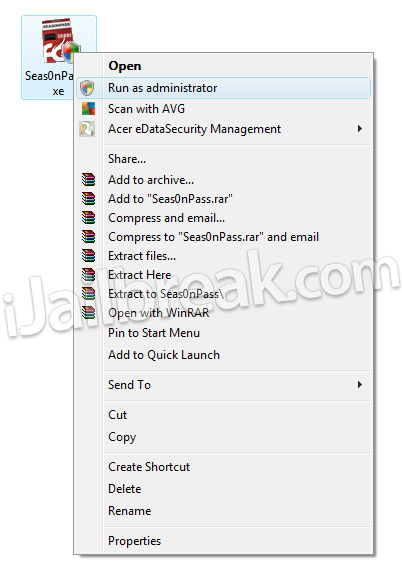
Seas0nPass needs the proper permissions to run on both Windows and Mac OS X correctly. If you are running Seas0nPass on Windows you will need to ensure you grant it administrative privileges by right clicking it and selecting the run as administrator option. On Mac OS X Mountain Lion, because of the new Gatekeeper software, there is also a trick to running Seas0nPass. You will need to first hold down the control button and then select the open option.
How To Jailbreak With Seas0nPass
Now that you understand the basics of Seas0nPass you can actually use Seas0nPass to Jailbreak your Apple TV. iJailbreak has written numerous guides for Jailbreaking your Apple TV with Seas0nPass that can be accessed from the How To Jailbreak Section. These guides include screenshots, and are specific to each firmware version Seas0nPass supports. As the Jailbreaking process with Seas0nPass is essentially the same for all firmware versions however, you can follow the generalized guide below as well.
- The first thing you will need to do is download Seas0nPass. As mentioned previously this can be done from the iJailbreak Downloads Section.
- Launch Seas0nPass; keeping in mind the points discussed previously on how to launch Seas0nPass correctly on both Mac OS X and Windows.
- Once you have launched Seas0nPass click the Create IPSW button and the latest Apple TV software will be downloaded and used to create a pre-Jailbroken IPSW.
- When you are asked to plug your Apple TV into you computer via the micro-USB cable, do this now and then follow the on-screen instructions for putting your Apple TV into DFU mode. When you successfully enter DFU mode on your Apple TV iTunes will automatically begin the restoration process. When iTunes finishes restoring your Apple TV then your Apple TV has been Jailbroken (to confirm this you should see a temporary FC logo in place of the Settings icon).
- If your Apple TV was Jailbroken tethered then you will need to disconnect your Apple TV from your computer, launch Seas0nPass again and click the Boot Tethered button. Then simply follow the rest of the 0n-screen instructions.
Seas0nPass is the best tool for Jailbreaking the Apple TV and hopefully this in-depth analysis has gotten you more comfortable with using Seas0nPass. Once your Apple TV is Jailbroken you will want to install aTV Flash (black), which can be purchased from the FireCore website.
I did all the above, but when I connect ATV2 to my TV, the bulb on the front of the device constantly flashes (slow flashing) and do not see anything on TV. Only after I doing restart the device through iTunes, the ATV2 returns to act like he was before the break. What should I do?