Yesterday we told you that Chronic-Dev released a new tool called Chronic-Dev Crash Reporter. This tool basically stops Apple from being able to take your iPhone, iPod Touch or iPads crash reports, and instead uploads them to a private Chronic-Dev server. This grants Chronic-Dev and other Jailbreak developers that ability to an endless supply of possible exploits, which can lead to untethered iOS 5 Jailbreaks.
As we recieved numerous emails on how to use this new program we decided to write a How To guide for Windows users. Thus, in this How To guide from iJailbreak.com you will learn how to use the Chronic-Dev Crash Reporter tool on the Windows operating system to help find untethered iOS 5 Jailbreaks.
Note #1: For a Mac OS X version of this guide please click here.
Note #2: Currently the Windows version of Chronic-Dev Crash Reporter is slightly buggy. Additionally, certain virus protection programs detect this Tool as a virus. This means you may temporary need to disable any virus protection software, while using the program. Chronic Dev will update their program to be more stable shortly… so stay tuned.
Use Chronic-Dev Crash Reporter Windows
Step 1) – The first thing you will need to do is download Chronic-Dev Crash Reporter to your Windows computer.
- Download Chronic-Dev Crash Reporter Final Windows (iJailbreak Downloads Section)
Step 2) – Next you will need to launch Chronic-Dev Crash Reporter by double clicking the cdevreporter.exe file.

Note #1: You will need to grant Chronic-Dev Crash Reporter administrative permission to run.
Note #2: Certain virus protection programs (like AVG) detect this program as a virus. In order to use this program you will need to add an exception to your virus protection program, or simply disable it for the short time you will be using the program.
Step 3) – When Chronic-Dev Crash Reporter is up and running you will need to plug your iPhone, iPod Touch or iPad into your computer (ensure you quit iTunes when it launches before moving onto Step 4).
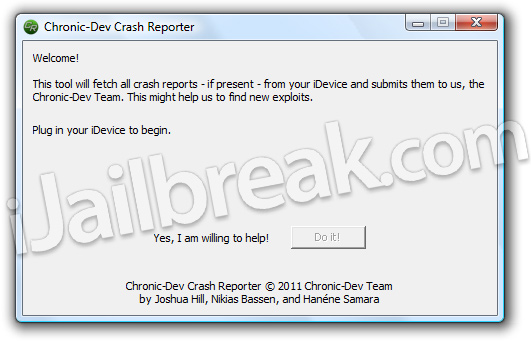
Step 4) – Chronic-Dev Crash Reporter will now recognize your iOS Device. Once it recognizes your iPhone, iPod Touch or iPad click the Do it! Button.
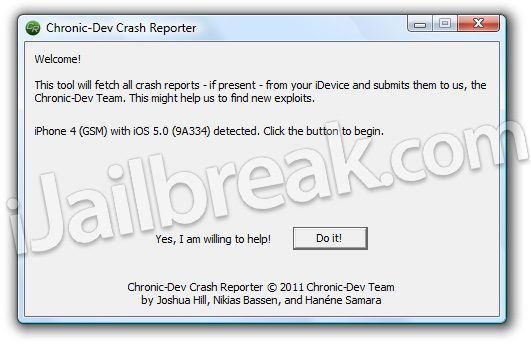
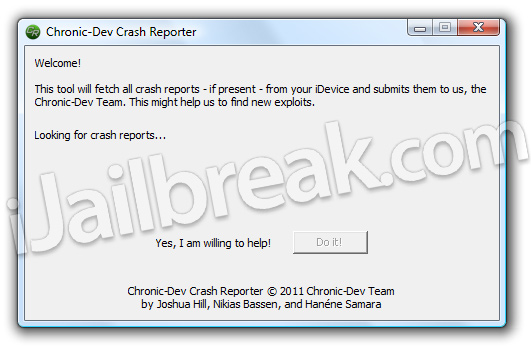
Step 5) – From here you will be told how many Crash Reports were found, and then Chronic-Dev Crash Reporter will begin uploading these Crash Reports to the private Chronic-Dev server.
Step 4) – If all went well, your iOS device will no longer submit Crash Reports to Apple and you should have a good feeling inside knowing you have just helped develop future untethered Jailbreaks for us all.
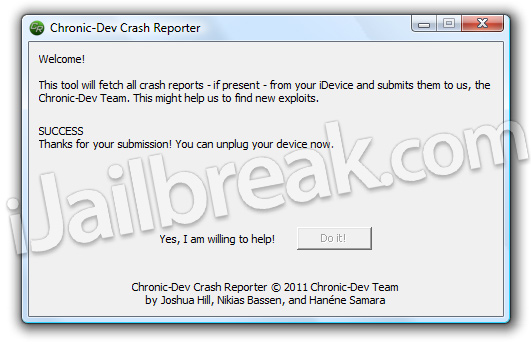
Note: If you get an error and are not able to upload Crash Reports at that specific time, come back later and try again. This means Chronic-Dev’s servers are too busy. If you are constantly getting an error while you cannot upload your crash reports, or the crash report uploading freezes. You may need to disable Windows Firewall for the time being.
Please leave any questions or thoughts in the comments section below. Additionally, let’s see who submits the most amount of Crash Reports!
Don’t waste your time with fileserve server, download it from here:
880 right here haha
even with the firewalls off and my antivirus AVG off it still gives me error please help
Worked fine for me and I have AVG installed. My iphone 4 sent 49 crash reports. Hope we can all help
everything went well for me my ipod found 33 crash reports and i hope that an untether will be foound soon for 5.0.1
1175 crash reports
damnit only 351 xD
9480 crash reports, no, I’m not kidding either. :/
1 crash report :P