I recently purchased a Mac computer, and thus I am going to be making the switch from the Windows OS (operating system) to the Mac OS. As I am completely new to the Mac OS X operating system, one of the first things that I wondered how to do, when I was writing an article, was how do you take a screenshot on the a Mac computer? I finally stumbled upon the answer after Googling the topic, and I was very impressed on just how many different screenshot taking options there were!
I decided I would not be the only person wondering how to take screenshots on the Mac OS X operating system, so I decided I would write a quick How To guide. In this How To guide you will learn how to take screenshots on the Mac OS X operating system, and even change the file type of your screenshots.
Take Screenshots On Mac OS X
The below commands will allow you to take screenshots on your Mac OS X computer.
- Command-Shift-3: Take a screenshot of the screen, and save it as a file on the desktop.
- Command-Shift-4: then select an area: Take a screenshot of an area and save it as a file on the desktop.
- Command-Shift-4-Spacebar (click a window): Take a screenshot of a window and save it as a file on the desktop.
Change Screenshots Format On Mac
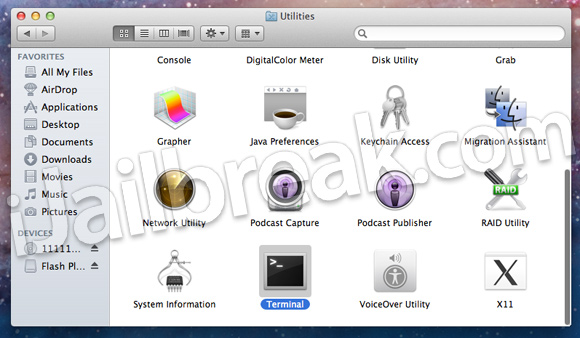
defaults write com.apple.screencapture type image_format
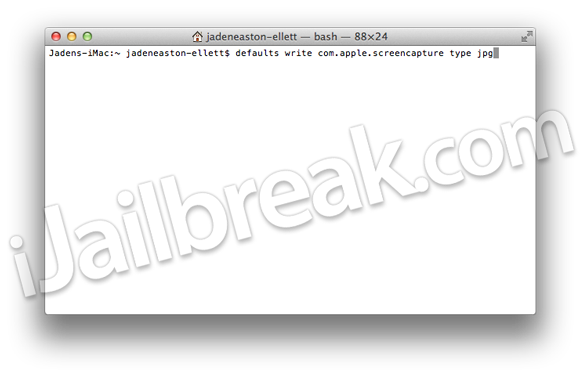
Note: You will need to replace image_format with an image type such as: pg, tiff, pdf, png, bmp (etc).
Step 3) – After entering the command above you will need to enter one last command:
killall SystemUIServer
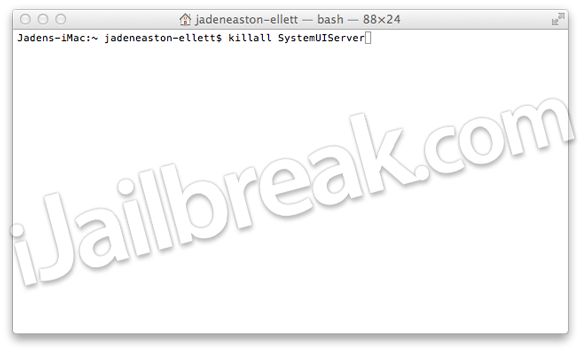
If everything was done correctly your screenshots should now save as the image format you specified.
Hopefully this How To guide has shown you something new! Please leave any questions or thoughts in the comments section below…
Leave a Reply