It is no question that the iOS 5 firmware packs some great new functionality for your iPhone. In fact the iOS 5 firmware includes over 200 new features such as wireless syncing, iMessage, Reminders, Newstand; the list could go on and on. It is because of these new features that so many individuals are upgrading to the iOS 5 firmware. Even Jailbreakers can upgrade to iOS 5 without loosing their ability to Jailbreak. This is because tools such as RedSn0w and Sn0wBreeze are compatible with iOS 5 (for a tethered Jailbreak).
The only roadblock you may face when updating to the iOS 5 firmware is if you are trying to upgrade your unlocked iPhone to iOS 5. If you have an unlocked iPhone you CANNOT simply upgrade to the iOS 5 firmware. This is because iOS 5 will update your baseband, which means you will not be able to unlock your iPhone after updating iOS 5. To get around this issue you need to use a Jailbreaking tool which supports custom IPSW creation.
Jailbreaking tools that feature custom IPSW creation range from the PwnageTool to Sn0wBreeze. One tool that was recently updated to support custom IPSW creation, however, is RedSn0w. RedSn0w was recently updated to version 0.9.9b5 which now includes the ability to create custom IPSW’s. RedSn0w is probably the easiest Jailbreaking tool at this time to create custom IPSW’s and is cross compatible with both Windows and Mac OS X operating systems. Thus, in this how to guide from iJailbreak.com you will learn how to update to the iOS 5 firmware without updating your baseband so you can then unlock your iPhone using UltraSn0w once iPhone is Jailbroken.
Note: Windows users can follow our Sn0wbreeze baseband preservation tutorial by clicking here.
UPDATE #1: If you are wishing to upgrade to the iOS 5.0.1 firmware without updating your baseband simply select the iOS 5.0.1 firmware instead of the iOS 5.0 firmware.
Updating To iOS 5 Without Updating Baseband
Note: At this time RedSn0w 0.9.9b5 is only compatible with the Mac OS X operating system. RedSn0w 0.9.9b5 will be available to Windows users shortly. Until this time Windows users will need to use a tool such as Sn0wBreeze to preserve their iPhone’s baseband while updating to the iOS 5 firmware. We may provide a how to guide for this in the near future (if this would be of use to you let us know in the comments section at the bottom of this post).
Step 1) – The first thing you will need to do is download the official iOS 5 firmware for the iPhone model you are wanting to upgrade. You can do this by going to the iJailbreak Downloads Section which provides direct links (from Apple) that will allow you to download the official iOS 5 firmware. Additionally you will need to download RedSn0w 0.9.9b5 which can also be downloaded from the iJailbreak Downloads Section.
Step 2) – After you have downloaded the official iOS 5 firmware and RedSn0w 0.9.9b5 you may proceed to launching RedSn0w 0.9.9b5.
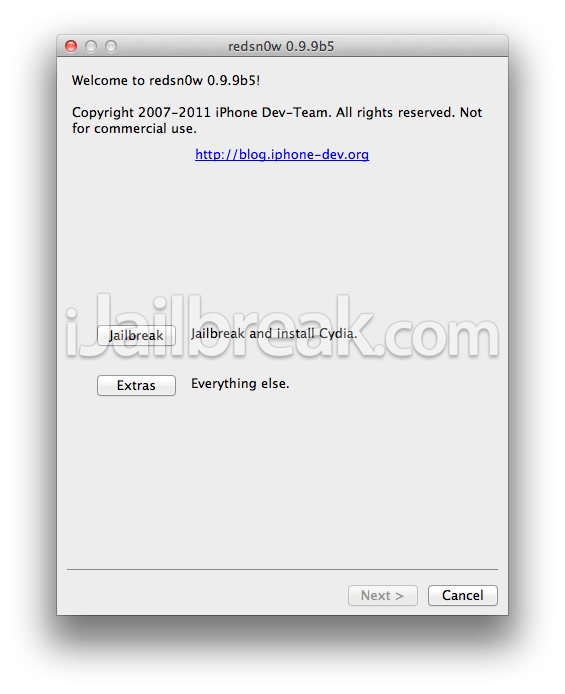
Step 3) – When RedSn0w 0.9.9b5 is up and running you will need to click the Extras Button.
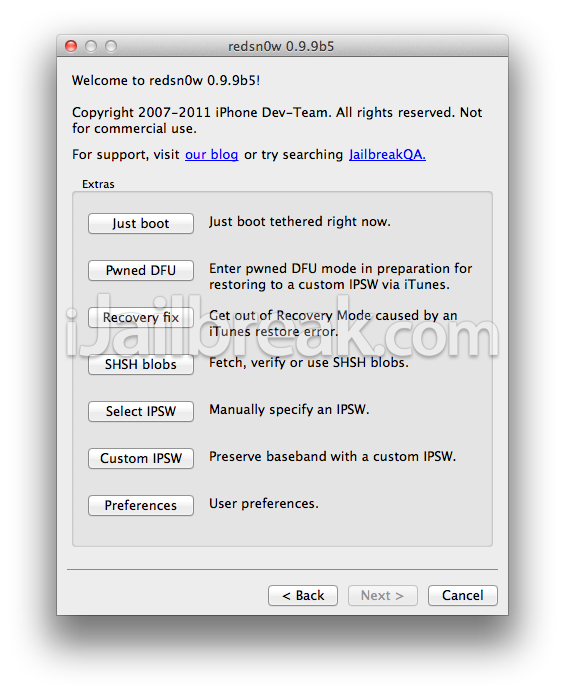
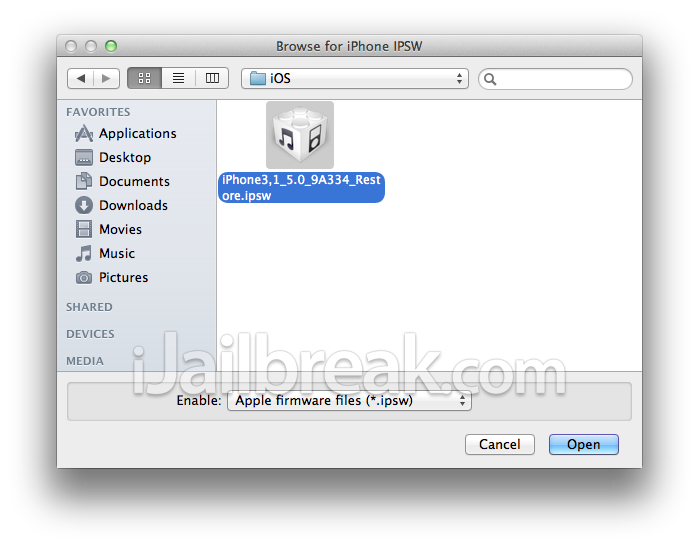
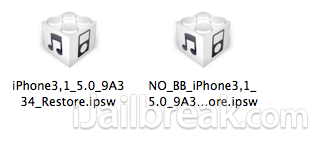
Upon clicking the Extras Button you will need to click the Custom IPSW Button. A window will now pop up asking you to select the official iOS 5 firmware file you downloaded. Select the iOS 5 firmware file now and RedSn0w will begin creating your custom firmware file. Once it has finished creating your custom firmware file you will notice it on your desktop (or wherever the location of the iOS 5 firmware you selected in); it will have a NO_BB prefix in front of the firmware file name.
UPDATE: If you are wishing to upgrade to the iOS 5.0.1 firmware without updating your baseband simply select the iOS 5.0.1 firmware instead of the iOS 5.0 firmware.
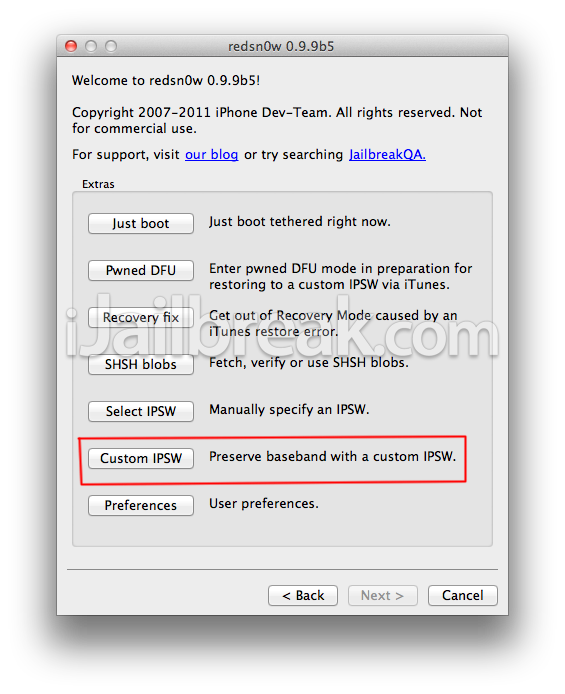
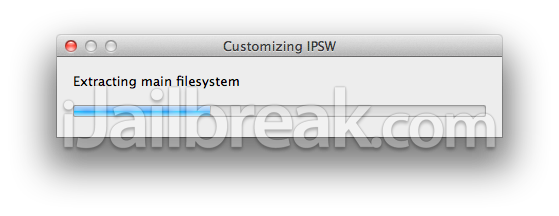
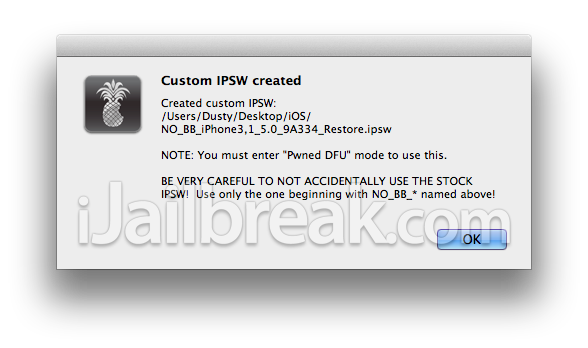
Step 4) – With your custom iOS 5 firmware created you will now need to put your iPhone into Pwned DFU mode. It is important to keep in mind that you cannot just put your iPhone into normal DFU mode to restore this custom IPSW. To put your iPhone into Pwned DFU mode you will simply need to click the Pwned DFU Button on the Extras screen.
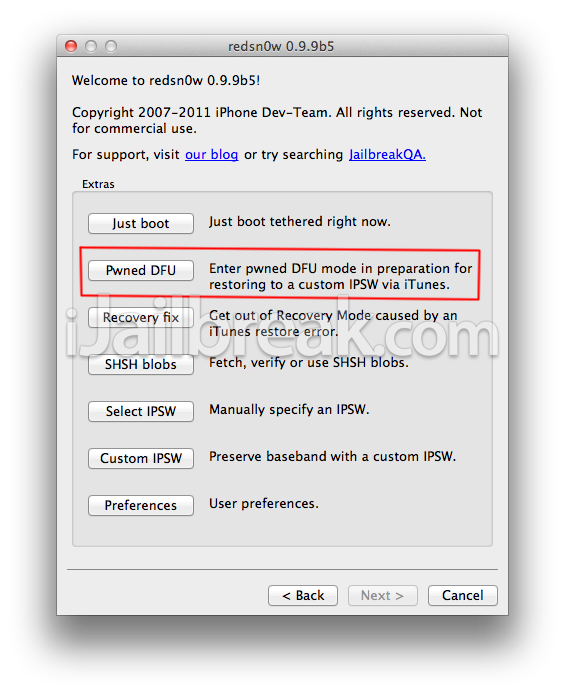
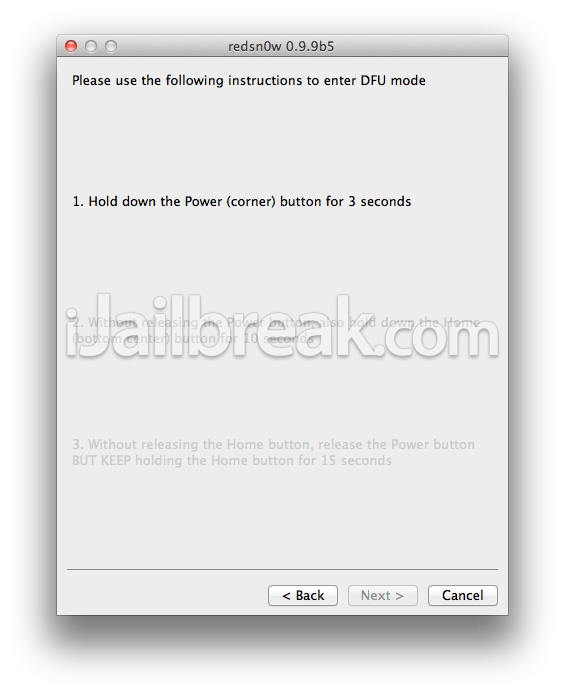
Step 5) –Upon clicking the Pwned DFU button you will be presented with instructions on putting your iPhone into DFU mode. Read this instructions and click the Next Button to actually begin putting your iPhone into Pwned DFU mode.
- Hold down Power (corner) button for 5 seconds.
- Without releasing the Power button, also hold down the Home (bottom center) button along with the Power button for 10 seconds.
- Without releasing the home button, stop holding down the power button for up to 15 seconds.
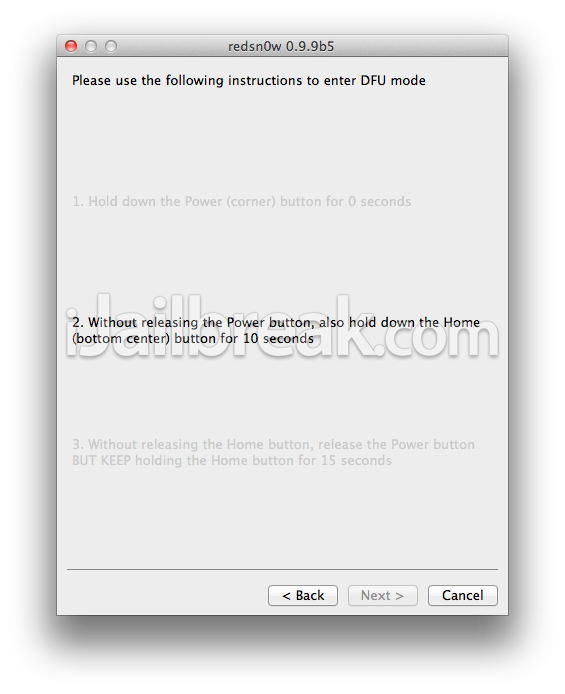
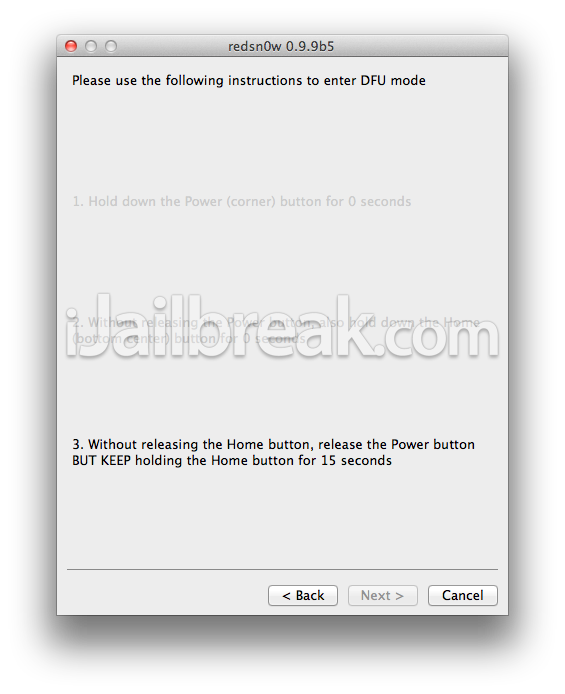
Step 6) – Once your iPhone is in Pwned DFU mode iTunes should launch and tell you your iPhone is in Recovery Mode. From this screen you will need to hold the option key down and click the Restore Button.
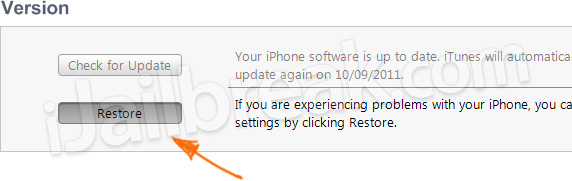
A new window will now pop up asking you to select the firmware file you wish the restore to. You will need to select the Custom firmware file you created earlier using RedSn0w. It is important to remember this firmware file will have the pre-fix NO_BB. Ensure you select the firmware file with the prefix or you will end up updating your iPhone to the stock iOS 5 firmware which will also update your baseband.
Step 7) – After you select your custom iOS 5 firmware file iTunes will begin restoring your iPhone to iOS 5. This process can take up to 10 minutes so please be patient. After your iPhone re-boots it will be in a usable state. Congratulations! You have just updated your iPhone to the iOS 5 firmware without updating your baseband.
Note #1: Your iPhone will not be Jailbroken after restoring to the custom iOS 5 firmware you created. You will now need to follow one of our guides to Jailbreak your iPhone, if you wish to unlock your iPhone with ultraSn0w 1.2.4; which was recently updated to be compatible with the iOS 5 firmware.
Note #2: If you are unlocking an iPhone 3GS on the the Special iPad baseband 06.15.00 you will need to take heed to the following warnings by the Dev-Team:
Note: there’s a special “trick” that iPhone3GS owners with baseband 06.15 need for iOS5. During the new setup screens you see when you start iOS5 for the first time, you’ll be asked about Location Services. Be sure to select “Disable Location Services” when asked! Later on in the setup, you’ll have the chance to turn on Location Services again when asked if you want to use “Find my iPhone”. It’s fine to turn it back on at that point, if that’s your desire (or you can always go in and enable it in Settings.app).
Also, some iPhone3GS users with the 06.15 baseband may have tried to install iOS5 using a stock IPSW (even though you should never ever try to use a stock IPSW if you’re an ultrasn0w unlocker). If you did try this, your baseband is probably in an inconsistent state, and you’ll need to reflash the 06.15 baseband again (using redsn0w). Be very careful if you use redsn0w to reflash the iPad baseband — don’t interrupt the process! And please avoid using stock IPSWs in the future. Unlockers should never go near stock IPSWs
If you have any questions please leave them in the comments section below…
Note #3: Windows users can follow our Sn0wbreeze baseband preservation tutorial by clicking here.
want snowbreeze guide :( snowbreeze creating ipsw file of only 22MB. don’t know why :(
snowbreeze not useful!!hangs
plz..plz..plzz help me admin.
i’m using iphone 4 with os 4.1.x with firmware 2.10.04, which is unlocked by a gevey sim. can i update to ios 5 and safely jailbreak my device? should i preserve my baseband?
I have an iPhone 4 with the 4.3.1 software and my phone is already jailbroken. Can I use this just to upgrade to the iOS5? Will my untethered jailbreak still work?
i need help here..i was updating iOS 5 to my iphone 4 unlocked by a gevey sim then when i was about to finish the update my phone appeared to have no service and the sim card inserted does not appeared to be suuported by this phone..what will i do??
hey i am using the gevey sim for my iphone 4. it has never been jailbroken and i have already updated my phone with the ios 5 and now its saying does not recognize sim? watt do i do
Followed the steps, and got a pop up message when restoring to the custom IPSW, saying: “The iPhone “iPhone” could not be restored. The device isn’t eligible for the requested build”…please let me know what the problem could be. Thanks.
had the same issue as nacimi
please help :)
Please I am having the same problem as young mike. I followed the process and its still asking for sim to activate or unlock iphone. Please help us we are stuck.
Me too. Sim not recognized after updating to ios5.
When is the windows version coming out ?
Help… I am getting the message the iPhone could not be restored . this device isn’t eligible for the requested build
Anyone updated it successfully ?
Dear sir,
I have just upgraded my phone, but i have not preserved the baseband. Now my phone cant recognized the sim card. This means, i could not use my sim card any more.
could u tell me if there are ways for me to use my SIM card again?
Hello,
I’ve got a scenario for which you’ve already warned in the article.
I have an iPhone 4 which I’ve updated to iOS 5 from iTunes, which has lead to the phone getting locked as the base-band has been updated.
Could you please help me, as to what should I do?
Following are the details of my phone:
iOS Version: 5.0 (9A334)
Model: MC608LL
Modem Firmware: 04.11.08
update ur itunes
hi… am mandy, i got an iphone factory unlocked (mc603zp/a) can i update to ios5 and still use my smart sim after?
I am having the same problem as vk_hang.please help someone. My e-mail address is kameal786@hotmail.com
Please help :(
I’m having the same problem I’m using a iPhone 4 on 4.3.3 and unlocked using gevey sim on baseband 4.10.1 (i think) I have downloaded iOS 5 and redsnow beta 5 make a custom ips and put my phone in dfu mode and selected the No BB custom firmware but I keep getting a error saying my phone isn’t eligible for requested build? Any know what I’m doing wrong? Plz help
Me 2 anyone have any idea?
I’m having a problem I’m using a iPhone 4 on 4.3.3 and unlocked using gevey sim on baseband 4.10.1 (i think) I have downloaded iOS 5 and redsnow beta 5 to make a custom ipsw and put my phone in dfu mode and selected the No BB custom firmware but I keep getting a error saying my phone isn’t eligible for requested build? Anyone know what I’m doing wrong? Plz help
Please email me at Danielgarzar@gmail.com thank you..
what version of Itunes do I need to do this?
Young Mike 3 days agohey i am using the gevey sim for my iphone 4. it has never been jailbroken and i have already updated my phone with the ios 5 and now its saying does not recognize sim? watt do i doIm in the same boat! please help my email is laurie.casey@gmail.com
hey just wondering whether youve received an answer on your post yet as i have the same problem.
Nope, not yet.
You should try commenting out the activation ip’s from cydias server in /etc/hosts on your computer
If you get the ‘this device isn’t eligible for the requested build’ error, then you should try commenting out the activation ip’s /etc/hosts on your computer
how do you comment out of the activations ip
Sn0wBreeze guide please!!
This worked fine for me, and Gevey works without problem also, but how do I restore my contacts, photos from iTunes? The restore button is missing, it thinks that this phone is new. :(
I did ever thing it says here, but my phone says “SIM not valid”…its not even going to Home screen…:(
If i have a locked iPhone 3GS, should i still update this so i don’t update the baseband or should i do a normal jailbreak for iOS 5?
One more thing, is it crucial I have an AT&T sim card inserted at all times during the process?
Hello,My Iphone 4Version: 5.0 (9A334)Modem Firmware: 04.11.08can someone please tell me how to unlock it i try Ultrasnow is not working please please help me thanks in Advance
Hello,My Iphone 4Version: 5.0 (9A334)Modem Firmware: 04.11.08can someone please tell me how to unlock it i try Ultrasnow is not working please please help me thanks in Advance
What baseband have you right now ?
Hi I followed the instructions however the phone is stuck at the shut down point and when i use the Redsn0w fix tab it brings up the Apple then going back to the shut down point, any answers?
Hey, I got the same thing. Completed the whole guide word for word, and when I get to the restore part iTunes tells me that my device isn’t eligible for the request build. I didnt understand the commenting out the activation IP part.
Anyone one else got ideas to solving this?
i figured it out os5 is great
Has anyone sucessfully updated to iOS5 with preserved Basebands? This tutorial doesn’t work for me & many others as we keep getting the error “This device is not eligible…”. Help !!
I successfully managed to upgrade iphone 4 (iOS 4.3.1) baseband 04.10.01 to iOS 5.0 without changing baseband.
Now, waiting for a jailbreak :)
I successfully managed to upgrade iphone 4 (iOS 4.3.1) baseband 04.10.01 to iOS 5.0 without changing baseband.
Using Snowbreeze (only preserve baseband, no tethered jailbreak) on Windows 7 and iTunes 10.5 restore.Now, waiting for a jailbreak :)
Sn0wbreeze guide is now published :) See Update (top of post) or Note #3 (bottom of post). It also includes a troubleshooting section if you have already tried yourself and failed.
Sn0wbreeze guide is now published :) See Update (top of post) or Note #3 (bottom of post). It also includes a troubleshooting section if you have already tried yourself and failed.
Sn0wbreeze guide is now published :) See Update (top of post) or Note #3 (bottom of post). It also includes a troubleshooting section if you have already tried yourself and failed.
Sn0wbreeze guide is now published :) See Update (top of post) or Note #3 (bottom of post). It also includes a troubleshooting section if you have already tried yourself and failed.
Sn0wbreeze guide Pleaaasee!!! I have iPhone 4 at&t iOS 4.3.3 Baseband 04.10.01 can I update and unlock?
hey man i did everything right to update my phone to ios 5 with my baseband 04.10.01 gud but wen i use my gevey sim it keeps saying no service can someone help me?ASAP i get alot of business call and i need it to work
Let me know if u find a solution! I am on the same page im from india and it says SIM NOT INSTALLED and got no signal
Even I am receiving the same error message.
Just to be clear. I have Iphone4 bb 04.10.01 with gevey. I can run redsn0w to update to ios5 and still using my gevey, right? And i don’t need to jailbreak? Even if i don’t have the original sim?
thanks!
Yes, follow the directions on the page above. In order for my to complete setting up my iPhone I had to replace my Gevey SIM with an old AT&T SIM, then once finished restoring my apps, contacts, etc. I turned the phone off and inserted my Gevey and did the usual routine to get service.
So i followed instructions.. but it says ” This device isnt eligible for the requested build”. I have an Iphone 4 with 4.10.1 Baseband. Any ideas?
just sync
Do i need to change a file to ipsw extn. I do not see any ipsw file
Is your baseband also updated???
Just break hit and hopefully apple will give you one with an old baseband. Thats what i had to resort to.
Hi I tried creating the custom IPSW and when I click on the iOS5 I downloaded for my iPhone 4 model I get this message:
Sorry, only firmware 4.3.3 and 5.0 are supported right now.
The version on my iPhone 4 is 4.2.1 and the baseband is 03.10.01
What can I do about this? would really appreciate your help!
Thanks!
bro.. no unlock until now.. lts wait.
oops… ur baseband is upgraded to 4.11.08, which is unlockable.. theres nothn to do nw.. jst wait for an unlock sol to come
WARNING:
5 REASONS TO WHY YOU SHOULD NOT UPGRADE TO IOS5
1. NO UNLOCK AVAILABLE TILL NOW. SO, DONT UPGRADE YOUR IPHONE TO IOS5 UNTIL 4.11.08 UNLOCK IS MADE AVAILABLE.
2.GETTING A FEW FEATURES MORE IS NOTHING COMPARED TO LOOSING UR DEVICE ON A WHOLE.. UR DEVICE JST CHANGES INTO AN IPOD. U CANT CALL,MESSAGE OR USE 3G.
3.THERE IS NOT EVEN AN UNTETHERED JAILBREAK TILL NOW. SO, KEEP YOUR JAILBREAK AS IT IS.. AN UNTETHERED JAILBREAK ON OLD IOS IS BETTER THAN A TETHERED JAILBREAK ON NEW IOS( EXCEPTION IS OLD BOOTROM 3GS)
4. BECAUSE APPLE STOPPED SIGNING 4.3.5, U CANT DOWNGRADE BACK TO AN OLD IOS. SO, ONCE YOUR STUCK, U R STUCK.. SO DONT EXPERIMENT ON PRESERVING BASEBANDS AND UPGRADING.. MOST OF THE TIMES U ENCOUNTER WITH THE ERRORS NOW EXPLAINS OF. BEWARE
5.IOS 5 IS ALL MADE TO SCREW THE UNLOCK USERS AND WOO THEM TOWARDS IPHONE 4S.
no.. if you upgrade to ios 5. u cant use ur iphone to make calls. u’l lose your phone. beware
@f8f35a65c530ee33e99a3f836e3c92b9:disqus
4.1 bb 2.10.4when exactly did u swap the gevey with AT&T sim?
cud’nt locate my old AT&T sim. is it wrth trying with gevey?
pls. advice.
hey guy,can you help me ,i have the iphone 4 version 5.5 firmware 4.11.08 i want downgrade to 4.10.01,because i have t mobile so want to use GEVEY SIM,,so please me,thank,,,
oh,i put wrong key,,version 5.o
hey ,i have iphone4 4.0.2(8a400) and its baseband is 01.59.00 , if i upgrade it to iOS 5 using this tutorial is it unlock able or not, because my done is not factory unlock, its unlocked by ultraslow, if you have any suggestions,….. i will thankful to you,
i have factory unlocked iPhone 4, fw 4.3.5 and bb 4.10.01.
i’d like to upgrade to a new fw io5.
will i lose my unlocked? and will my bb also be updated to 4.11 which is not unlockable at this time? thank you guys…
was that a joke?? as you can use
yeh sam problem vd me…..now i m so upset
This thing totally messed up my phone!!
My iPhone4 upgraded to ios5 and I am now locked out… which means either using a AT&T sim (which Im T-Mobile) or buying a i4s (which I dont want).I should have stayed with the Gevey.
I cant even use my Iphone as an Ipod because I am stuck on the “Set Up” screen. Where I cant even get passed Sim and Emergency Calls.
If anyone knows a way out of this…. Please let me Know.
BTW in the Pwned DFU section you are not supposed to DFU but to go to do Recovery, for you to manually set up. Or else you get stuck like I am with a now worthless phone.
Did you guys erase the comment about my iphone being locked?
same thing happened to me…
Why does everyone have a firmware 04.10.01? I have 1.59 baseband will it work on mine?
Help: I am trying to update iphone 3gs. After I put the iphone in pwned DFU mode, itunes doesn’t recognize the phone.
How to get it working?
I commented it out. I also updated to the latest iTunes. And still I get “ineligible”.
hey guys so i have an iphone 4 8gb factory unlocked with ios 5 will i face any such issues? if i jail break it?
plzz guyss if u find any solution to unlock ios5 in iphone4 let me knw..
Does that mean you cannot use ur phone until jailbroken?
hey man it’ll work……….use ultrasn0w 1.2.3 to unlock
I have iPhone 4 unlocked I already updated iOS to be iOS 5 with modem firmware 4.11.08
I used Gevey sim
Kindly advise if we have solution
I am also experiencing the same problem can u help me to cum out of this
plzz….
I have an iPhone 4, FW 4.3.3 BB 01.59.00 and I have it unlock right now with Ultrasn0w. The question is if I can upgrade to IOS5.0 and use redsn0w to preserve my BB and can I jailbreak it afterwards to then unlock it again with Ultrasn0w and remain untethered after the jailbreak and unlock?
Is this possible?
Hi i have an already unlocked iphone 4 gsm 4.2.1 with BB 3.10.01..if i preserve my BB using this method, will i be update to iOS 5.0.1
i tried custom ipsw and when restoring the iphone i always get errors 3190 and it doesnt let me restore can someone help thanks
how unlock 04.11.08 thanks
no unlock yet
is there a way to preserve baseband and activate without a sim?
I’m not sure that people are aware that Gevey Ultra purchased from Applenberry will NOT work on iOS5 with preserved baseband. If you are thinking of following the steps above on an iPhone 4 please reconsider. Some may claim that it has worked for them, however even if it did, FuriousMOD from Cydia will NOT INSTALL properly and therefore the automatic 112 sequence will not work.
UPDATERS BEWARE!!
I have an i phone 4 from the US unlocked with a Gevy sim in India.
I would like to upgrade to ios5
Pls provide simple steps – as non technical as possible …immediate help appreciated :)
I have an i phone 4 from the US unlocked with a Gevy sim in India.
I would like to upgrade to ios5. my phone’s base band is 04.10.01
I am using a windows pc and not a mac
Pls provide simple steps – as non technical as possible …immediate help appreciated :)
Does that mean u cant use your phone till then? Mine is i phone 4 (4.3.3) and
baseband 04.10.01 on a windows 7 computer
I have unlocked it to 5.0.1 using ultrasnow. What do I do now?
I was doing the update to the custom ipsw i created and i got a message from itunes telling me that the iphone coul not be restore because it is not elegible for the requested build.
What can i do?
There is now solution till now.Wait for some more time.May the gevey sim for firmware 4.11 will launch soon.
of course it will!!
what if i already update my iphone 4 baseband? can it be undo?
please help me
Please update this to include the latest version of redsn0w (which you will need if you’re using Windows), and that you need to press SHIFT at the same time as clicking Restore to load your custom IPSW.
Cheers.
I had same problem i m from india too but i leave in USA just go ahead and open up youtube and fallow the video from everythingapplepro for 5.0.1 watch the whole video and do exactly what he says and one more thing that gevey u have its ultra or pro ?
Hey i have US iphone 4 ios5 and baseband 4.11.08…now i have to unlcok in india…how can i unlock it???i tried jailbreak,snowbreez and ultrasnow also…..
Hey, i am usinh iphone 4 version 4.3.2 baseband 3.10.01
i want to update it to ios 5 preserving baseband
but during restore it shows error 3194
how to overcome it ??
I successfully did this upgrade. I had iOS 4.3.5 with 04.10.01 baseband. I downloaded the 5.0.1 ipsw and made a custome ipsw (NO_BB…) using redsnow 0.9.10b. I entered the Pwnd DFU mode and did the Option+Restore in itunes and chose the NO_BB ipsw.
After the udpate, I used an old AT&T sim to get past the activation. I then put in my Gevey with my TMobile sim. It took only 2 times with the dial 112-airplane mode to get it back online.
I now have a unlocked, but not jailbroken iphone. Which is perfect for me, because I do not have to worry about rebooting and needing a tethered jailbreak. I don’t use any of the cydia apps anyway either.
i’ve an iphone 4 with baseband 04.10.01 unlocked with a gevey sim… i did this tutorial and after i restored it with the itunes.. the iphone is not jailbroken.. do i’ve to open redsn0w –> jailbreak or it will update my iphone to the new baseband ?????
HI when I go to click Option+restore it doesnt pull up the new window asking for which firmware i wanna use… Iphone 3gs with ipad baseband and iOS 4.1….itunes 10.4.1…what is the problem???
No way possible, I had to trade my iPhone for one on an older iOS 4. Something. And I had to unlock it with a he eye sim. Sorry the news hurts but yah.
Hi, my iPhone is a 3gs w/ios 5.0.1(9A405),w,bb of 05.16.05,,serial# beginning w/880370. My problem is that i cannot unlock it ,it is jailbroke using cydia but cannot get it to unlock even w/technical help? Can anybody help me out??? Please as i cant seem to get help from the team????
Hi! I have an iPhone 3gs that I recently received from a frient…it was unlocked and jailbreaked – I don’t know in which way… I went to the mobile phone company Orange to have it officially unlocked and now that I tried to restore it I cannot get it activated – it either says that there is no sim inserted or that the apple server is unavailable…can you help me please? If the it was officially unlocked isn’t it normal to be able to restore to factory settings and then do the normal upgrade/setup as for a new iPhone? what do I do? Thank you!
itunes didn’t give me an option select no BB software HELP !
what if I already changed my firmware? can I restore the old one?
Try removing ur gevey + sim. It should help. If still doesn’t work, get an at&t sim from somewhere and it should work.
Use shift + restore then it will ask which firmware to select
i want to update my iphone to 5.0.1 without updating my baseband (4.10.01) i created custom firmware to preserve the baseband but while restoring i get error 11, 1600, 3194 each time i try, even i tried using tinyumbrella but results are same please help
Hey guys whats up!i successfully unlocked and jailbreaked an iphone 4 with ios 5.0.1 bb 4.11.08 what i did was easy i had every version installed of redsnow , i had tinyumbrella and all 4.x.x and All 5.x.x versions i tried it for 5 days and saw no result but when i tried to restore it with every version it stucked for a while and after one hour it suddenly appeard the signals instead of invalid sim.i hope this works for u guys . Just spend 5-6 days if so desparate to unlock the iphone without gevey ultra or gevey sim
Karim how did you do it & is it still possible everyone is saying do it now but then they have bricked phones ?? Thanks you can e-Mail me yourgirl_75@yahoo.com…..
how please email me yourgirl_75@yahoo.com
What do you mean just waiting for jailbreak? does that mean your phone does not work with Gevey sime?
Jaden, several users have said they successfully upgraded and preserved baseband but waiting for jailbreak. What does “waiting for jailbreak” mean? Does that mean the phone does not work with Gevey Sim? Do you leave Gevey sim in the phone the whole time?
Hi
I jailebreaked the mobile normally.. And i went into cydia, i added source. but when i search for ultrasn0w on cydia it doesnt find it!
Hello,
Oops, now the full message. I have an iPhone 3GS which is currently in some kind of connect to itunes state, which won’t let me use it anymore. I had it running on 4.2.1 with baseband 6.15.00. Now that i wanted to upgrade to iOs 5, i’m stuck. When i follow the exact same steps as written above, everything works, except the restore. when I try to restore my iphone it’s starts restoring, but when it’s almost finished it freezes and i can’t do anything anymore. the only solution then is to unplug my iphone cause it would stay like that forever. Can anyone help me ? At this state it doesn’t matters me which firmware i’ll have to install on my iphone, I just want to work again. (sorry for my bad english, i’m belgian :D)
Thanks
if i set up the DFU mode and pressed the “preserve baseband” option while using the Snowbreeze application and then in itunes pressed restore without the shift will that change the baseband?
i need a quick answer please because i already did and it is downloading
i used the tinyumberella software it helped with this error :D but i got another error after that so Good Luck :D :D :D
iPhone 3GS (coming from 3.1.3, going to 5.0.1): I’m stuck in the “in recovery” –> successfully restore custom IPSW –> “in recovery” + black screen loop. Immediately after reboot (middle part of step 7 above) iTunes says that the phone needs to be restored….again. How do I get out of this loop? Thanks!
hi
3GS – 5.1.1(9B206) – Baseband 6.15.00 + ultrasn0w .
service also coming but in case i switch off the off then restarting its showing only apple logo so i need to
run RedSn0w to boot tethered then its become ok again and showing everything .. pls help me where i am doing mistake so that no need to boot in case of switch on after switch offthanks
Make a Sn0breeze tutorial,pleaaaaaaaaaaaaseeee!
Lol, what a moron. Your phone is now fucked. You gotta wait til’ the next jailbreak. Why don’t you research it before doing it?
After following the instructions, there was an error. But i just followed the step by step procedure. Now my iphone4 is just stuck on black screen, any help. Thank you.
Hey guys. Need help please. I followed all the step-by-step procedure, but while restoring my iphone 4 is displays an error. Now my iphone just stuck on a black screen, any help there please. Thank you.
Did u try to reboot it ? Try this hold power and home button together till you screen goes complet black and then u will see apple logo just wait for 2 minuets it should come on good luck
i followed instructions.. I click “Custom IPSW” >> select iPhone2,1_5.0.1_9A405_Restore.ipsw, then it popup “Custom IPSW creation failed – unrecognized build”. I have an Iphone 3GS with Modem Firmware 06.15.00 Baseband, currently still IOS 4.1. Any ideas? Please help
um.. could someone help me. im on a 4.3.5 tethered jailbreak and im trying to get out of it anyway possible – i have tried restoring multiple times but the error 3194 keeps popping up. i cant call or anything it says NO SERVICE…??? i hav no idea if i preserved my basband when i jailbroke it. is this why there is no service? my modem firmware is 04.10.01. i hav no idea wat to do. do i need a factory unlock or something?
It will work with the IPSW for iOS 5.0.
The version or Redsn0w you’re using will not work with 5.0.1.
Same issue, with or without the Gevey. Also running an iPhone 4 with 4.10.1 BB.
Solution is to embed the APticket into the IPSW.
I need help please: I have an I pod touch that has been jailbroken with 4.2.1 and I would like to upgrade to iso 5.1 What do I need to do?
how can i upgrade my iphone 4 . ios 4.0. base band 1.59 but the phone im using is software unlock
i have baseband 6.15 and version 4.1 on my 3gs how can i upgrade my version can anyone help me please i will be very thankful to u mail me please wajidabbassi@yahoo.com