Saving your SHSH blobs is not necessarily a complicated process, but with many new Jailbreakers joining the Jailbreaking Community everyday I thought it may be a good idea to write a generalized guide for saving your SHSH blobs with TinyUmbrella (I plan on doing a tutorial for iFath in the near future as well). So, without further hesitation let’s get into a couple frequently asked questions and then we will get right down to business.
Why Should I Save My SHSH Blobs?
Saving your SHSH blobs allows you to restore your iDevice to a lower firmware versions you are currently running. Meaning if you saved your SHSH blobs for iOS 4.3.3, but accidentally update to the iOS 4.3.4 firmware. You could easily downgrade back to the iOS 4.3.3 firmware. Where if you did not save your SHSH blobs on the iOS 4.3.3 firmware you could not of downgraded back from the iOS 4.3.4 firmware to the iOS 4.3.3 firmware. Having the ability to downgrade your iDevice’s firmware is useful for a number of reasons the most important reason being if you accidentally upgrade to a firmware version that cannot be Jailbroken.
What are SHSH Blobs and What Do They Stand For?
SHSH stands for Signature HaSH and it is a 128-byte RSA signature (a random string of numbers and letters), used in this case by Apple as a technique to verify if your iDevice can be restored or updated. Each individual signature created is termed a SHSH blob, or blob for short. Meaning, in not so technical terms, SHSH blobs are the magic key to restoring or updating your iDevice. You see, each time you try and restore or update your iDevice SHSH blobs are compared to one-another to verify that you are not trying to downgrade your iDevice’s firmware. Thus, saving your SHSH blobs is the only way to trick this security system put in place by Apple (Thanks iPadForums).
Now that you know a little bit more about SHSH blobs we will get right down into learning how to save your SHSH blobs.
Learn How To Save Your SHSH Blobs With TinyUmbrella
Step 1) – The first thing you will need to do is download TinyUmbrella to your computer. You can do so by clicking here (scroll down to TinyUmbrella section and download the version that is bold).
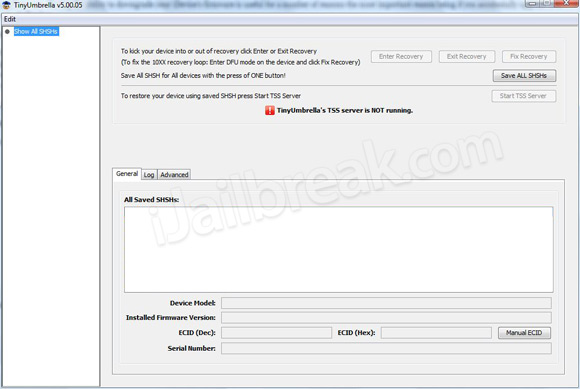
Step 2) – Once you download TinyUmbrella to your computer launch it and you should be presented with the interface show below.
Step 3) – The next thing you will need to do is plug your iDevice into your computer (if you have not already). Upon doing so TinyUmbrella will detect it in the connected devices tab.
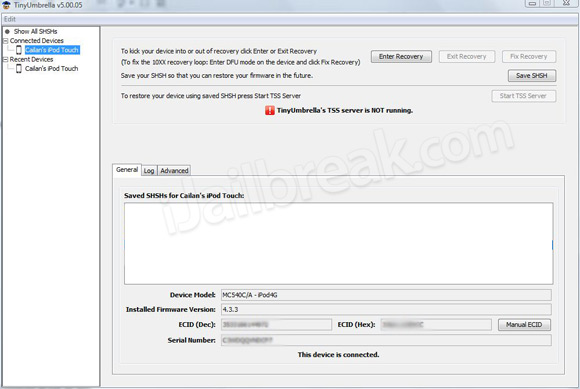
Click on your iDevice in the connected devices tab now.
Step 4) – Once you click on your iDevice you will need to simply click the Save SHSH button in the top right hand corner of the screen and TinyUmbrella will begin saving your available SHSH blob. When the process is complete you should notice a list of saved SHSH blobs.
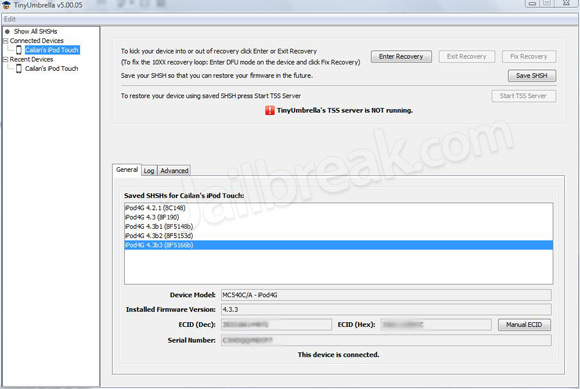
If all went well, you have now saved your SHSH blobs for the firmware version you are currently running.
Troubleshooting
If you did not get success with saving your SHSH blobs you may need to double check that Apple is still signing your firmware version. You can double check this at the developer of TinyUmbrellas website. When you are sure your firmware version is still being signed by Apple you may need to do the following:
Go into the Advanced Tab and uncheck the following:
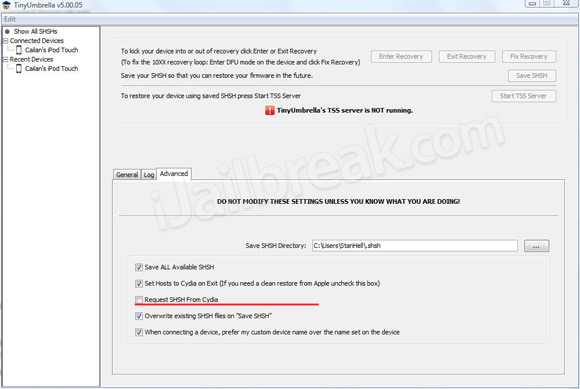
When you Uncheck Request SHSH From Cydia go back to step 1 and try saving your SHSH blobs again.
Learning How To Downgrade Your iDevice With TinyUmbrella
Step 1) – When you have your SHSH blobs saved, and actually want to make use of them to downgrade your iDevice to a lower firmware version. You will need to once again launch TinyUmbrella, plug in your iDevice into your computer and click the Start TSS Server button.
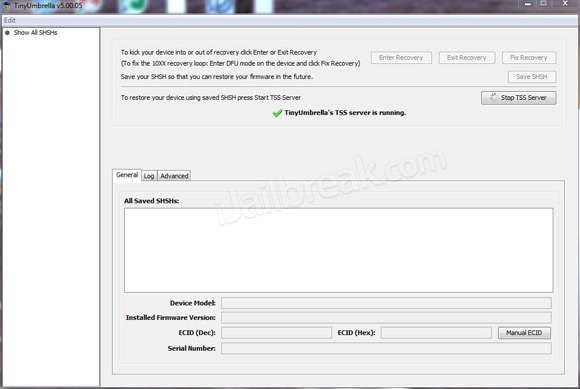
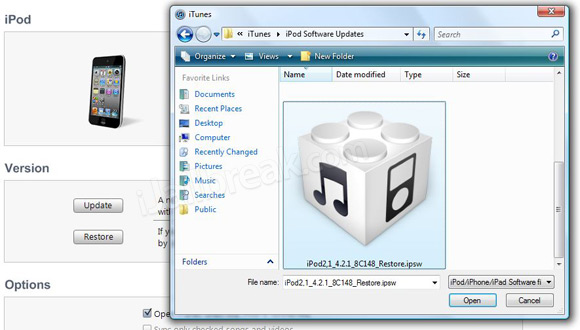
Step 2) – Once the TSS Server has been enabled you will need to launch iTunes. With iTunes up and running click on your iDevice and then hold down the Shift key (Windows) or Alt key (Mac OS X) and click Restore button. Upon doing so a new dialog window will appear where you will need to select the firmware file you wish to restore to. Do this now, and your iDevice will begin being restored.
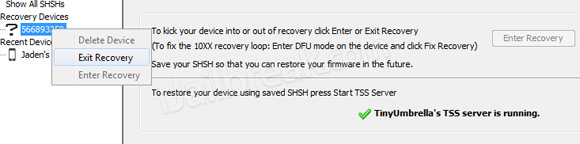
Step 3) – Once your iDevice has finished restoring you should encounter error 1015. When you receive this error all you will need to do is launch TinyUmbrella and click the Exit Recovery Mode button. Upon doing this your iDevice should reboot and function as normal. Congratulations, you have now downgraded your iDevice.
Troubleshooting
Restoring your iDevice can often times be a troublesome task full of errors. If you are experiencing errors what we suggest doing is restarting your computer, close all running applications besides TinyUmbrella and iTunes, and then plug your iDevice into a USB port you have not plugged it into before (or one that you usually don’t plug it into) and restart the restoration process. When you have tried the advice given above you may need to do the following:
Go into the Advanced Tab and uncheck the following:
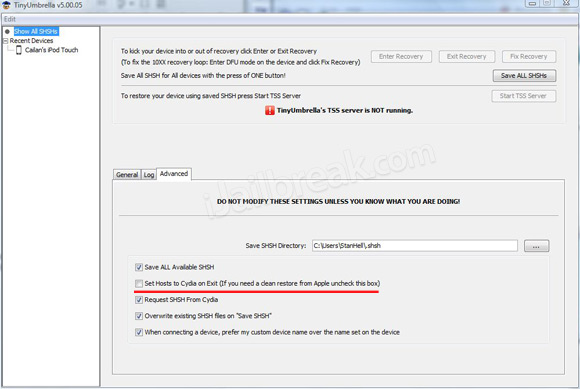
When you Uncheck Set Hosts to Cydia go back to step 1 and try saving restoring your iDevice again.
Conclusion
Hopefully this in-depth guide on using TinyUmbrella has helped you gain a better understanding of why you should save SHSH blobs, how you save SHSH blobs using TinyUmbrella and how you can downgrade your iDevice using TinyUmbrella. If you require any further help please let us know in the comments section below…
I (unawaringly) updated my iphone 4 to firmware 4.3.4. I did not save my SHSH blob for firmware 4.3.3. Is it possible to retrieve IOS 4.3.3 and place it in my list?
Same here i just updated to 4.3.4 by mistake and didnt save my shsh blob for firmware 4.3.3 … how can i fix this so that i can downgrade back to 4.3.3?
Thx for the info! I finaly downgraded my iphone from 4.3.4 to 4.3.3 and after a few hours of work, it works!!! :)
Thanks for the grate info, i got really confused from other tutorials on “other sites” speaking about modifying DNS host files,i kept wondering what is the point of the SHSH server in TU.
if any one can shade some light on this for me, i’ll be grateful
I tried the whole process
it said (error 21)
my ios was 4.3.5 and i am trying to downgrade it to 4.3.4
pls let me know
When I try to restore iPhone 3 gs after extracting software error 1605 comes up tried different computers but still can’t restore to either 4.2.1 or 4.1
I keep getting a error 20 instead of the error 1015, can you provide some insight on this? Thanks
hi, can I upgrade 4.2.1 to 4.3.3 os same like above or not
pls how can I know the shsh saving is seccessfully
I try to save with 4.2.1, but I ve seen in general tab, only 4.3.5, 5.0b1, 5.0b2, 5.0b3 like that not found 4.2.1, that is how, pls answer for me asap
can i downgrade my ipod 4.3.5 to 4.3.3 without saving the 4.3.3 firmware in the tiny umbrella?
i keep getting error 20 = what am i doing wrong?
I got unknown error occured(1). Why is this?
i have still 4.0.1 and i want to upgrade to 4.3.3 how can i do this?
error 20 caused by your firewall on your PC, set your firewall on off through control panel, security, etc…
I cannot find the firmware to install. Where to locate it?
do i have to change my computer host to downgrade my iphone4?
Can I downgrade ios 5 to ios 4.3.3 with iFaith???? (I have saven shsh blobs with ifaith and create a custom 4.3.3 with ifaith)
Am using an ipad2 wi-fi version with ios5 ..when Am trying to save shsh using tiny umbrealla it;s showing me you are late ipad 2 wi-fi is too late to be saved ..any 1 help me out asap….
help me.. i updated my ipod to ios 5. i just got the ipod for 2 weeks.. and then i just know about save shsh blobs..
now i want to downgrade my ipod to ios 4.3.3 can i downgrade my ipod without shsh blobs? is there anyway? please some one help me..
Is there any way to downgrade from 4.2.1 on a ipod 2g? If this doesnt work someone have any other advice?
wiout knowing i restored 3gs iphone to 5.0 firmware and then jailbreak it with redsnow (tethered). i want to restore it back to 4.3.3 without shsh blob. it that possible??
HI it says my blobs was saved here /Users/Peachy/.shsh but when i navigate there i see just a log from tiny umberella how can i save my blobs to my computer or cant i?
Dont think u can tbh :( if u dont have saved blobs to the firmware in tiny umberella then i dont see how u can
I have iPhone 4. I had installed iOS 5.0 and also had it jailbroken recently. I wanted to restore it to unjailbroken state so I tried to do so using normal methods. That gave me a sundry errors ranging from ‘1600’ to ‘3194’. I edited the hosts file and all that.
Finally, I decided I will downgrade it using tinyumbrella. However when I connect my iphone to my laptop, itunes puts it in the recovery mode. And the device is not seen the ‘connected device’ column in tinyumbrella. Consequently, upon restoring the device using itunes and selecting a custom iOS 4.3.3.ipsw, it goes half way and then shows error ‘1’ and that is because itunes still sees it in a recovery mode. And because the device is not ‘seen’ in tinyumbrella I cannot even exit the recovery mode. So basically, I have no iOS running (since 4.3.3OS went kaput half-way through the installation) -hence no DFU mode- hence no detection of my device- hence cant exit recovery. And I keep getting error ‘1’, everytime I install it using pwned dfu-redsn0w(still itunes sees it as recovery mode only).
Please help me outta this!
Hi guys…i was wondering if anyone has saved SHSH for iPod Touch 4G 4.3.3…coz i wanna downgrade it from 5.0.1. Please help!!!!
Hi Yo85rch i was wondering if ur saved SHSH blobs is for iPod 4G thought to downgrade it too…??
My iPhone will not restore to 4.3.5 from 5.0 .I followed all steps and I got error 11 every time. Plz e-mail me a fix ryanknut@hotmail.com
I’m in the same boat. Any luck with downgrading to 4.4.3?
I’m trying to do the same thing. Have you had any luck downgrading to 4.3.3?
Same here Im running 4.3.5 but I want to downgrade to 4.3.3 but I didn’t save the shsh is there any way to download it
Getting error 20 on Mac os x
I have tried this for hours now. I have a 3gs on iOS 5, it was on ios5 when i got it. I have the 4.3.3 firmware saved to my desktop. I go on tiny umbrella and do every on of the steps above. But, everytime my phone gets in DMF mode and itunes gives me “error 20” everytime. I turned off my firewall/spyware/pop up blocker and still the same thing.. can someone please help?
ohh, I have an ipad 2, when i connect it to tiny.u. it doesnt show 4.3.3, only 4.3.4 and 5.0, what a bummer! is there anyway i could downgrade my ipad without any saved blobs, or even jailbreak the firmware im on, im on 5.0.1, i can get to 4.3.4, otherwise trying to downgrade to 4.3.3, i get error 2005
thank you. it works on my ipod touch 4g 5.0.1 to 4.3.5. great guide!!
my tiny umbrella closes every time i click exit recovery !!! HELP pls
plsssss help ….
i want to downgrade from ios 5 to 4.3.3
i followed all ur given steps …
bt i keep gt error 20….
i even switched of my firewall bt it does nt help…
pls pls pls help me…
You guys are all trying to get to the exact firmware you guys want to be at try downgrading to a lower one I have a 3GS updated to iOS 5 and downgraded it without shsh to 4.1 just fine fully functional and untethered
hey, guys I have just a simple question. Can I save the shsh of a device that is not jailbroken for further use if I want to downgrade and jailbreak.? I have i4 and it is on 5.0.1. Can I save the shsh of non-jailbroken devices?
Thanks! This helped loads! I was so sick of haveing ios 3.1.2 so I used this guide to upgrade to ios 4.0, I didn’t encounter an error when it said I should though?
Having*
When I click on my iPod and press “Shift” nothing happens…. Why isn’t it opening the Software folder?
i got error 11 what to do help me someone
fuck! I did everything you wrote down and now my iphone is not working anymore! thats not very nice. i don’t know what i’ve done exactly, but now i tried to restore with iTunes and it told that it’s not working. what can i do now. Please help!
I made the mistake of upgrading to the new 5.1 and restored down to 4.1. Is there any way I ca upgrade to 5.0.1 like I originally had by saving my SHSH blobs? (according to cydia, I have the 5.0.1 blobs as well) Or am I completely out of luck until a new unthethered jailbreak comes out for iOS 5.1? Any help would be great!
guys this method sucks use ifaith if u have shsh blobs saved then it will work like a charm
guys this method sucks use ifaith if u have shsh blobs saved then it will work like a charm
Same here error 11, Any ideas?
Can i downgrade my iphones4s 5.1 back to 5.0.1??????doing this tinyumbrella??
thanks thousands of time for your accurate lesson !
No one can advise what is error 11?
this tutorial does not work because its a fake guys…
i got error 21 please help
how do i locate my saved shsh files on my computer ?
how can i downgrade ios 5.0.1 to 4.2.1 pls show me
i have a error 11 what do i have to do now?
I bought my iphone 4s stocked with 5.0.1 and upgraded to 5.1. Is it my understanding that if i didn’t save my shsh 5.0.1 BEFORE i updated, I can no longer save those files or retrieve them?
i got error 11 ? i have iphone 4s ios 5.1 ? what to do?
I downloaded TinyUmbrella v5.11.01, when I launch it, it says:
“Request SHSH From Cydia” is currently set.
This can cause issue if you are trying to save current SHSHs
as cydia is no longer able to reliably proxy SHSH requests.
….
What should I do with this?
Also, I plug in my iPhone, TinyUmbrella doesn’t detect it in the connected devices tab.
Please let me know, thanks.
you have to download the .ipsw seperatly from online for the specified firmware you are downgrading to
what should i do to fire wall stop or what ??
what is error 11 ..appreciate your help ..
Help! I havent backed up my photos of my iphone 3gs. It said I needed to do an update, so I just updated to 4.3.3. But now my phone is stuck in recovery mode and wants me to restore! Will this tiny umbrella allow me to get out of recovery mode and have my phone back as it was with all of my photos, contacts and messages?
works only on iPhones with A4 chipset =(
if anybody has iphone 4 GSM and has iOS 4.3.3 shah blobs can you please send it to me PLEASE… and i need to have it so i can downgrade my iphone 4.. :(
Dear easyclicknbuy,
i was uisng iphone 4 with grey sim i updated it to ios 5.1.1 and now i am receving message only compatible SIM cards from a supported Carrier may be used to activate iPhone. Please insert the SIM card that came with your iPhone or visit a supported carrier’s store to receive a replacement SIM card ……will my phone work if i downgrade by using above process
karthik
I got error (28) please help….
Sorry, you guys have both successfully bricked your phones – If they are still under warranty, apple HAS to give you a new one, I had Jailbroken using Jailbreakme and I did nto save my SHSH bloobs before trying to update to 5.0, it screwed me, and they were not going to give me a new phone, eventually they did it though.
hey every time i press the shift key and hit the restore button i dont get the window where im suppose to choose the firmware and instead opens a window to save the restore point. where do proceed from here?
i recieved an error message saying the firmware isn’t compatible … please help
I got error 11. Can you guys please help?
can you restore from a shsh blob that was in resent devices? I saved my shsh blobs but now I cant use them because tinyumbrella dont see my iphone4 as the same device as it was in the past.
I followed all of these steps and it gave me error 3194 in iTunes
i tried downgrading my ipad 4 from 6.1.3 to 6.0.1 but i keep getting error 11. I tried giving a go with da troubleshooting but it is helpless! I am helpless!!! What to do?
SAME HERE