With the release of the iOS 5.1.1 firmware today numerous people have been wondering whether it is safe to update or not. The answer to this questions at this time is no. If you have not already updated to the iOS 5.1.1 firmware, hold off. While you can Jailbreak the iOS 5.1.1 firmware tethered with RedSn0w 0.9.10b8b on the iPhone 4 and iPhone 3GS, Pod2G’s untethered iOS 5.1 exploit may not work on the iOS 5.1.1 firmware. For those that have already jumped the gun however, you will be glad to know in this how to guide you will learn how to Jailbreak tethered your iPhone 4 or iPhone 3GS running the iOS 5.1.1 firmware with RedSn0w 0.9.10b8b for Mac OS X.
Jailbreak iOS 5.1.1 iPhone 4 And iPhone 3GS
Step 1) – The first thing you will need to do is download the latest version of RedSn0w, which at the time of writing this how to guide is RedSn0w 0.9.10b8b. You can download RedSn0w 0.9.10b8b from the iJailbreak Downloads Section by clicking here or from the direct link below:
Download RedSn0w 0.9.10b8b (Mac OS X)
Step 2) – Once you have downloaded RedSn0w you will need to launch it by double clicking on the redsn0w app.
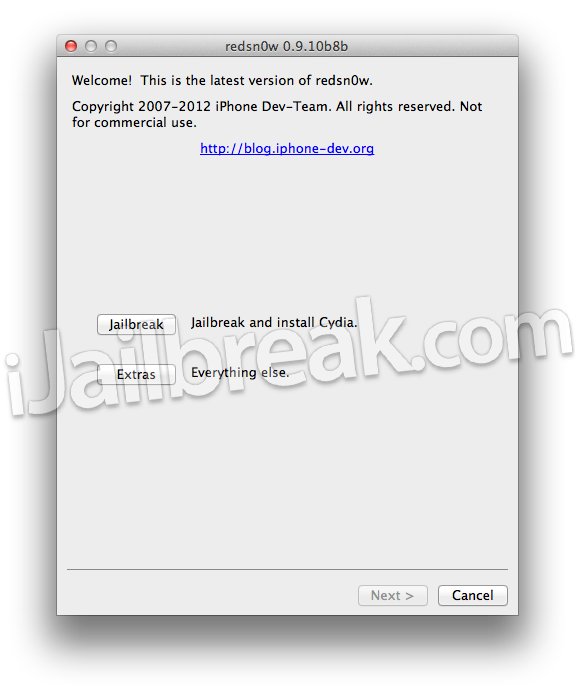
Step 3) – With RedSn0w running you will need to click the Jailbreak button.
Step 4) – After clicking the Jailbreak button you will come to a screen where you will need to put your iPhone into DFU mode.
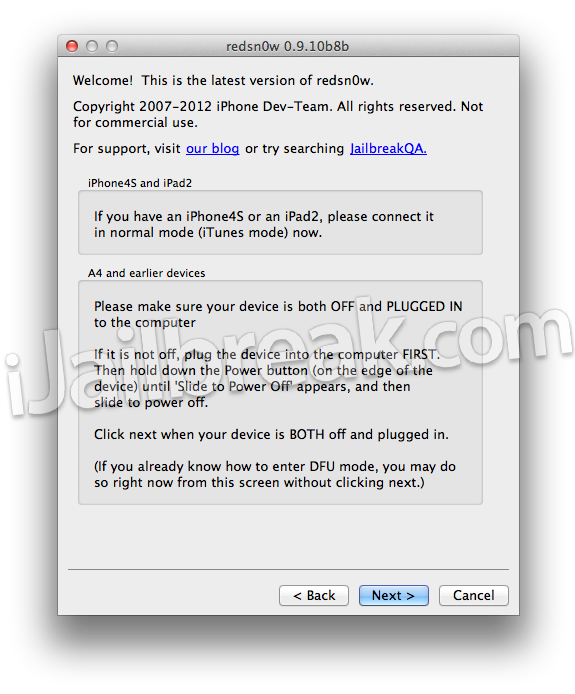
Read through and follow the instructions presented to you which is to plug in and power off your iPhone and then click the next button when you are ready to begin the DFU mode process.
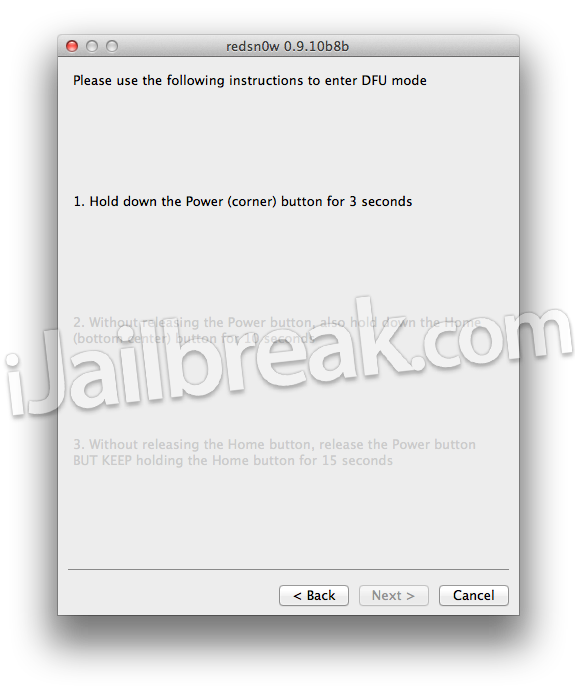
Step 5) – When you click the next button you will need to follow the instructions presented to you in real-time to put your iPhone into DFU mode.
- Hold down Power (corner) button for 5 seconds.
- Without releasing the Power button, also hold down the Home (bottom center) button along with the Power button for 10 seconds.
- Without releasing the home button, stop holding down the power button for up to 15 seconds.
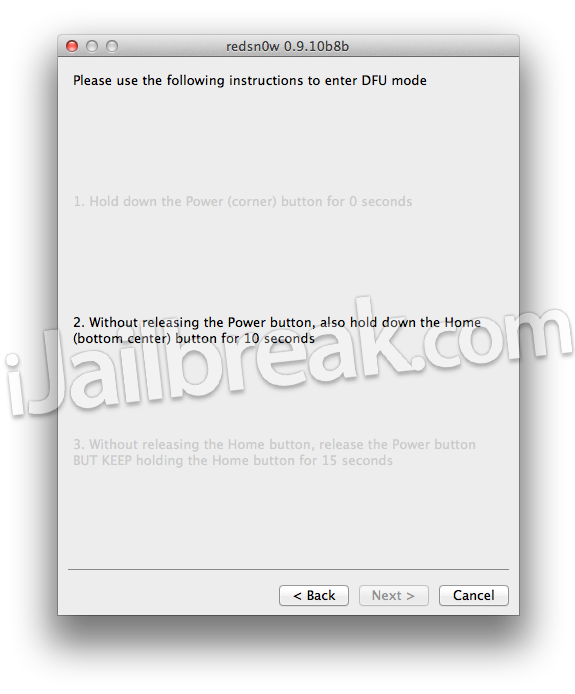
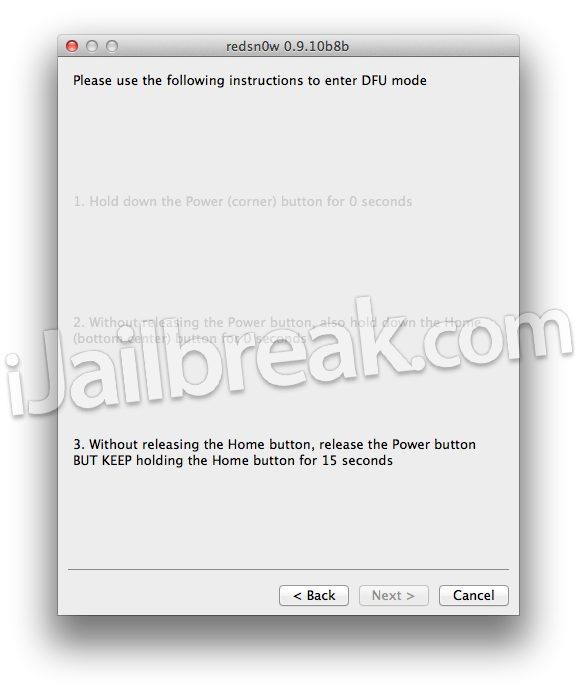
Step 6) – After you successfully enter DFU mode RedSn0w 0.9.10b8b will begin preparing your iPhone for the Jailbreak.

Step 7) – Once RedSn0w has finished preparing your iPhone for the Jailbreak you will be asked you to specify options to go along with your Jailbreak. The only option that you actually need to make sure is checked is the Install Cydia option. Once you have ensured this option is checked, and any other options you may want, click the Next button.
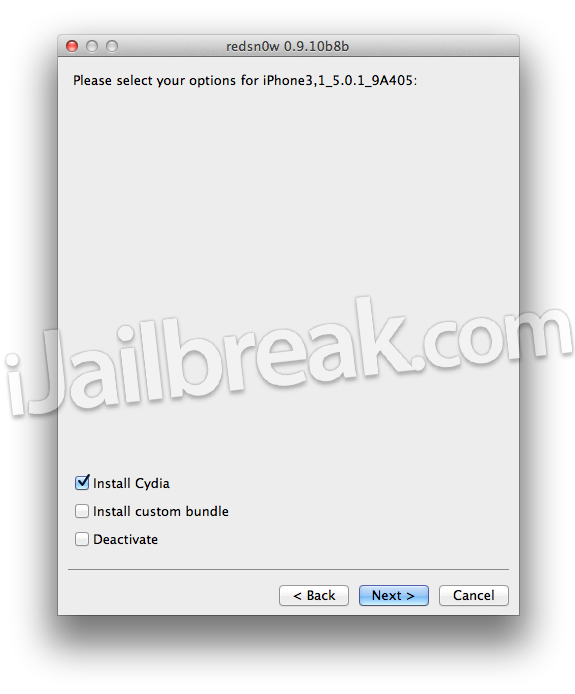
Step 8 ) – After you have specified your Jailbreak options you can click the next button and RedSn0w 0.9.10b8b will begin Jailbreaking your iPhone. DO NOT interrupt or use the computer during this time. When your iPhone is finished being Jailbroken it will boot up with the Apple logo and not go any further. This is because you have a tethered Jailbreak and you will need to put your iPhone back in DFU mode and use RedSn0w 0.9.10b8b to boot it back into a functional and Jailbroken state.
Step 9) – As explained previously when you Jailbreak your iPhone tethered you will need to plug it into your computer every time your iPhone loses power to regain all functionality. Thus, to reboot your iPhone into a functional and Jailbroken state you will need to launch RedSn0w again, click the Extras Button > then click the Just boot button and you will simply need to put your iPhone into DFU mode again.
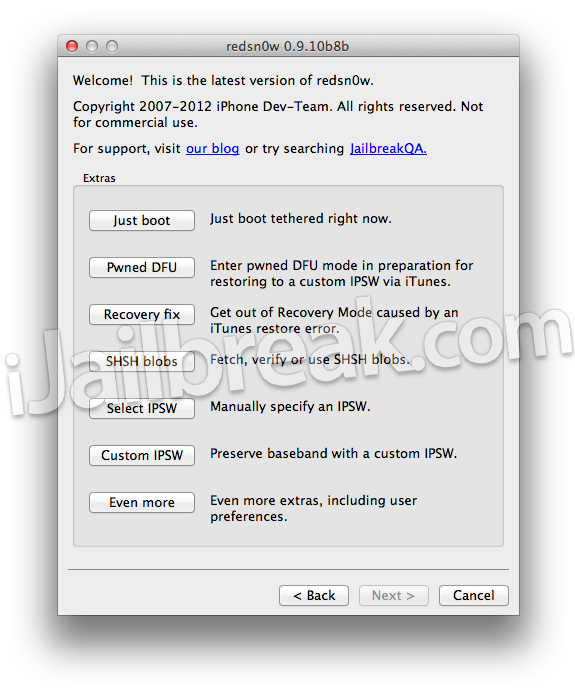
Your iPhone 4 or iPhone 3GS should now be Jailbroken on the iOS 5.1.1 firmware. Congrats! For more tutorials visit the How To Jailbreak Section. Leave any questions in the comments section below.
Need HELP!!!! I have a problem with my phone after jailbreak. when i reboot my phone, my phone come to safe modem but it doesn’t say anything in the top os screen. How i can fix that problem?
go shop and buy a new one.
is this for iphnoe 4s alo?
use redsnow to boot tethered…
once im in dfu mode it wont diplay the next button
I tried to jailbreak my iPhone 3gs, i followed the instructions from this site but i ended up with my phone not working as a phone anymore. I’ve lost the safari, phone, contact and messagin icones and i can’t see how to put them back on. I don’t really know much but if you could please help me, it would be great! Thx anyway
I guess it is done I have followed all the process shown but still it is no service..
after doing DFU mode wen i click to jailbreak it shows ” wrong mode ”
hi…
I have iPhone 3Gs.update iOS 5.1.1.how to
jailbreak my iphone 3Gs.plz
Does this work for baseband 4.10????
how to download jailbreak 5.1.1 please help me guys
in my ipod help help
man every time i try dis it keeps saying your device is not supported man why any one help me plz or is it do i have to wait for like 1 month
when i jailbreak my iPod 4g it always stops at waiting for reboot
what should i do?
i’m gettin ERROR 2000 while i’m starting my jailbreak….what is that ???
unrecognized build ….
does this actully work or is it a waste of time
i follow your instructions and i did it without any problem.
but when i on my phone it’s showing me no signal
please tell me what should i do
apple iphone 4 jain break chaiya de hai