Until now the only tools available to Jailbreak the iOS 5.1.1 firmware Untethered were Absinthe 2.0, Cinject or Sn0wBreeze. With the iPhone Dev-Team updating their arsenal of tools however, that include both RedSn0w and the PwnageTool, it has given the Jailbreaking community even more flexibility in how they Jailbreak their iPhone, iPod Touch or iPad.
With RedSn0w now supporting Jailbreaking both A5 and A4 iOS devices Untethered on the iOS 5.1.1 firmware I am sure you are wondering why you would want to use RedSn0w over say Absinthe 2.0. Well, the answer to this question is you will want to use RedSn0w 0.9.12b1 if you are Jailbreaking your A4 iOS device. This is because the iPhone Dev-Team have mentioned it can help avoid issues with iCloud syncing on those devices with a lot of media. For some people who are used to Jailbreaking with RedSn0w you might also just naturally be drawn to using this great multifunctional Jailbreaking tool.
As such, in this How To guide you will learn how to Jailbreak your iPhone 4, iPhone 3GS, iPod Touch 4G, iPod Touch 3G or iPad 1G Untethered on the iOS 5.1.1 firmware with the Mac OS X version of RedSn0w 0.9.12b1.
Jailbreak A4 iOS 5.1.1 Untethered RedSn0w 0.9.12b1
Step 1: The first thing you will need to do is download the latest version of RedSn0w, which at the time of writing this how to guide is RedSn0w 0.9.12b1. You can download RedSn0w 0.9.12b1 from iJailbreak’s Downloads section.
Step 2: Once you have downloaded RedSn0w you will need to launch it by double clicking on the redsn0w app.
Step 3: Before going any further with RedSn0w you will need to place your A4 iOS device into DFU mode. To do this you will need to follow the instructions present to you below:
- Hold down Power (corner) button for 5 seconds.
- Without releasing the Power button, also hold down the Home (bottom center) button along with the Power button for 10 seconds.
- Without releasing the home button, stop holding down the power button for up to 15 seconds.
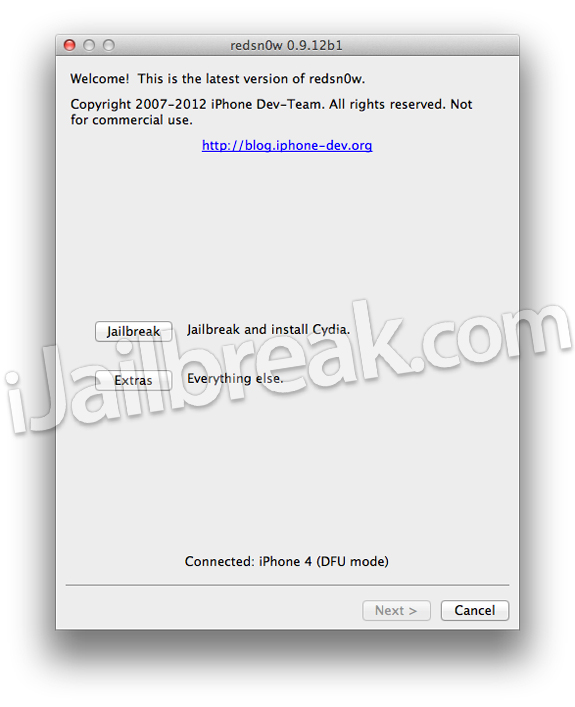
Step 4: Once your iOS device is in DFU mode you should note that at the bottom of RedSn0w 0.9.12b1 it says “Connected: iOS device (DFU mode)”. When you do indeed see this you will need to click the Jailbreak button.
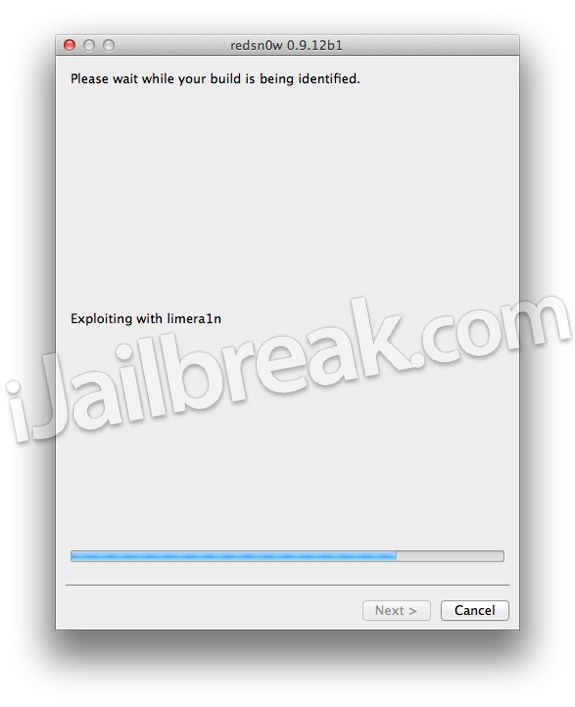
Step 5: After clicking the Jailbreak button you will notice RedSn0w will immediately start preparing your iOS device for the iOS 5.1.1 Untethered Jailbreak.
Step 6: When RedSn0w 0.9.12b1 has finished preparing your iOS device for the Jailbreak you will be asked you to specify options to go along with your Jailbreak. The only option that you actually need to make sure is checked is the Install Cydia option. Once you have ensured this option is checked, and any other options you may want, click the Next button.
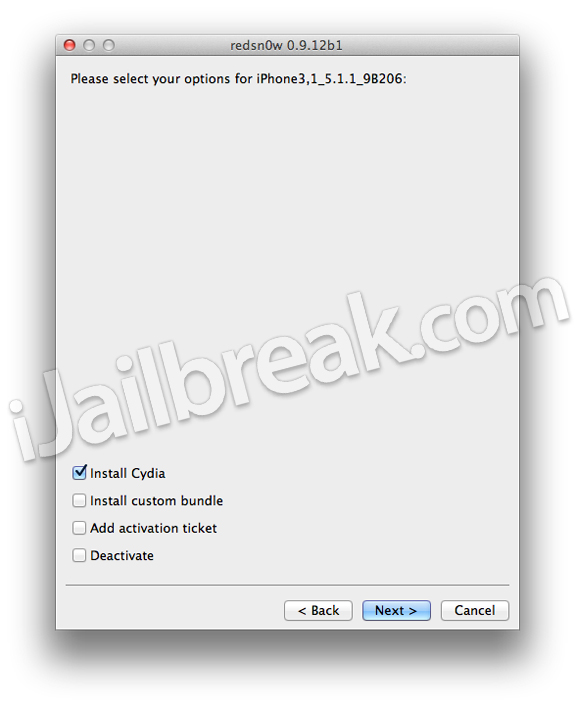
Note: If you took advantage of the SAM unlock and saved your activation tickets you can simply click the Add activation ticket option, browse for your backed up tickets and have RedSn0w restore them for you.
Step 8: After you have specified your Jailbreak options you can click the next button and RedSn0w 0.9.12b1 will begin Jailbreaking your iOS device. DO NOT interrupt or use the computer during this time. When your iOS device is finished being Jailbroken it will boot up without the need of any assistance because this is an Untethered Jailbreak. When your iOS device is in a functional state, slide-to-unlock, and then tap the new Cydia icon on your SpringBoard (homescreen). Congratulations!
Jailbreak A5 iOS 5.1.1 Untethered RedSn0w 0.9.12b1
Step 1: Download RedSn0w from the iJailbreak Downloads Section.
Step 2: Launch it by double clicking on the redsn0w app.
Step 3: With RedSn0w up and running you will need to plug in your A5 iOS device if you have not already, and wait for RedSn0w to recognize it. Once RedSn0w indeed recognizes your A5 iOS device you will need to click the Jailbreak button.
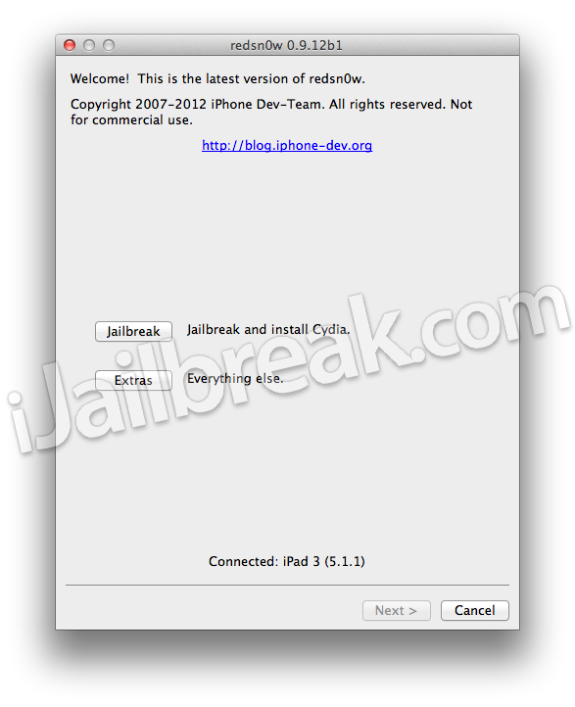
Step 4: After clicking the Jailbreak button you will notice RedSn0w will immediately start Jailbreaking your A5 iOS device. During the Jailbreaking process it will look like your iOS device is being restored, which is normal. Do not disturb your iOS device during the Jailbreaking process.
Step 5: When your iOS device is in a functional state, slide-to-unlock, and then tap the new Cydia icon on your SpringBoard (homescreen). Congratulations! This means your Jailbreak was successful.
If you have any further questions or thoughts please direct your attention to the comments section below.
Update #1: How To Use RedSn0w 0.9.12b1 To Restore SAM Unlock Activation Ticket
will it delete data????
Doesn’t work….. Get error “jailbreak failed Error 2000”
cydia doesn’t work “host unreachable.. cached failure”
it worked for me and thank u redsnow
Is this also possible for Windows? Please reply…
Worked like a charm.
you must first put your phone in DFU mode follow the instructions word for word on the screen
hey anybody there to reply me right now, I will cheer up to get a reply now.
I want to jailbreak my iPhone 4 with IOS 5.1.1 but don’t know what u guys mean by Tethered and Untethered, plz tell me something about these two and let me know if my iPhone will accept my sim after jail-breaking process is done cause I heard from somebody that I may need to install Ultrasnow through Cydia once Cydia is installed
My iPhone 4 is on IOS 4.0.2. How do I get it jailbreak to 5.1.1? Any additional steps to do?