It is arguable that there are a number of frustrating things about the current iPhone OS. One of them, for me, is how few SMS tones are included, and the fact that you cannot add and/or change them. Not officially, anyway.
This is a trick I figured out early on, in my iPhone days, and I have been using it ever since. Today I’m going to show you how to create SMS tones for your iPhone, and then show you how to install them. With this method, you will be able to install as many SMS tones as you want, using WinterBoard to activate them.
You will need your iPhone to be jailbroken for this to work. If you jailbreak with blackra1n, you will also need to install “acf2add”, from Cydia. You will also need to have WinterBoard installed, to activate you SMS tones. We are going to create the SMS tones with a program called “Audacity“. Then we will install the SMS tones, via USB, with a program called “DiskAid”. Both of these are free and available on Mac and PC, although the free version of DiskAid is limited to a 14 day trial. It is only $10, if you want to keep using it after that.
The process is simple, if you’re familiar with the root file system of the iPhone. Here’s the steps, in point form, but for a more indepth tutorial, please watch the video:
Step 1. Find a sound file that you want to have as your SMS tone. It can be any format that Audacity can handle. Just drag and drop it into the Audacity window.
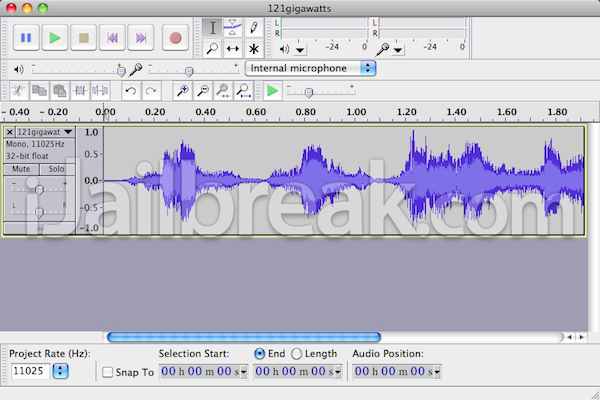
Step 2. Adjust the size and volume of you sound file. You want it to be pretty loud, so you can hear it from your pocket, and you want it to be no more than 3 seconds long, or it gets annoying. Technically, you can have your tone be as long as 30 seconds, but the tone will not stop when you open your Messages app, to reply to a message. It will always play the full 30 seconds.
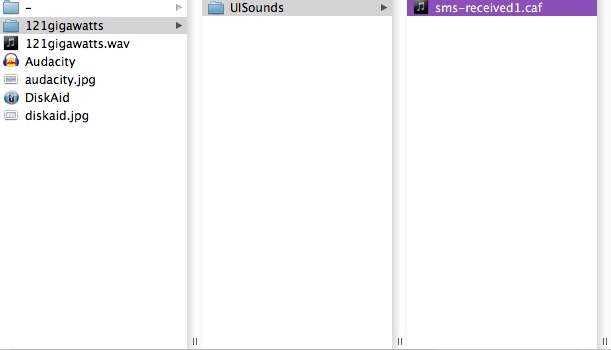
Step 3. Export the SMS tone as a AIFF file. Create a new folder on your desktop, and name it whatever your new tone is called. Inside that folder, create another folder and name it “UISounds”. Put your new tone into that folder. Rename your tone “sms-received1.caf”. Make sure you change the extension, as well as the name.
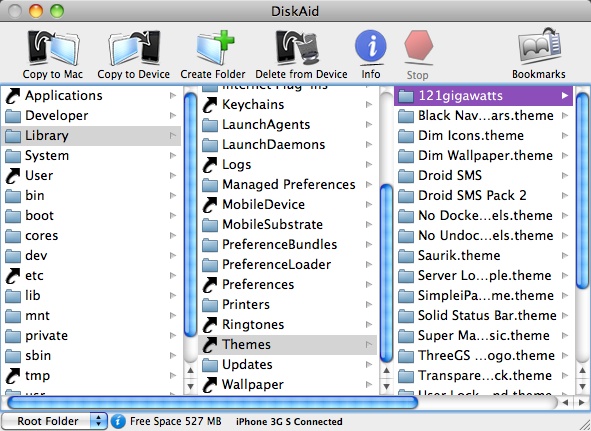
Step 4. Lastly, open up Diskaid and connect your iPhone. In the drop down menu, on the lower left, select Root folder. Navigate to Library > Themes, then click “Copy to Device”. Select the folder we created earlier, and click “Open”. That’s it. Your done! All you need to do now, is go into WinterBoard, on your iPhone, and activate your new SMS tone.
Here’s the video to help you out:
If you have any questions, please post in the comments below.
my iphone is jailbroken but when i click the root folder it says must be jailbroken bad partitian…what am i doing wrong. thanks
You probably need to install “afc2add”, from Cydia. This will give you access over USB. Blackra1n and Spirit jailbreaks don't include this feature.
I got the new folder installed in the Library/Themes section but it still doesn’t play. I’ve downloaded the AFC2ADD package and renamed the audio file to fit the .caf extension. It shows up in Winterboard but when I respring and try to test it from the settings app nothing happens.
I have the folder in winterboard when I try to use it nothing happens?
The file shows up in Winterboard, but doesn’t play, even when activated. I have a Verizon iPhone 4 jailbroken using greenpois0n at version 4.2.6. Any tips you could give me would be greatly appreciated. Thanks.
Same for me. When I put the file onto my phone it’s in winterbord, yet my Tri-tone doesn’t change.
can we make it as ANOTHER ringtone not REPLACING the old one?
Your mouse click noise is the most annoying noise I’ve ever heard in a video and almost made the video unwatchable. Change it.
i have done all as above but when i click on the tri-tone its silent
Any advice would be welcome
thanks
Andy
doubtful
:)
has anyone had the problem where you click on the tone and its the tone you have customized but when you receive a message it just comes up as tri tone? Please help
Mine worked first go! :-) THANKS